Stream Music from Cloud Storage on iPhone with Evermusic

TL;DR: Evermusic lets you stream your music library directly from Google Drive, Dropbox, OneDrive, and other cloud services on iPhone or iPad. No iTunes syncing needed. Download tracks for offline listening and free up device storage.
Why Stream Music from Cloud Storage?
If your music library takes up 50GB but your iPhone only has 32GB of space, storing everything locally is not an option. Evermusic solves this by streaming music directly from your cloud storage, keeping your device storage free for other apps and media.
Download Tracks for Offline Listening
Evermusic supports offline playback. Download your favorite albums, tracks, artists, or playlists directly to your device. Listen without an internet connection while traveling, commuting, or in areas with no signal.
Smooth Playback with Smart Buffering
Advanced buffering ensures fast track switching and continuous playback. The experience stays smooth whether you are streaming from the cloud or playing downloaded files.
Skip iTunes — Upload to the Cloud Instead
No need for the iTunes sync process. Upload your audio files to your preferred cloud storage from any Mac or PC, then play them instantly through Evermusic on your iPhone or iPad.
How to Play Music from Google Drive on iPhone
Setting up takes about two minutes. Here is a step-by-step guide:
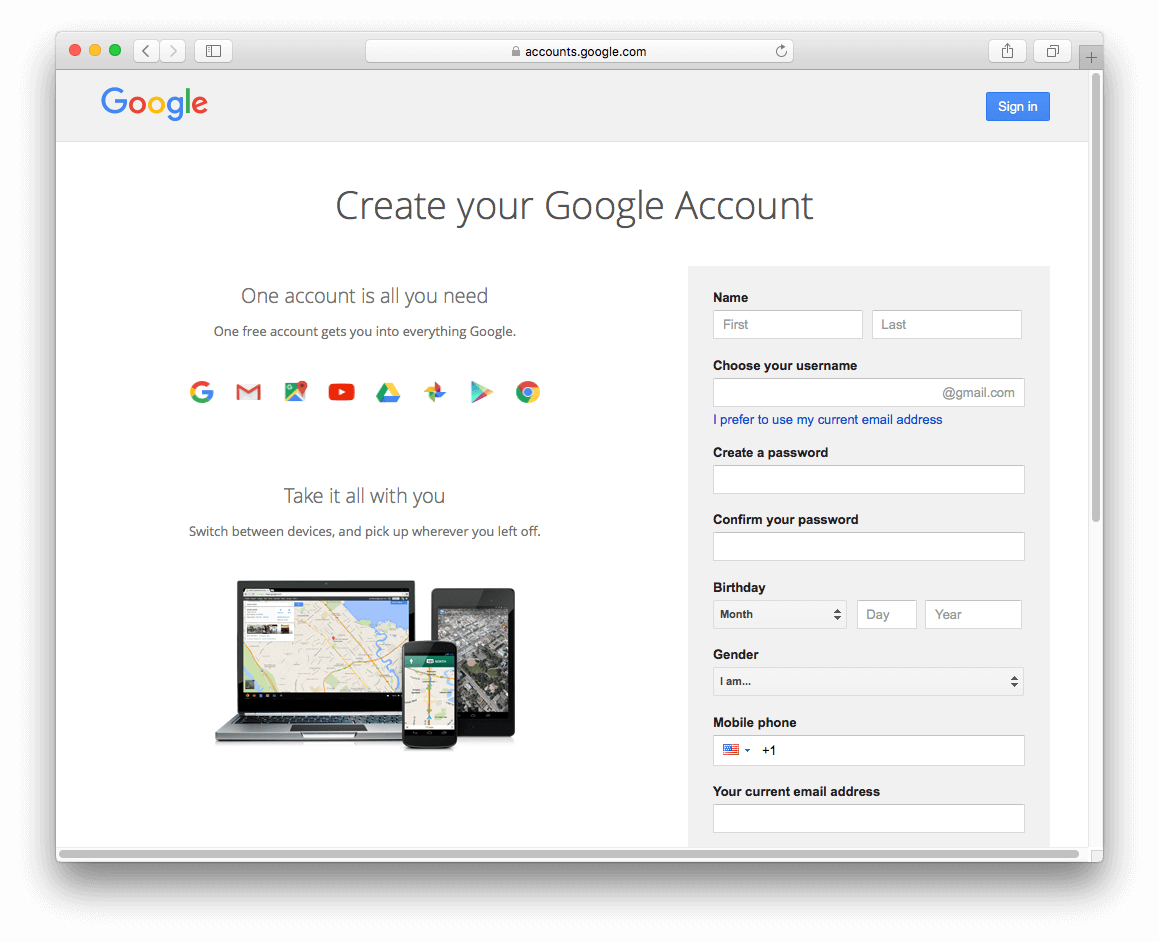
Step 1: Connect Your Cloud Account
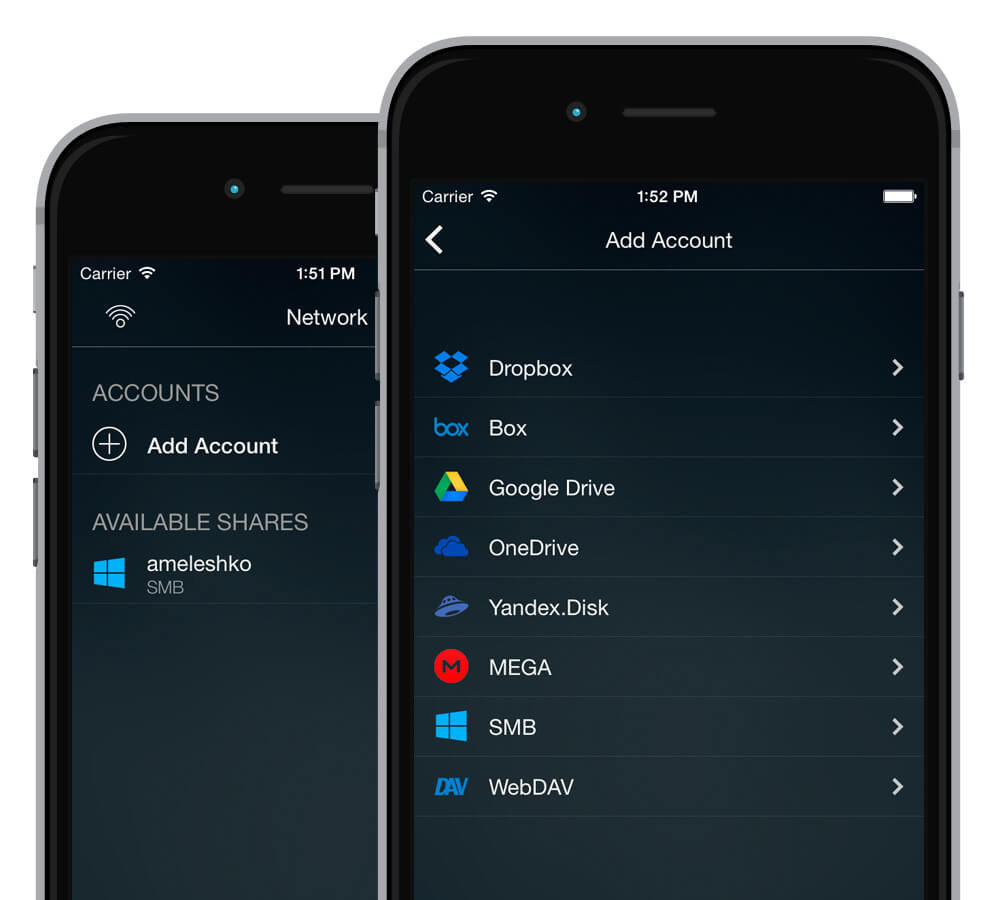
Evermusic supports Google Drive, Dropbox, Box, OneDrive, MediaFire, MEGA, Yandex.Disk, pCloud, HiDrive, MyDrive, SMB, and WebDAV.
Step 2: Install the Cloud App on Your Computer
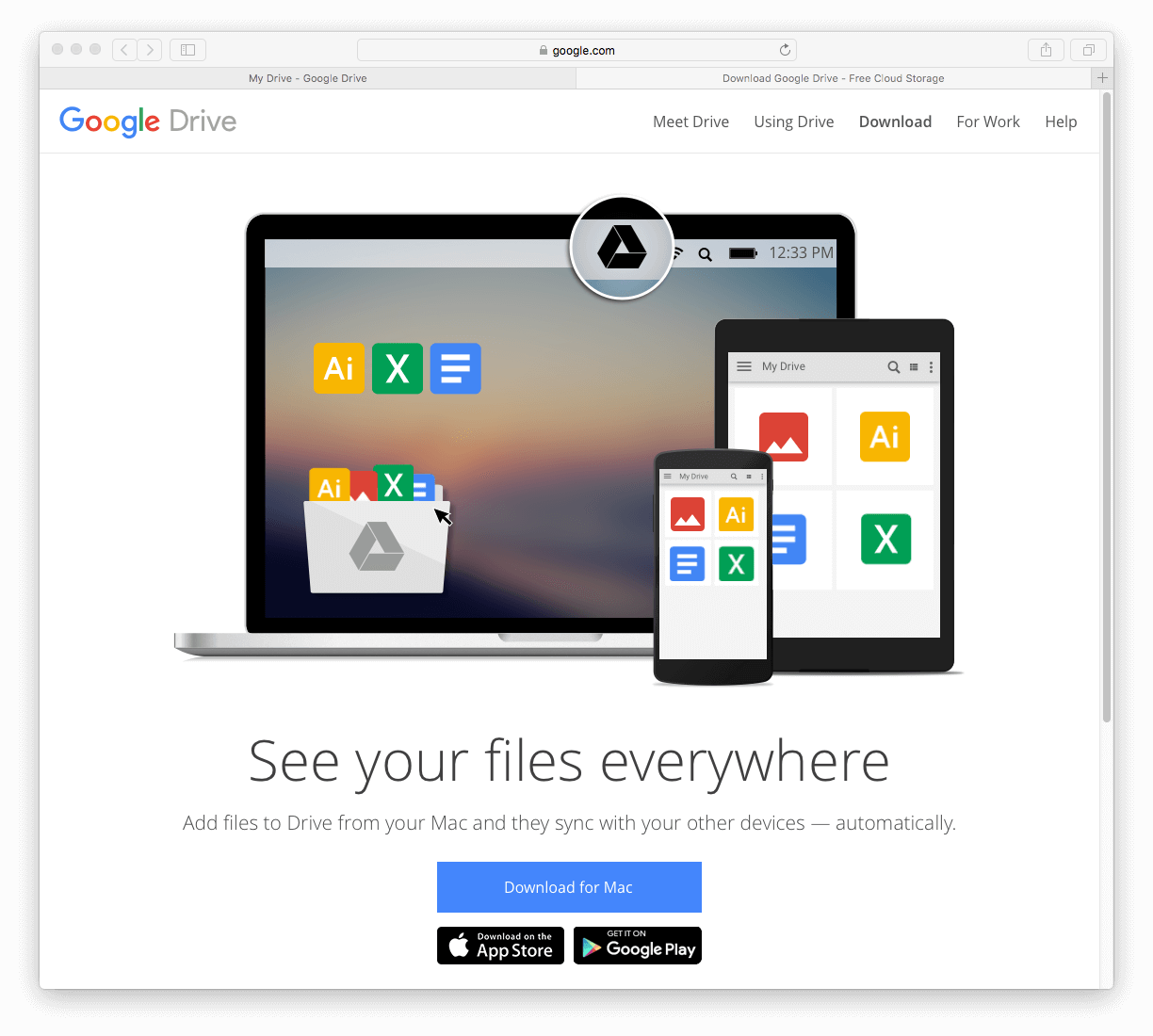
Download the cloud storage client (e.g., Google Drive) on your Mac or PC.
Step 3: Upload Your Music Files
Drag your audio files into the cloud storage folder on your computer, or upload them through the web interface.
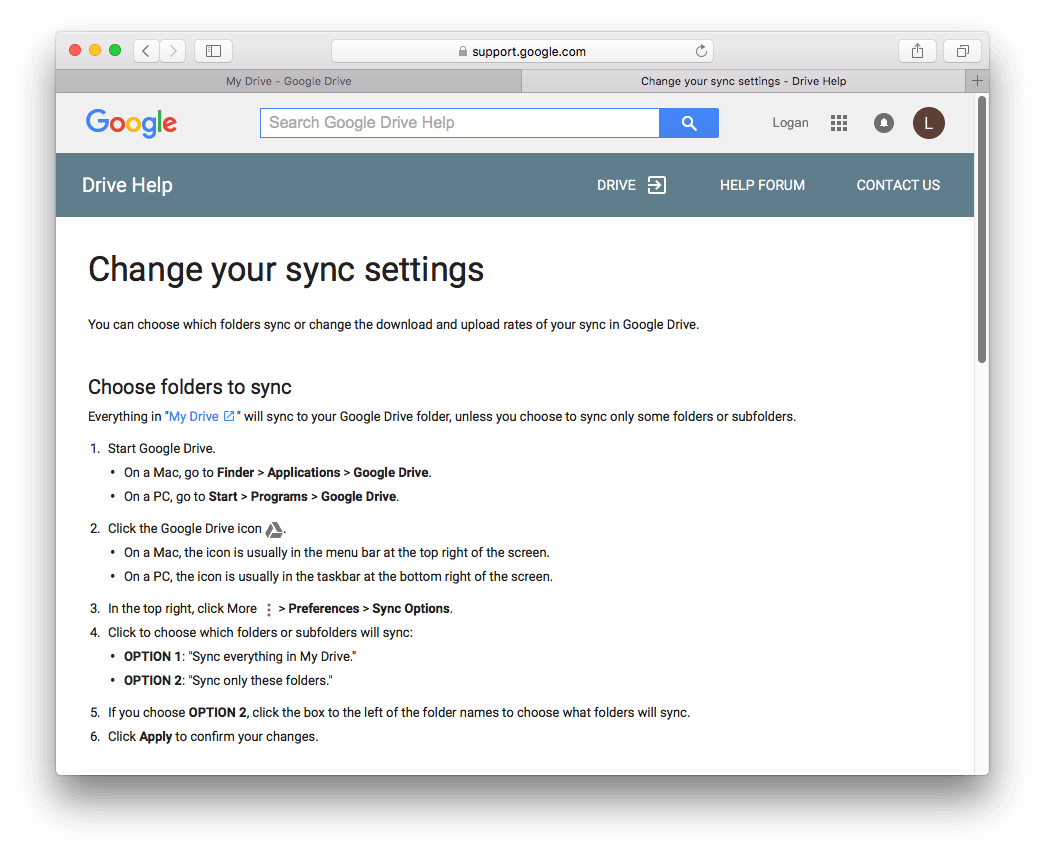
Step 4: Add Your Cloud Service in Evermusic
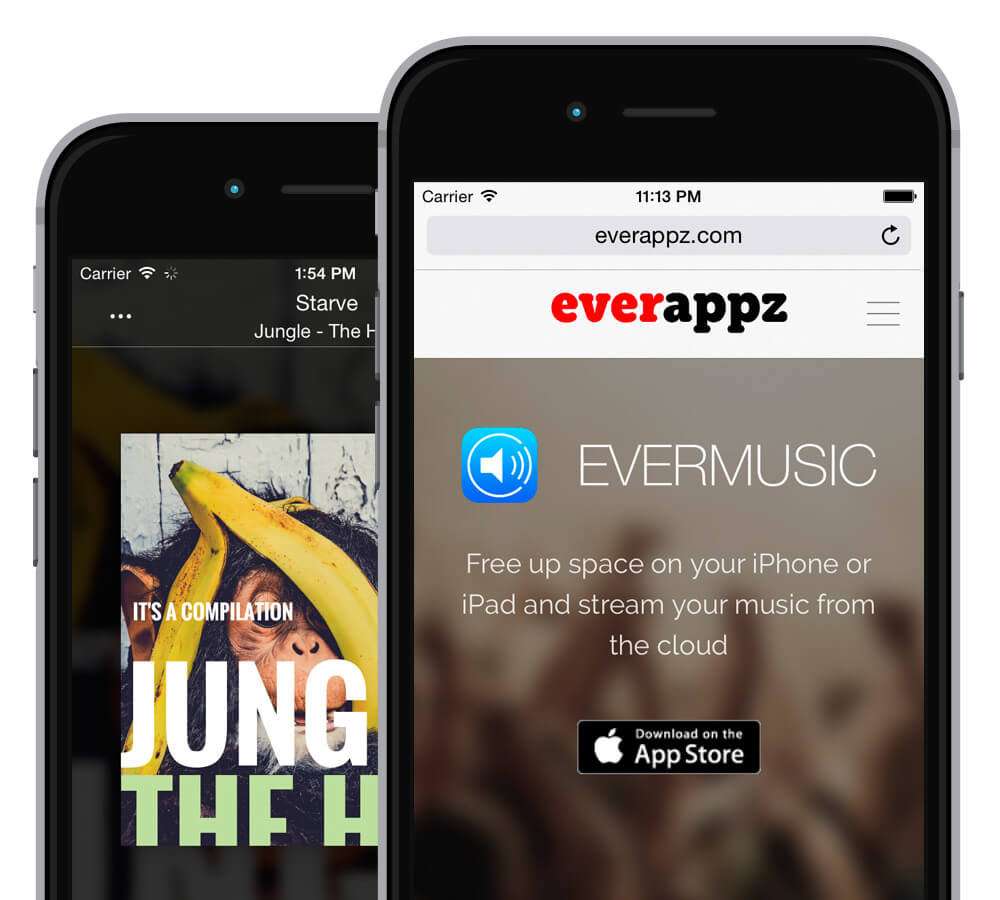
Launch Evermusic on your iPhone or iPad.
Go to the “Connections” tab and select “Connect a cloud service.”
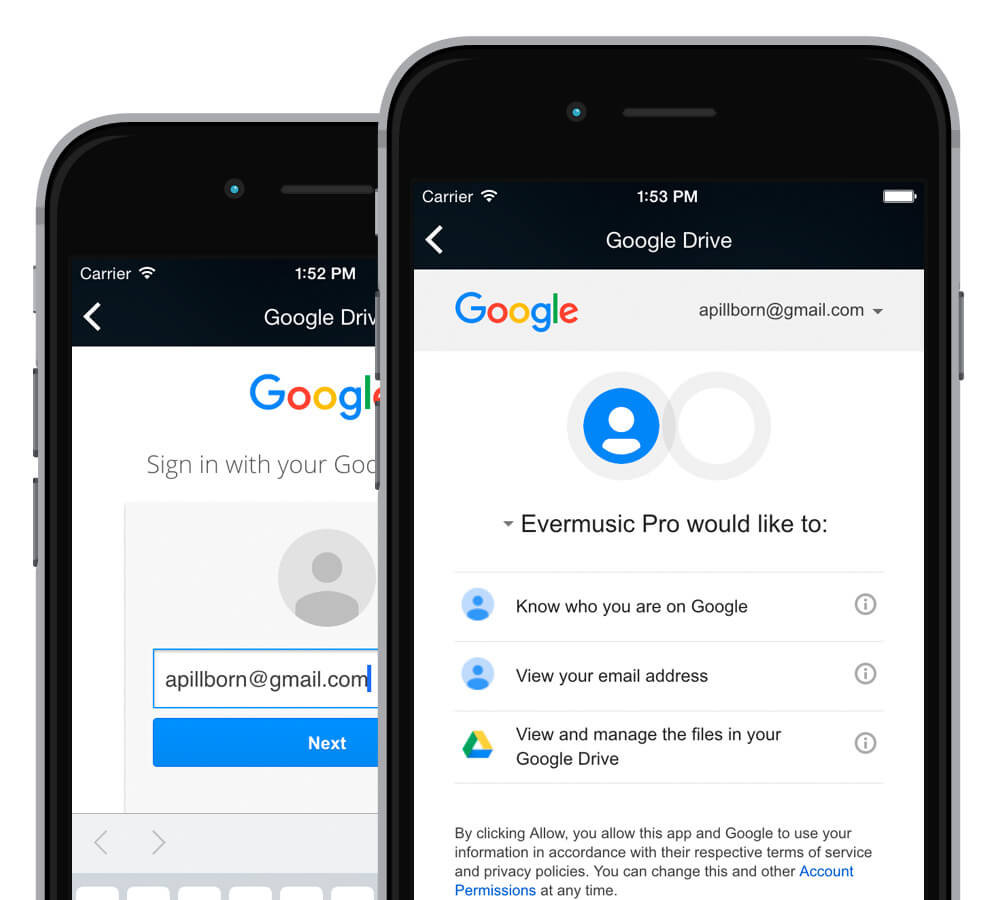
Log in to your cloud service. Evermusic only uses your credentials for connection and never accesses your files without permission.
Step 5: Start Playing
Browse your connected cloud account, open a music folder, and tap a file to play.
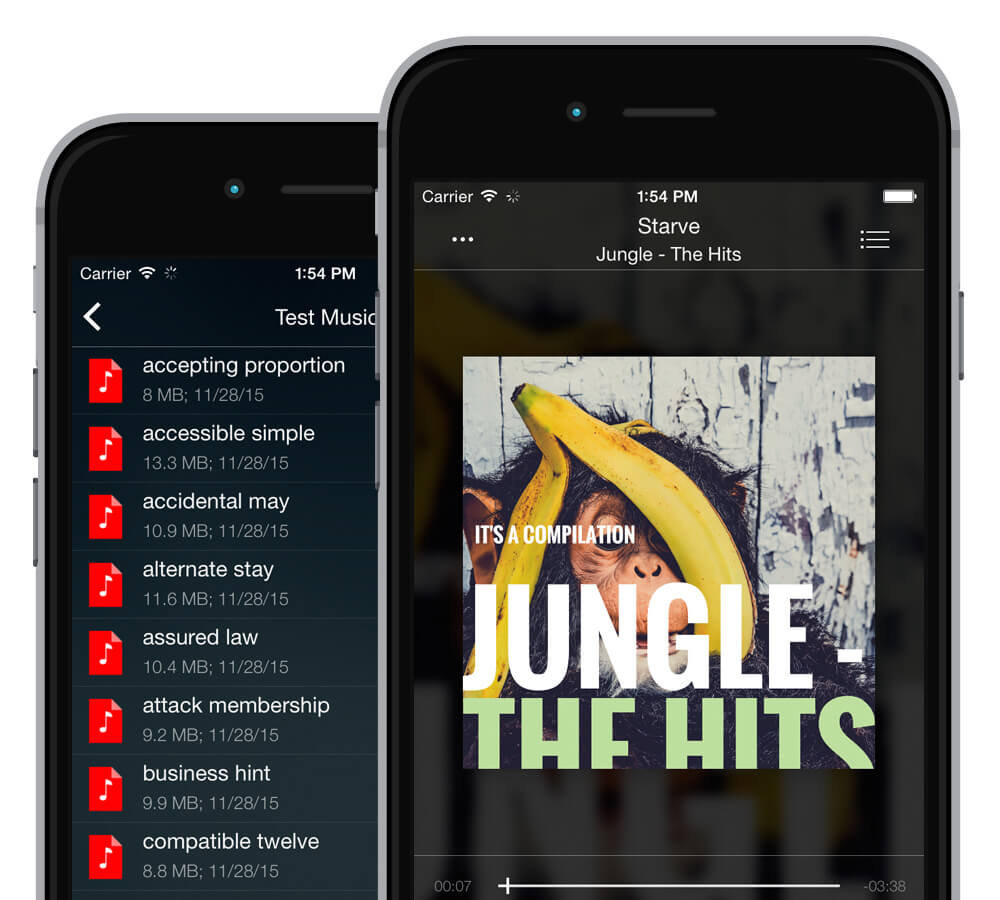
Download Evermusic from the App Store and start streaming your cloud music library today.