How to Upload Files to Cloud Storage and Connect to Evermusic, Flacbox, or Evertag

TL;DR: Upload your music or media files to any supported cloud service (Google Drive, Dropbox, OneDrive, and more), then connect that service inside Evermusic, Flacbox, or Evertag to stream or download your files directly on iPhone, iPad, or Mac.
Step 1: Sign Up for a Cloud Storage Account
If you haven’t already, sign up for a cloud service like Google Drive, Dropbox, OneDrive, etc.
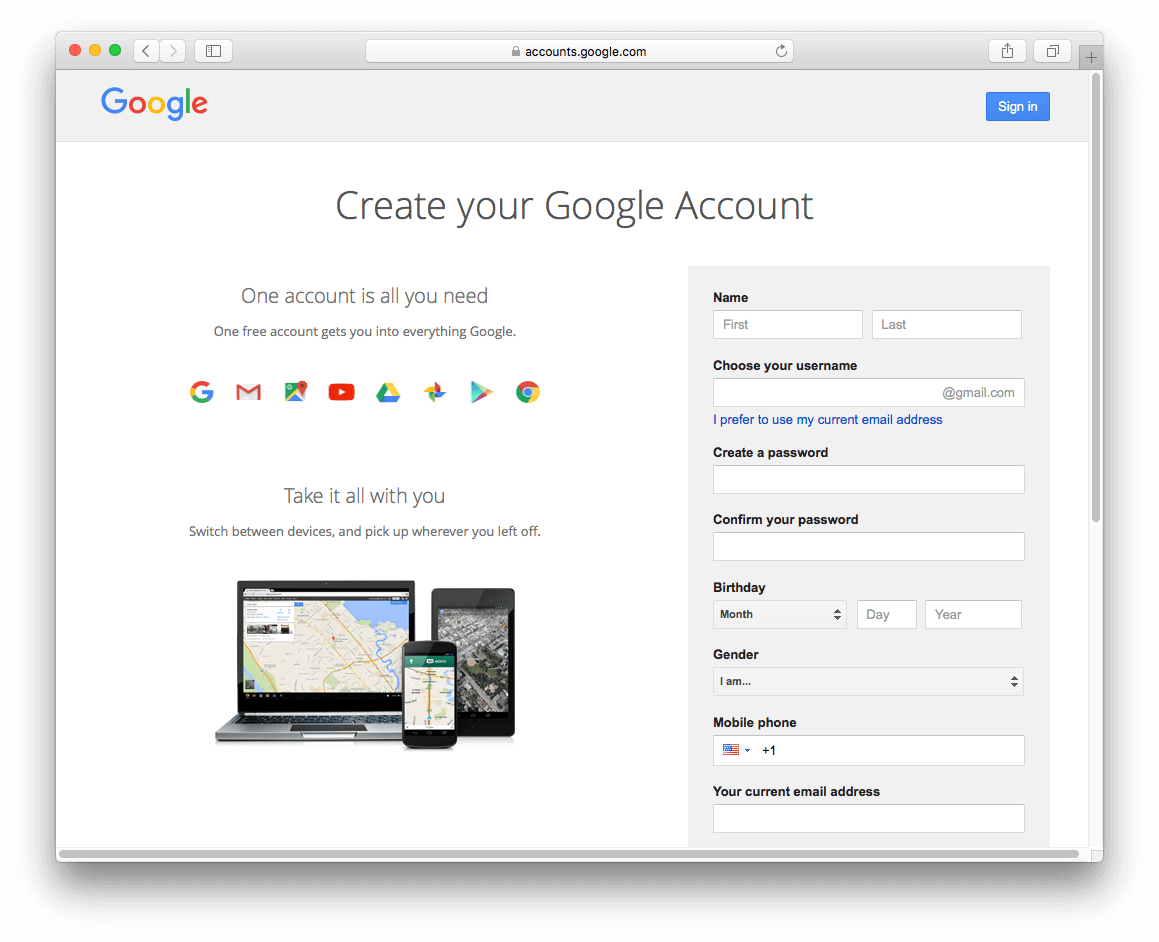
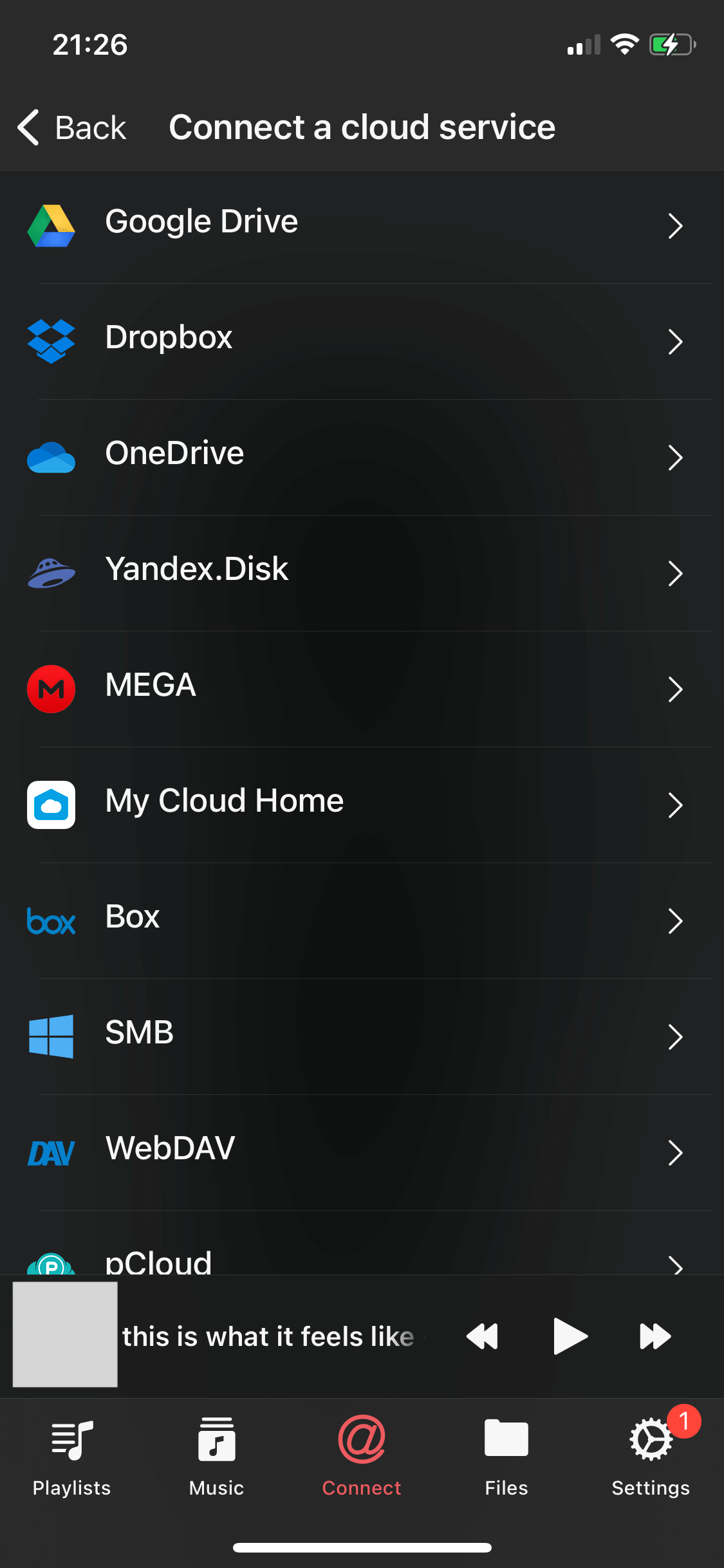
You can connect any of the supported accounts: Dropbox, Box, Google Drive, OneDrive, MediaFire, Yandex.Disk, MEGA, MyDrive, pCloud, and others.
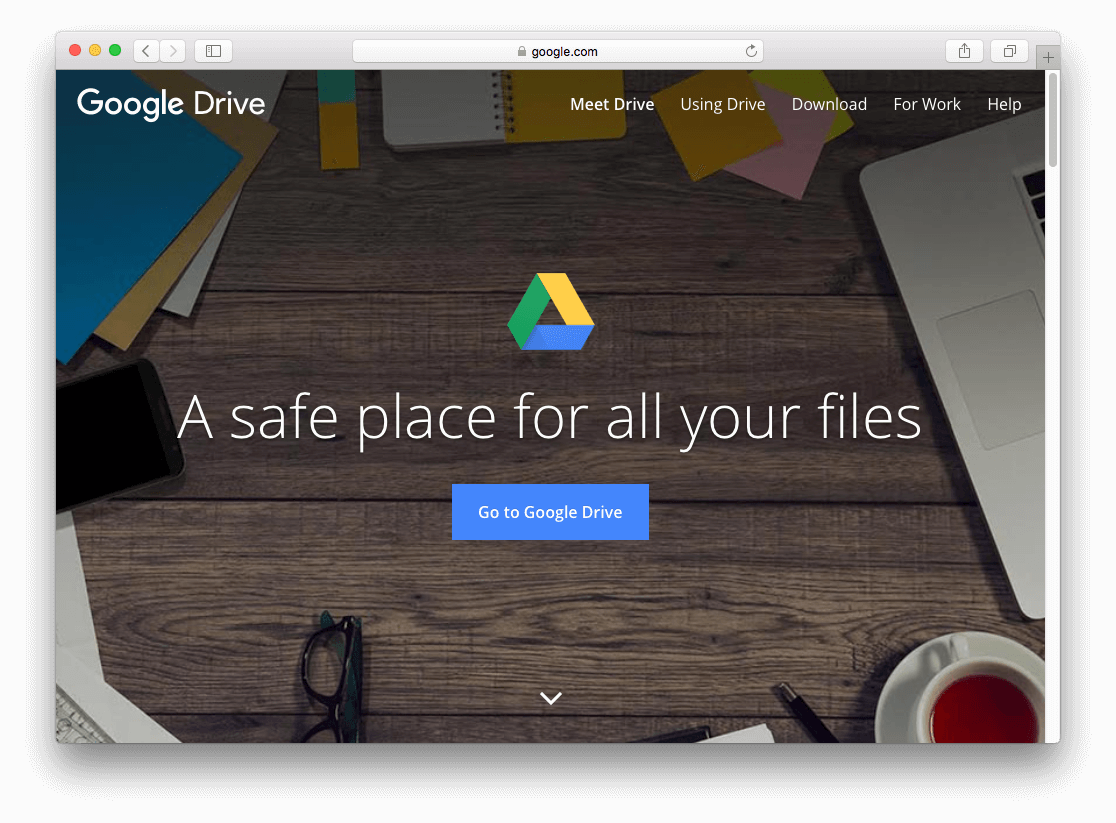
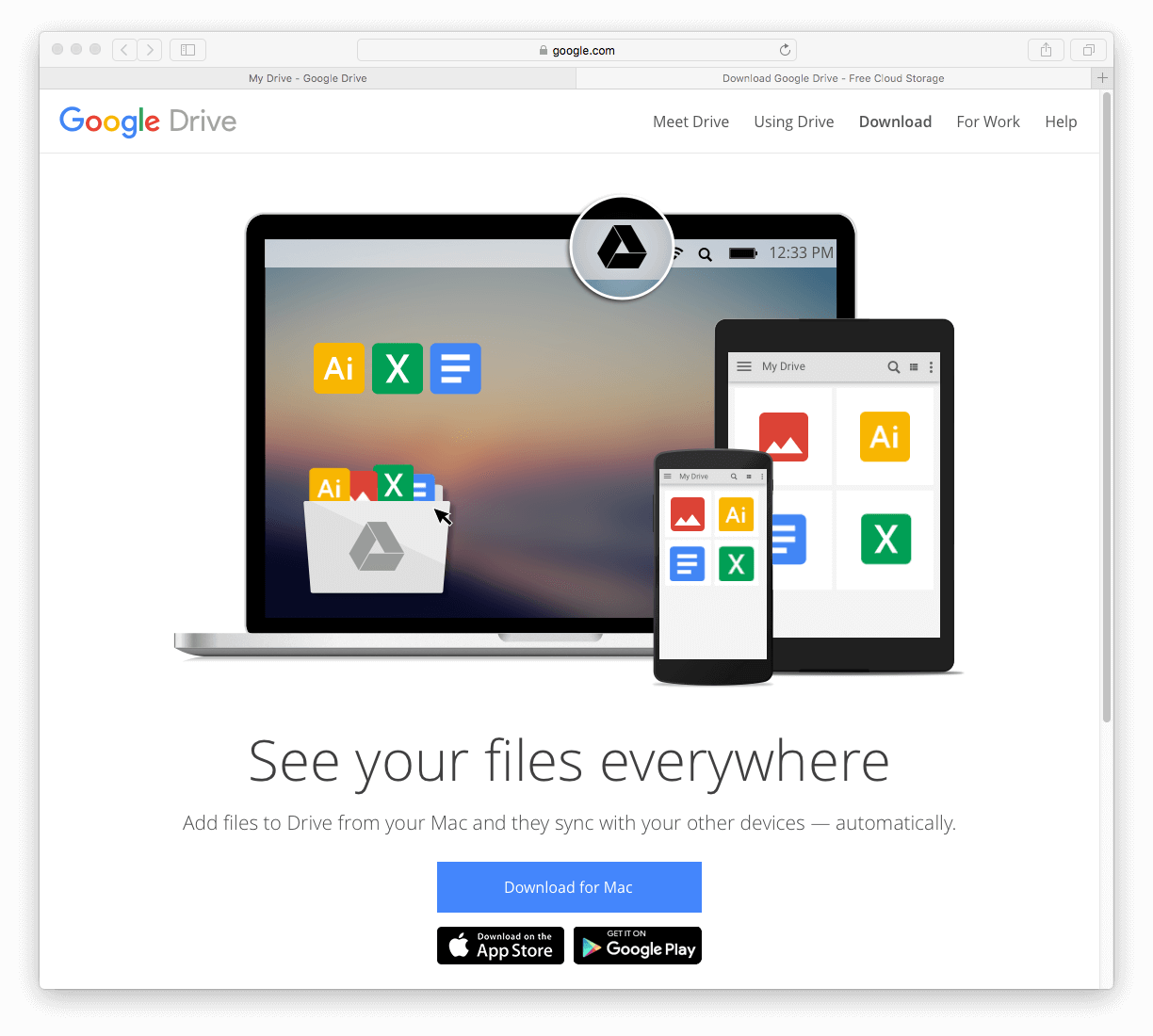
Step 2: Download the Cloud App for Your Computer
Download the official application for Mac or PC from your cloud provider.
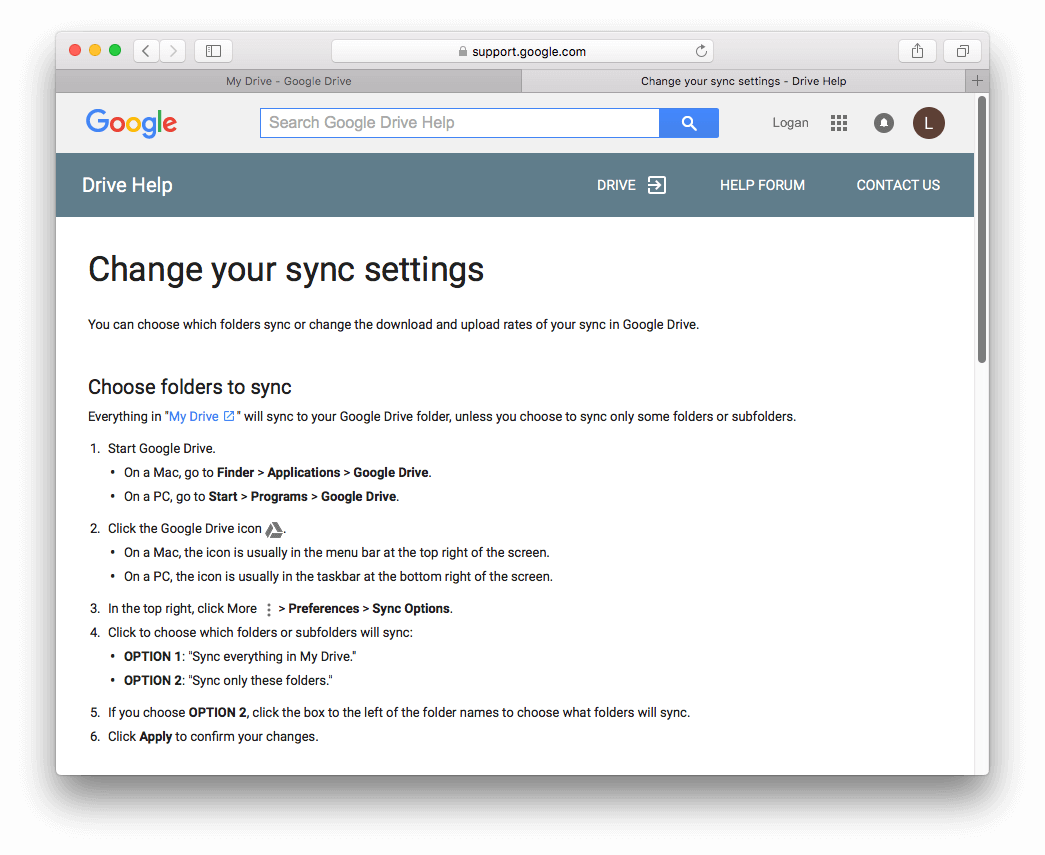
Step 3: Upload Your Files to the Cloud
Use the desktop app or web interface to move files into your cloud account.
Step 4: Connect Cloud Storage to the App
Once your upload is complete, open Evermusic, Flacbox, or Evertag on your iPhone, iPad, or Mac.
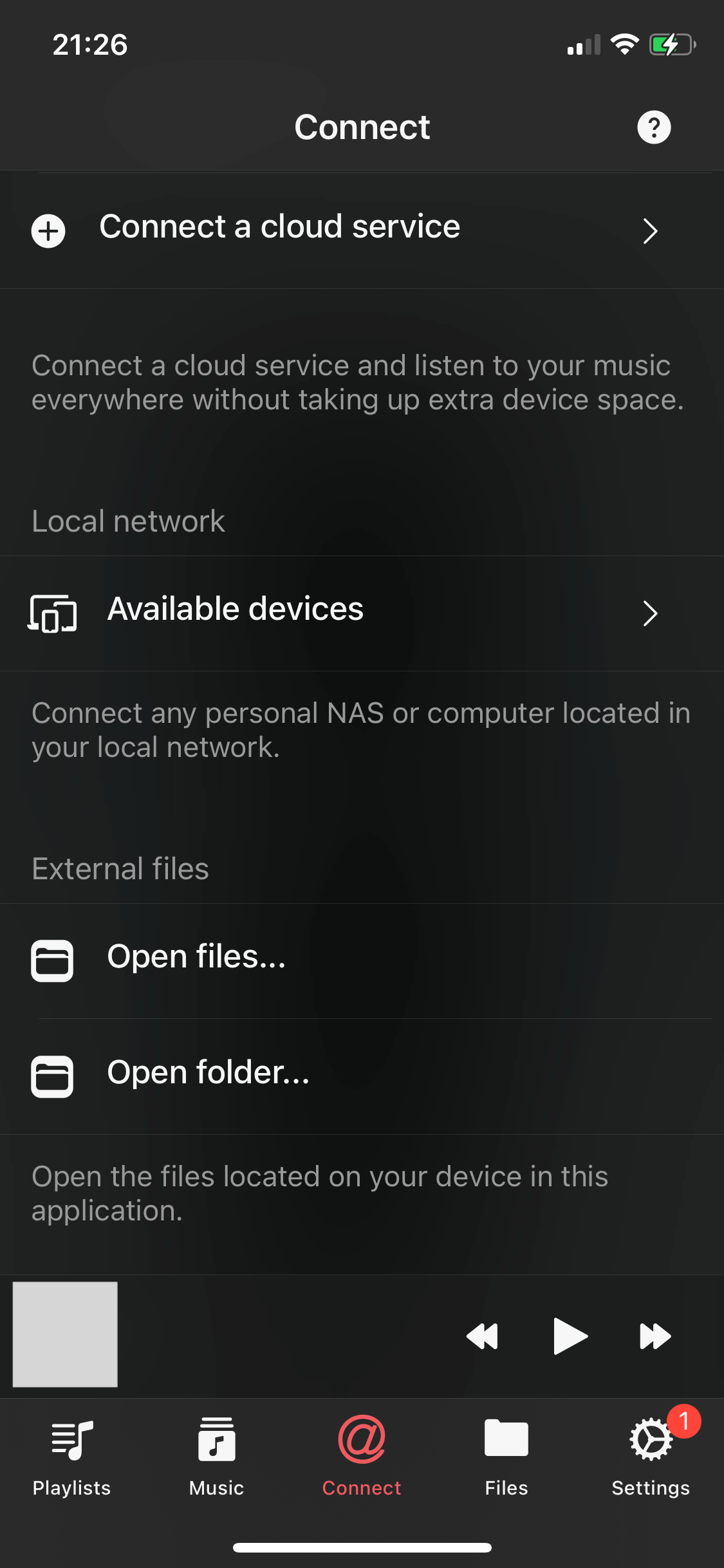
Step 4.1: Open Connections
Open the Connections tab and tap Connect a cloud service.
Step 4.2: Choose a Service
Select your cloud service from the list of supported services.
Step 4.3: Login
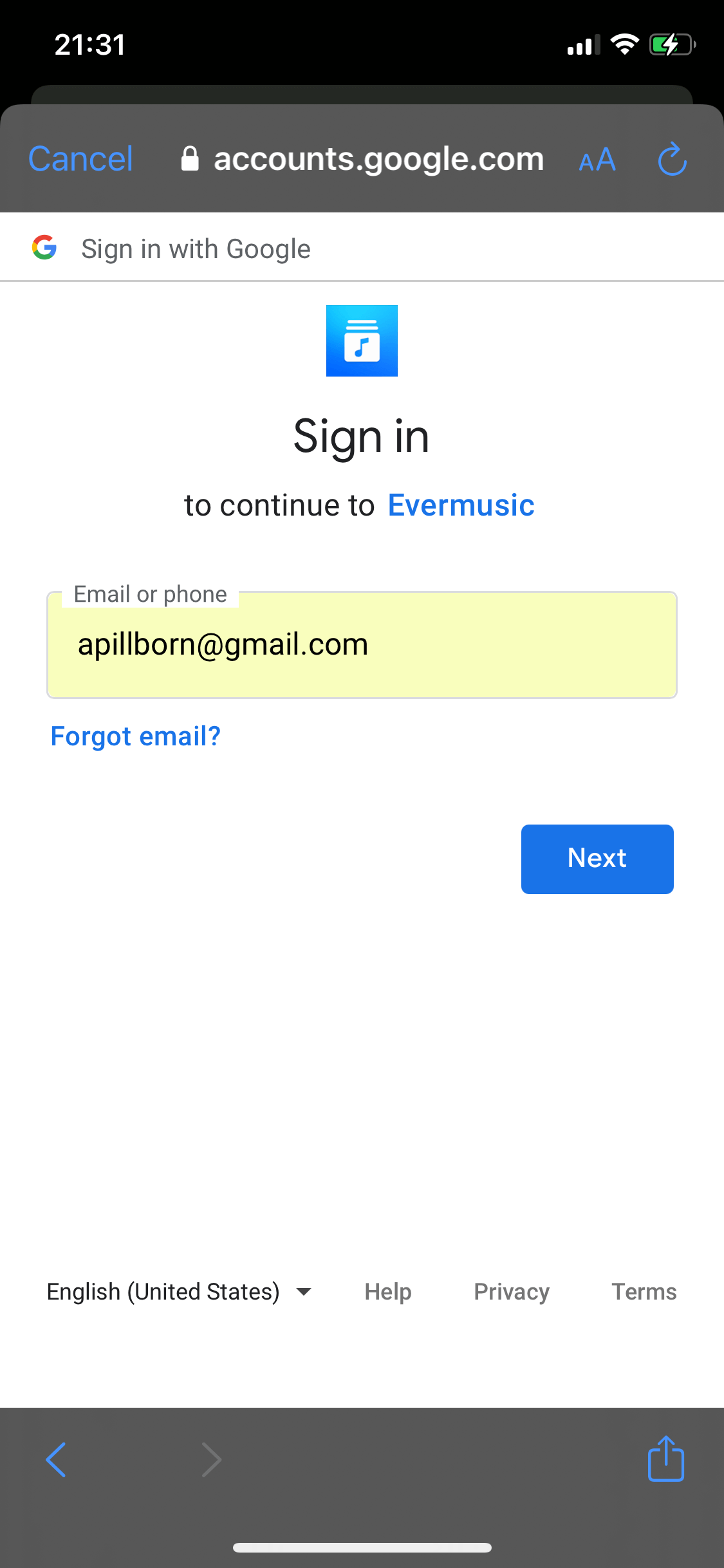
Enter your login credentials.
Step 4.4: Authorize Access
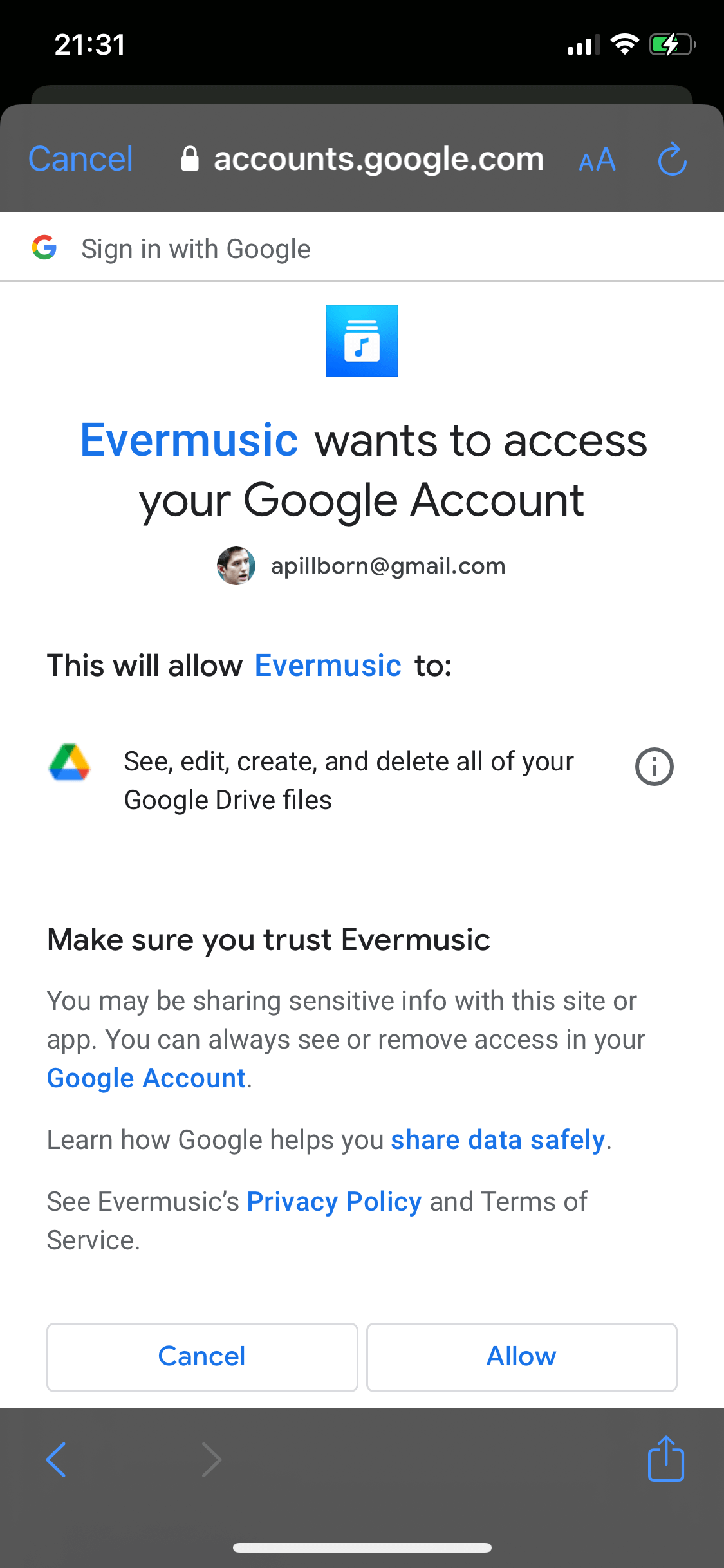
Allow the app to access files in your cloud storage.
Step 5: Manage Your Files in the App
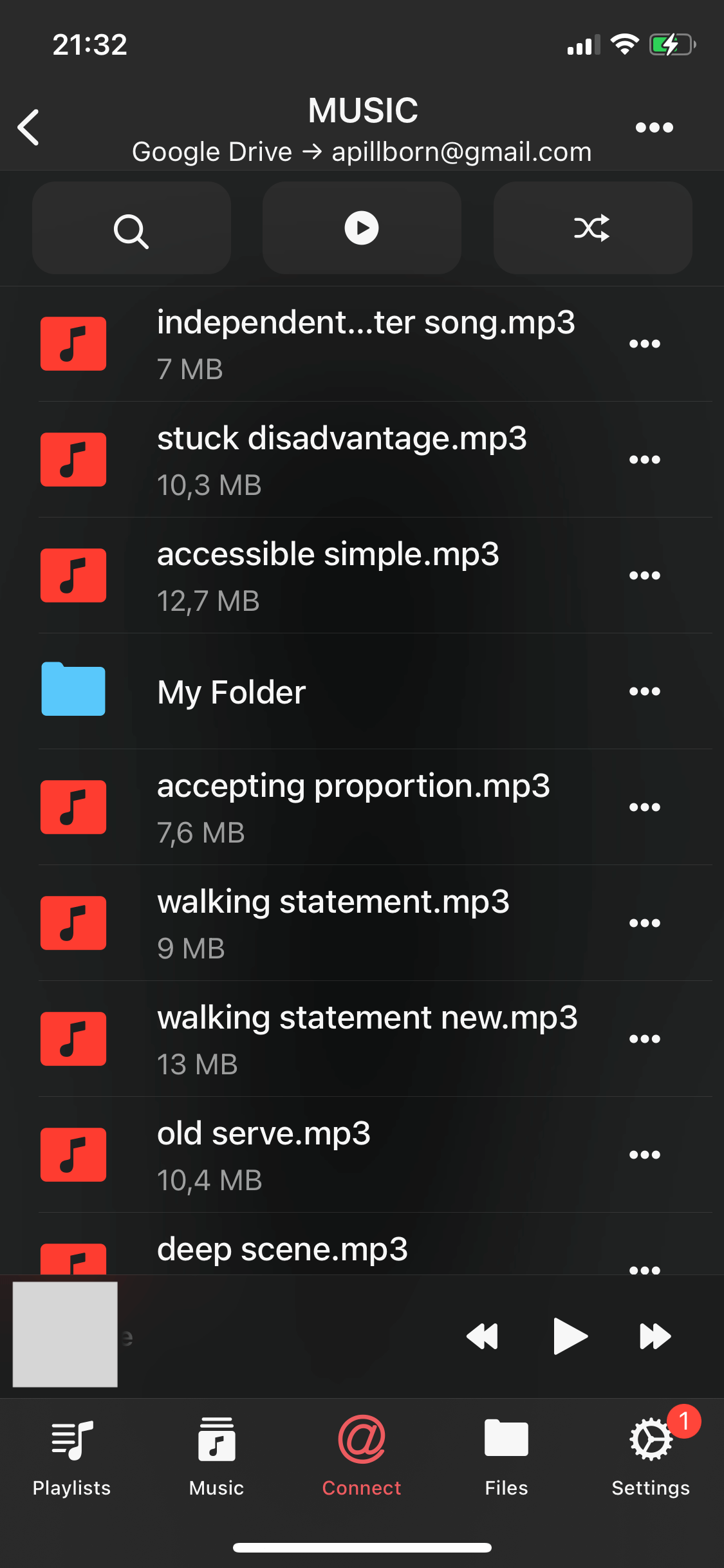
Once connected, browse your cloud files and manage them using the in-app file manager. You can move, rename, delete, or download files by tapping the More actions button ....
Conclusion
Connecting your cloud service to our apps streamlines file access and management, making it easier than ever to enjoy your files across different devices.
Say goodbye to storage limitations and hello to convenience!
Frequently Asked Questions
Which cloud services are supported?
Can I stream music directly from the cloud without downloading?
Is there a file size or storage limit in the app?
Can I connect multiple cloud accounts at the same time?
Do I need to re-upload files if I switch to a different app?
Is my cloud account data secure?
The app does not share any information from your cloud account. You can revoke access at any time from your cloud account settings page in a web browser, or disconnect the account inside the app.
How do I disconnect a cloud service or change its configuration?
Locate the cloud storage in the app’s Connections tab and tap the … button next to it. You will see these options:
- Rename – change the display name of the cloud service
- Settings – modify configuration or re-authorize if the token has expired
- Disconnect – remove the connection entirely. This removes all songs from this cloud service from the app’s music library, but files remain on the server