Tag Editor
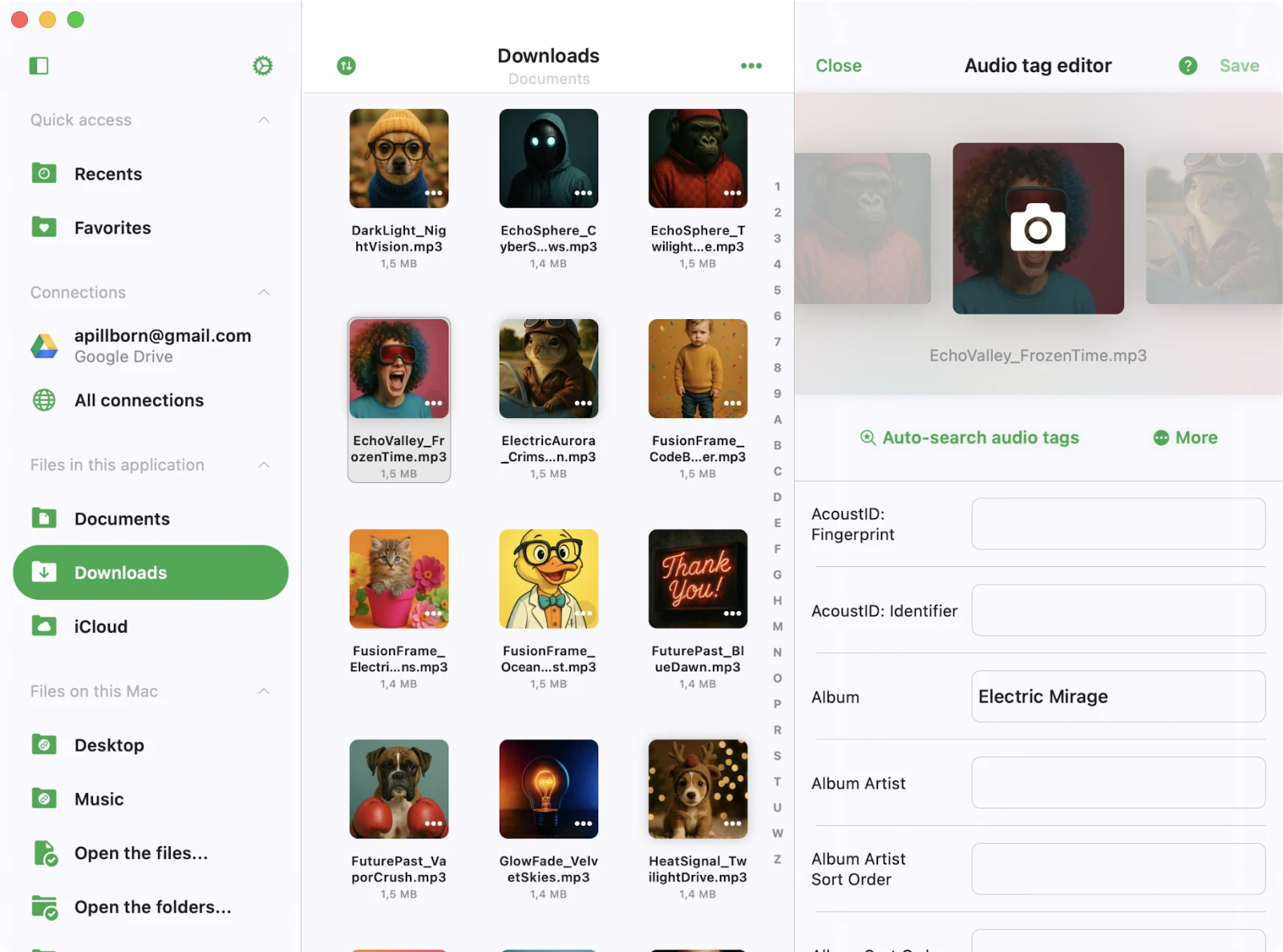
The Tag Editor is the main screen of the Evertag app where you can view and edit audio file metadata. Open this screen by tapping a file from the Local Files section or from any connected cloud storage account.
Editing Modes
Evertag provides two editing modes:
-
Single-file mode
- Navigate between files by swiping left or right on the artwork carousel.
-
Batch mode
- Edit multiple files at once and apply shared metadata.
- To activate, scroll to the bottom and tap Edit several files simultaneously.
Single-File Mode
By default, the app opens the tag editor in single-file mode with only the main editing options enabled. In this mode, you can edit the most common metadata fields, such as:
Track Title, Subtitle, Album Artist, Album, Artist, Composer, Performer, Genre, Comment, Beats Per Minute, Podcast, Compilation, Disc Number, Track Number, Track Total, Rating, Year
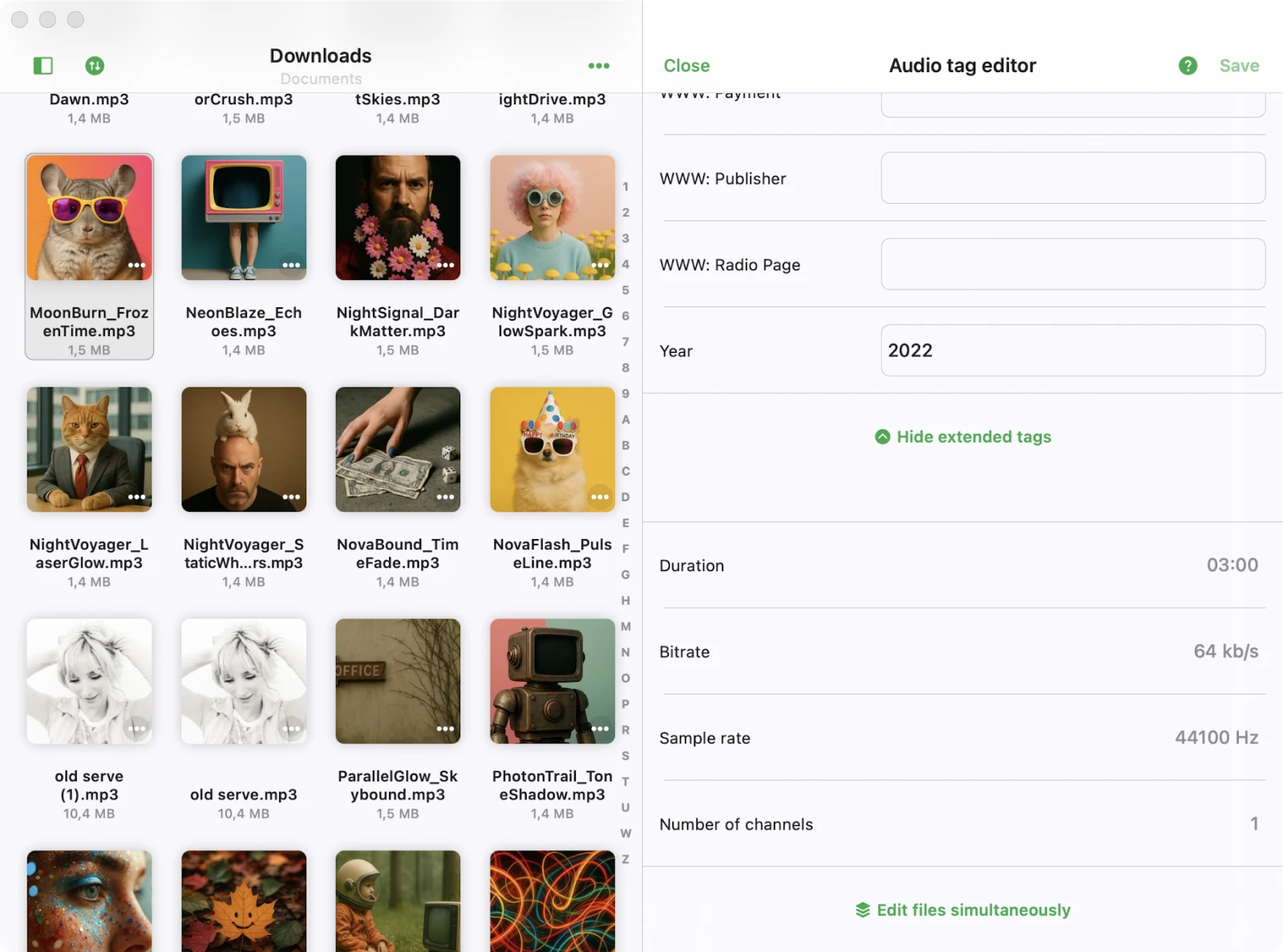
To access all available tags, scroll to the bottom of the screen and tap the Show Extended Tags option. This will switch the editor to extended mode, allowing you to edit over 120 metadata fields, including MusicBrainz Tags, Lyrics, Advisory Ratings, replay-gain values, sort orders, podcast metadata, and more. Use Settings → Audio tags editor → Buttons on the main screen to permanently toggle Show Extended Tags so it’s always on.
Batch Mode
You can enter batch editing in two ways:
-
From File Manager
- Tap More actions (•••) in the top right.
- Tap Select, choose multiple files, and then tap Edit audio tags.
-
From Tag Editor
- Open any file, scroll to the bottom, and tap Edit files simultaneously to load all files from the same folder.
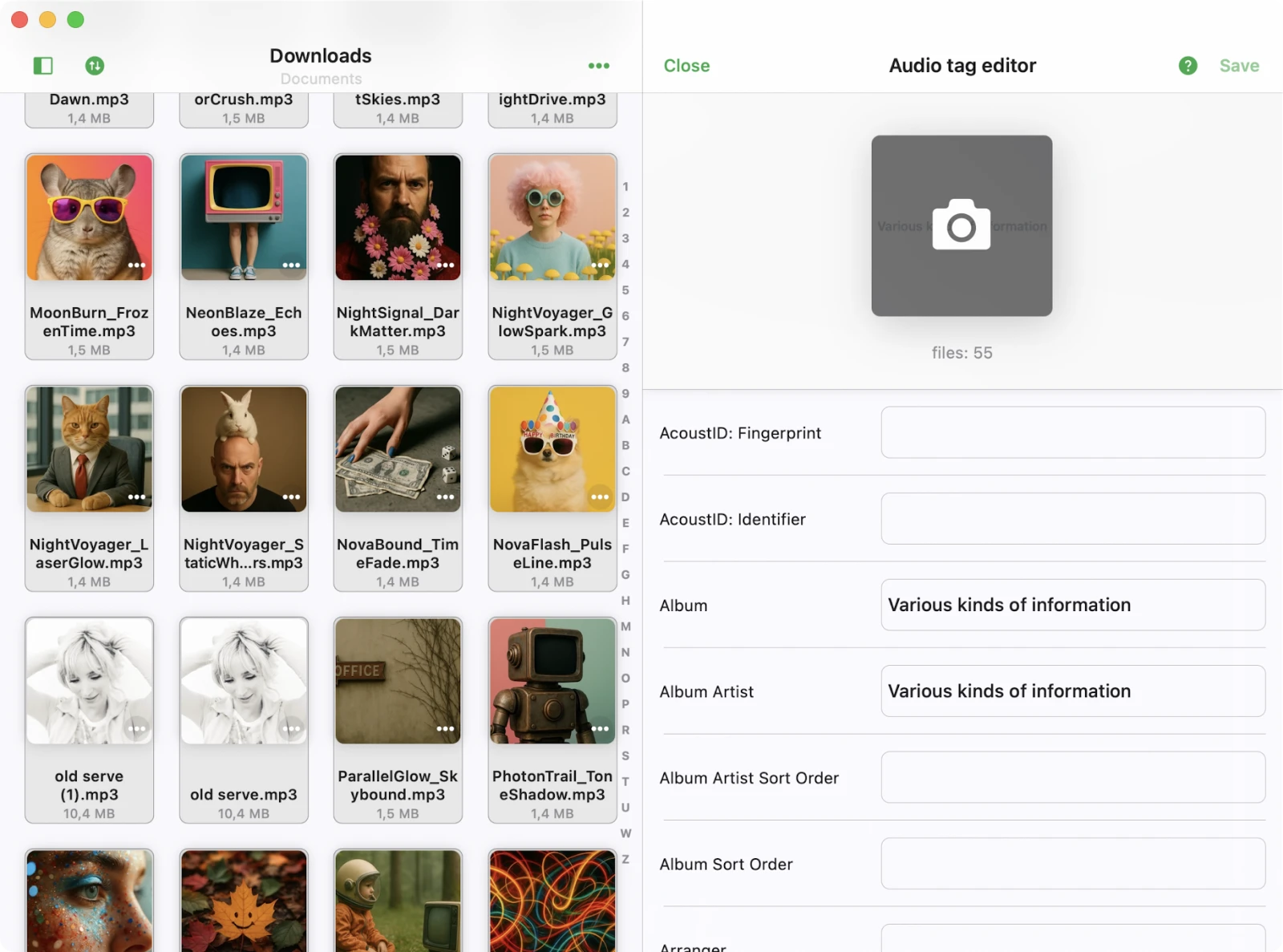
After editing, tap Save to apply changes.
Edit Lyrics
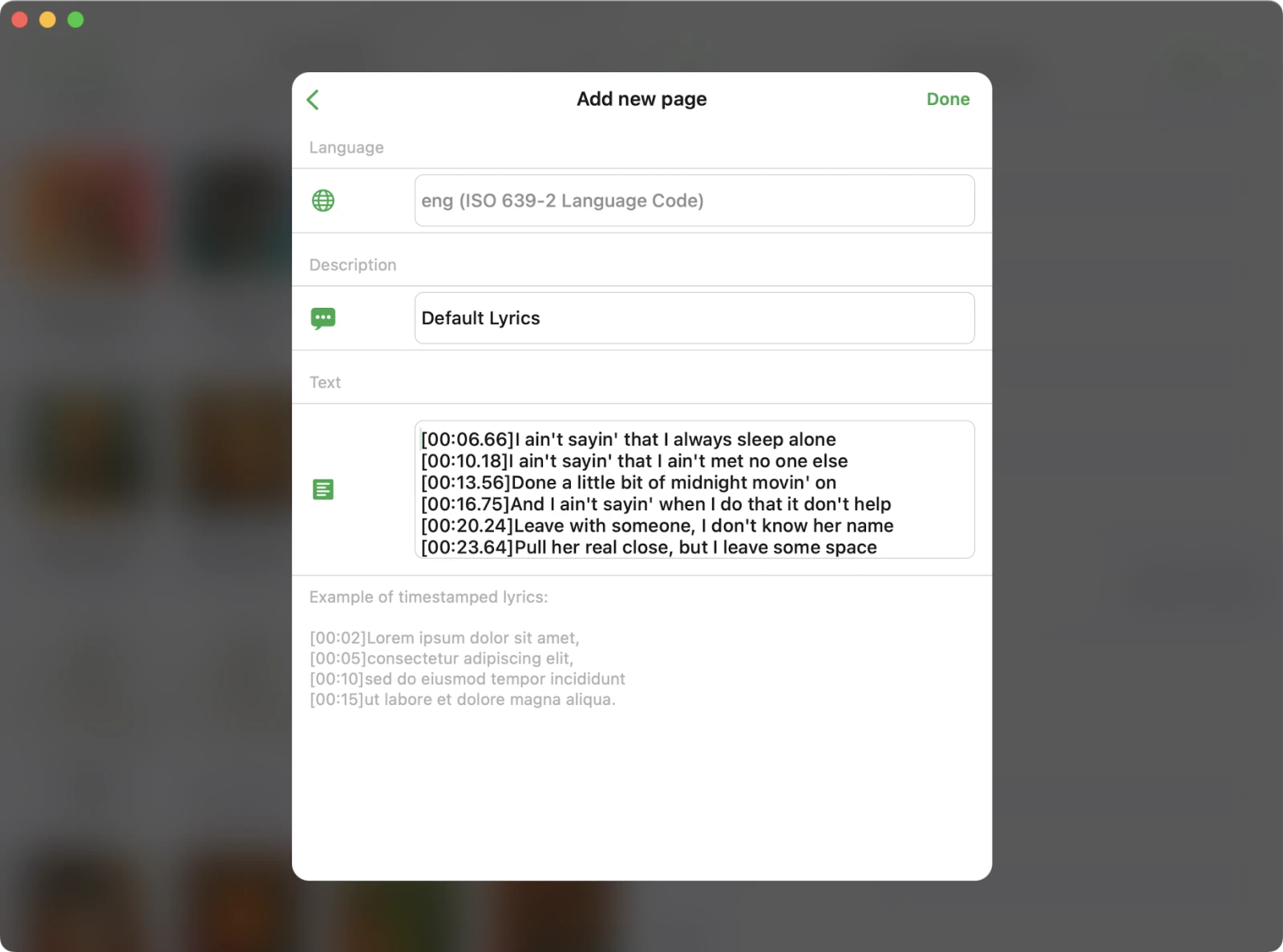
The extended editor exposes the Lyrics field. Tap it to open the lyrics list — each lyrics entry has its own language and description, so a single track can store several translations.
You don’t have to type lyrics from scratch. The editor includes one-tap search shortcuts to the most popular lyrics databases on the web, pre-filled with the current track’s artist and title:
- Lrclib — the go-to public database for timed (LRC-style) lyrics. Use it when you want synced lyrics that scroll line-by-line in players that support them.
- Genius — large catalog with annotations and accurate plain-text lyrics.
- Lyricsify — community-driven database with plain and timestamped lyrics.
- Google — a general web search as a fallback when the dedicated databases don’t have a match.
Each shortcut only appears when the corresponding service is reachable from your device. Tap a service, copy the lyrics (or the LRC timestamps) you want, return to Evertag, and paste them into the text field — then Save to write the lyrics back into the audio file’s tags.
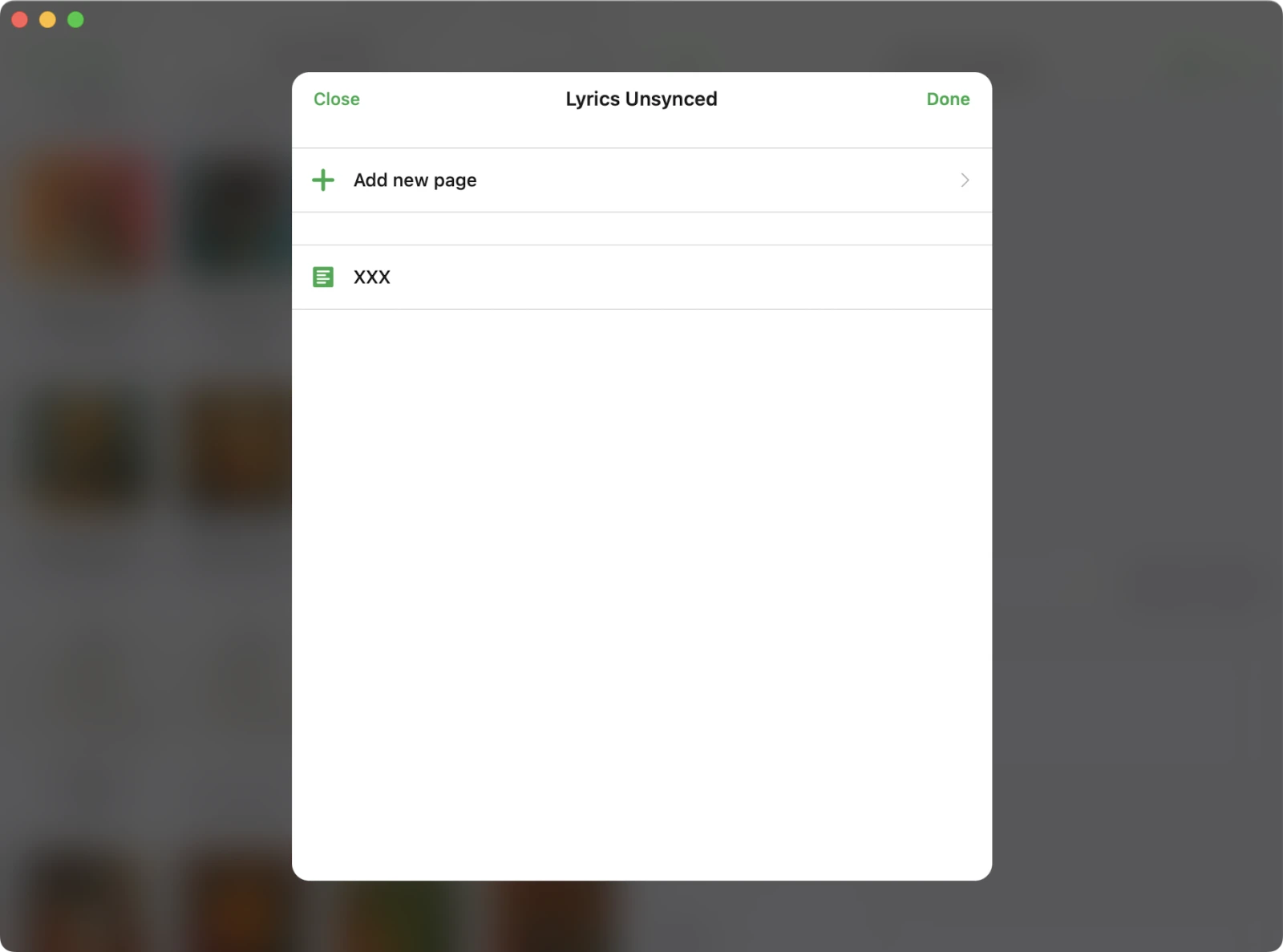
Pick a language from the picker:
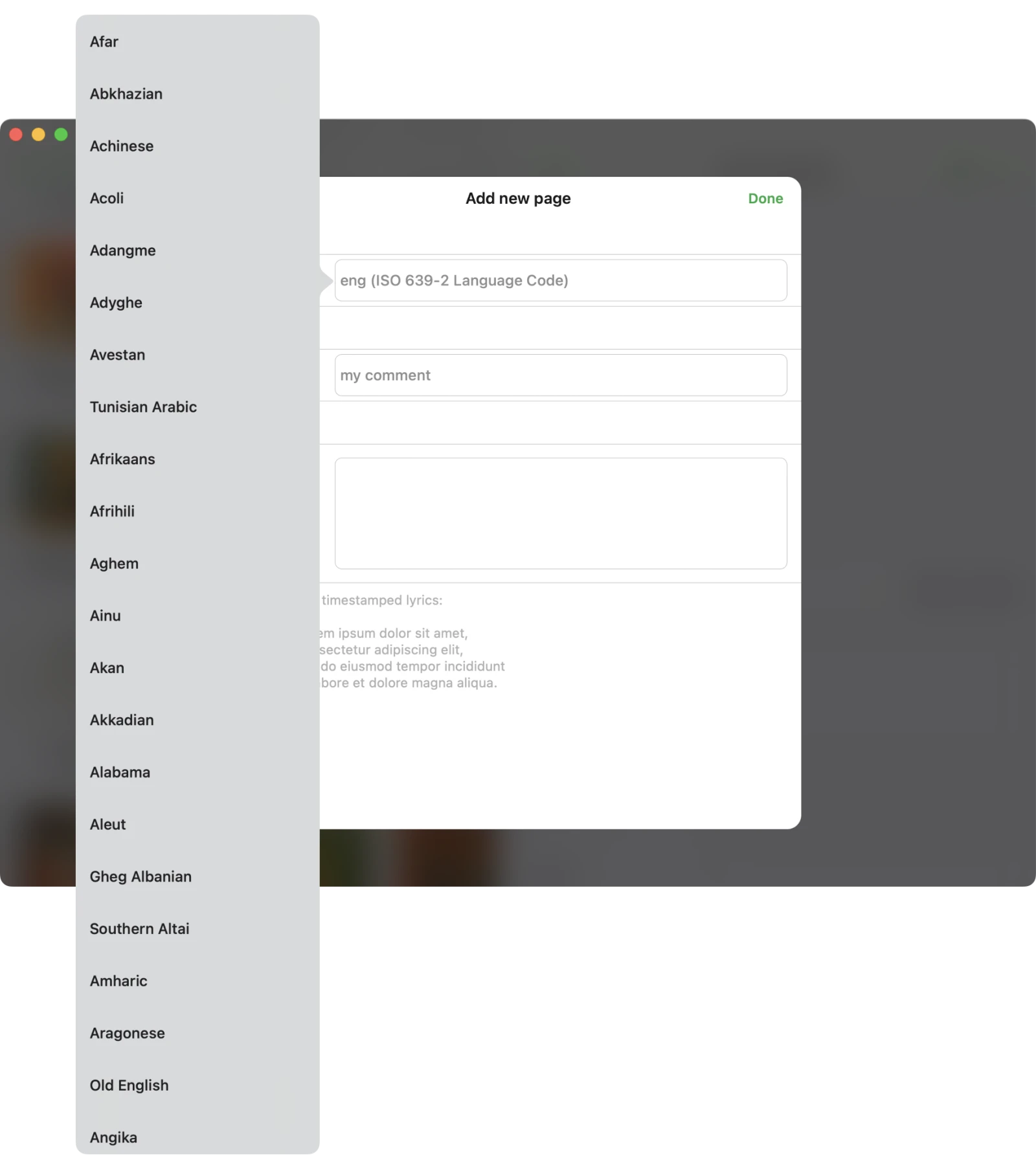
Then paste or type the lyrics text. Evertag supports both plain text and timestamped (synced) lyrics — the placeholder shows an example of the LRC-style format, which is exactly what Lrclib and Lyricsify return for synced results.
Set a Rating and Advisory Rating
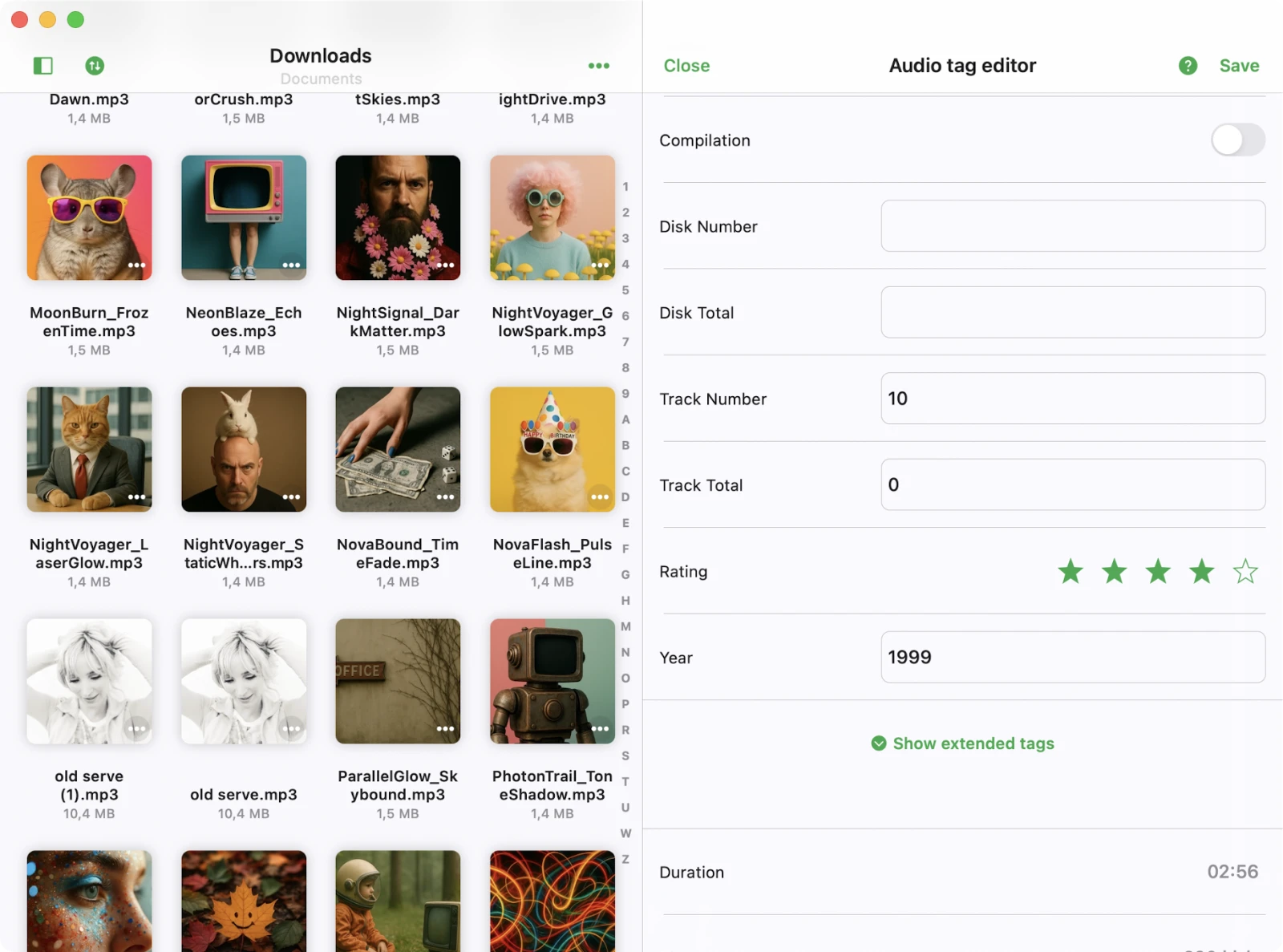
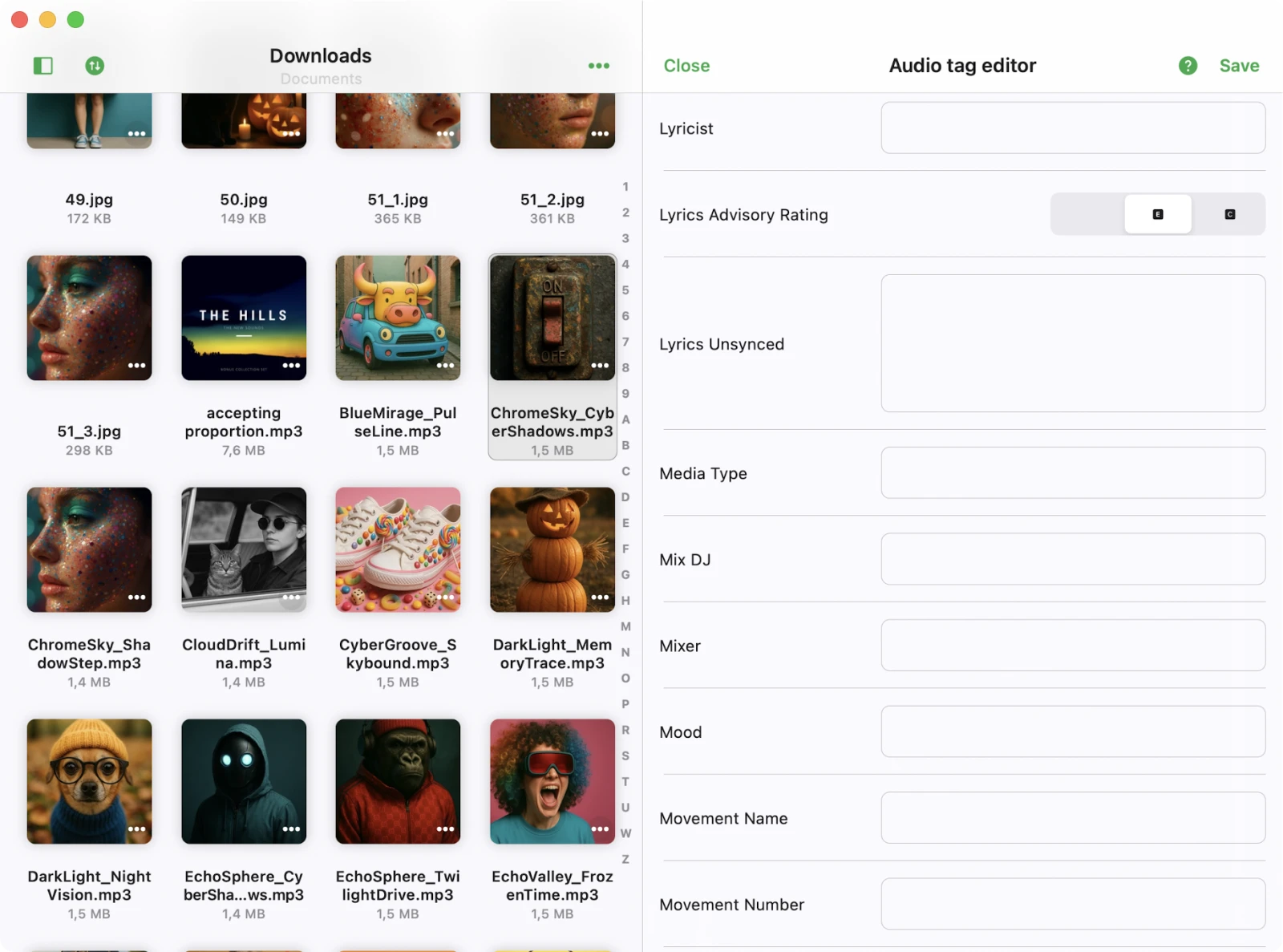
The extended editor offers a star Rating control alongside an Advisory Rating segmented control.
Star Rating
Use the Rating field to give a track a personal score from one to five stars. The value is written into the standard rating tag of the file (POPM for ID3, rate for MP4, RATING for Vorbis/APE, etc.), so other apps that read this tag — including the Music app, Plex, Roon, and most desktop tag editors — will pick up your scores immediately.
Advisory Rating
The Advisory Rating marks a track’s content using one of the values from the Parental Advisory standard the iTunes Store and most music platforms use:
- Inoffensive — the default for tracks with no parental-advisory information. The file is treated as suitable for all listeners and won’t show any advisory label in players that respect the tag.
- Explicit — the track contains explicit language or content. Players that honor parental controls (the Music app, the Apple TV app, Spotify exports, Plex, etc.) will display an E badge next to the title and, when restrictions are enabled on the device or account, may hide the track from kids’ profiles or refuse to play it.
- Clean — a censored or edited version of an otherwise explicit track. Players display a C badge so listeners can distinguish a clean edit from the original explicit master, which is useful when both versions live in the same library.
You’ll want to set or fix this field when:
- A file has the wrong label (for example a clean radio edit that was mistakenly tagged as Explicit, or vice versa).
- Tracks were ripped or downloaded without the tag and are now showing as Inoffensive even though they contain explicit content — necessary for parental controls and family-shared libraries to work correctly.
- You’re preparing an album for submission or sharing and need every track to carry consistent metadata.
- You want CarPlay, the Lock Screen, Apple Music–style players, or DJ software to display the correct E / C badge next to the track title.
The value is stored in the standard advisory-rating field for the file format (rtng for MP4, TXXX:ITUNESADVISORY for ID3, ITUNESADVISORY for Vorbis), so any player that reads parental-advisory metadata will see your update.
Edit Album Cover
To change an album cover:
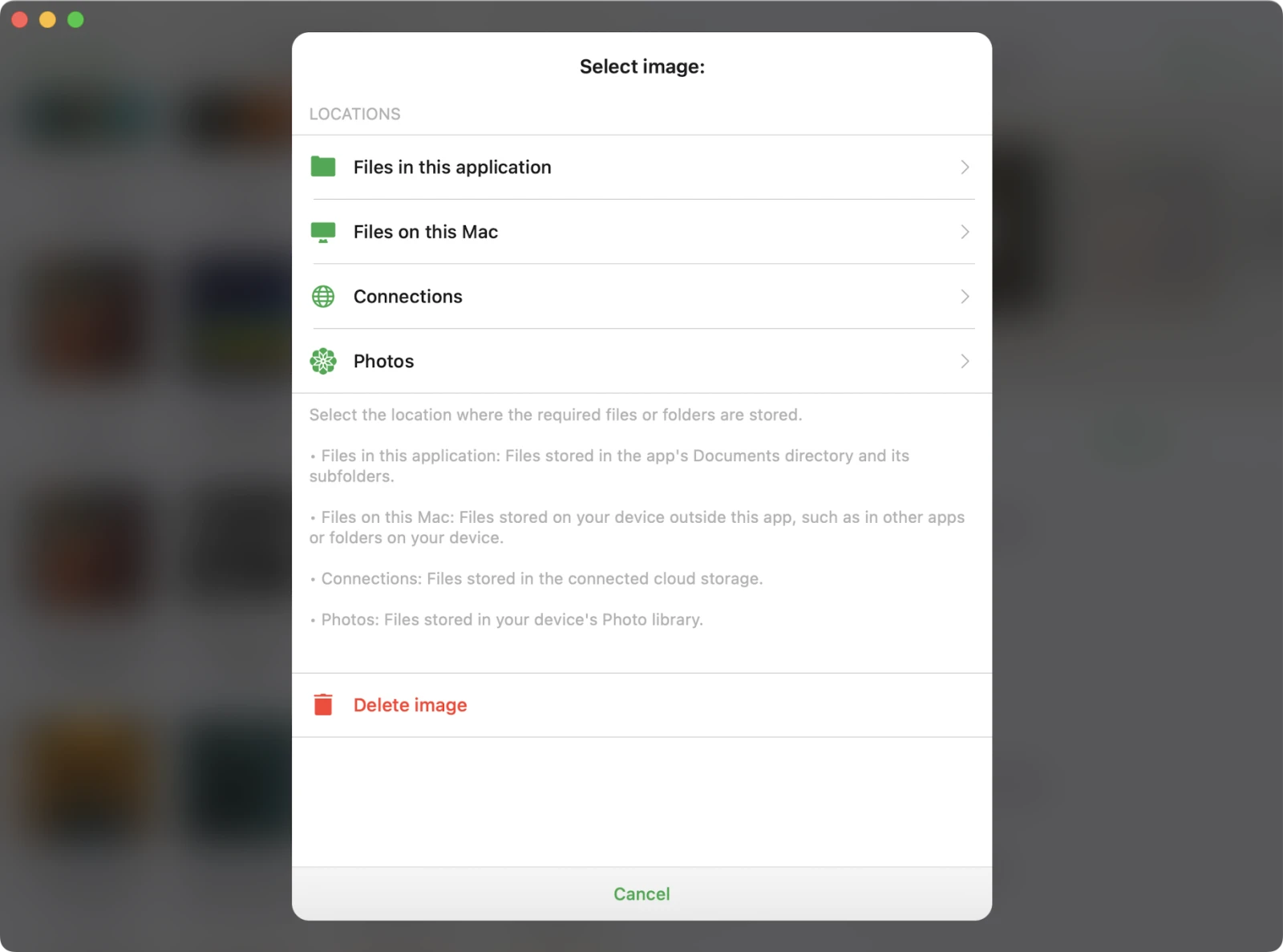
- Tap the Camera icon in the artwork carousel.
- Choose the image location: Local Files, Cloud, Downloads, or Photo Library.
- Select an image to apply as cover art.
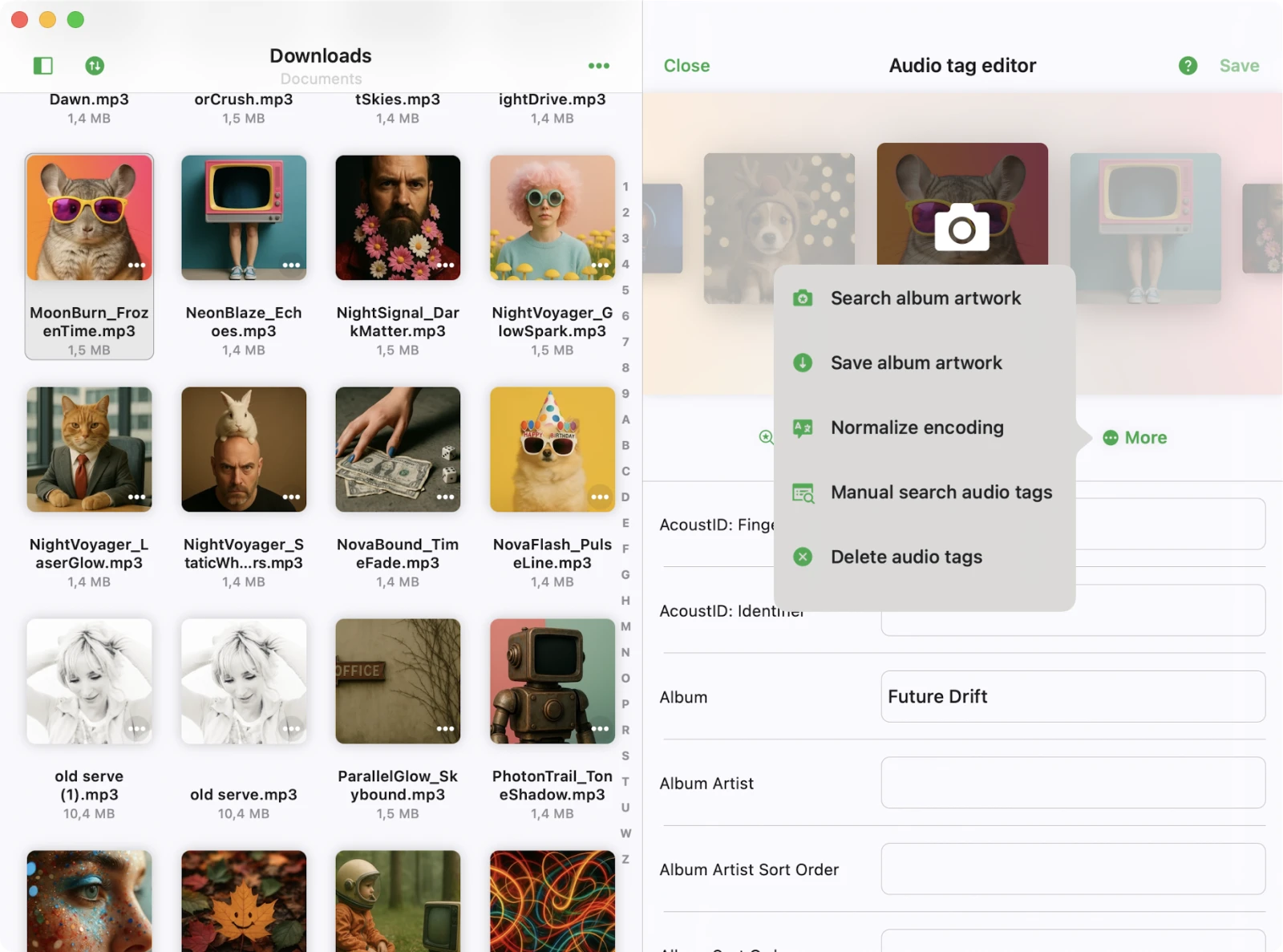
More Actions in Tag Editor
Extra editing options are available via the toolbar beneath the artwork view.
Auto-Search Audio Tags
This action activates the smart tag search engine, which finds and fills in complete metadata for your audio file based on the existing information.
The app uses the MusicBrainz database — one of the most comprehensive tag databases — with over 50 million tracks.
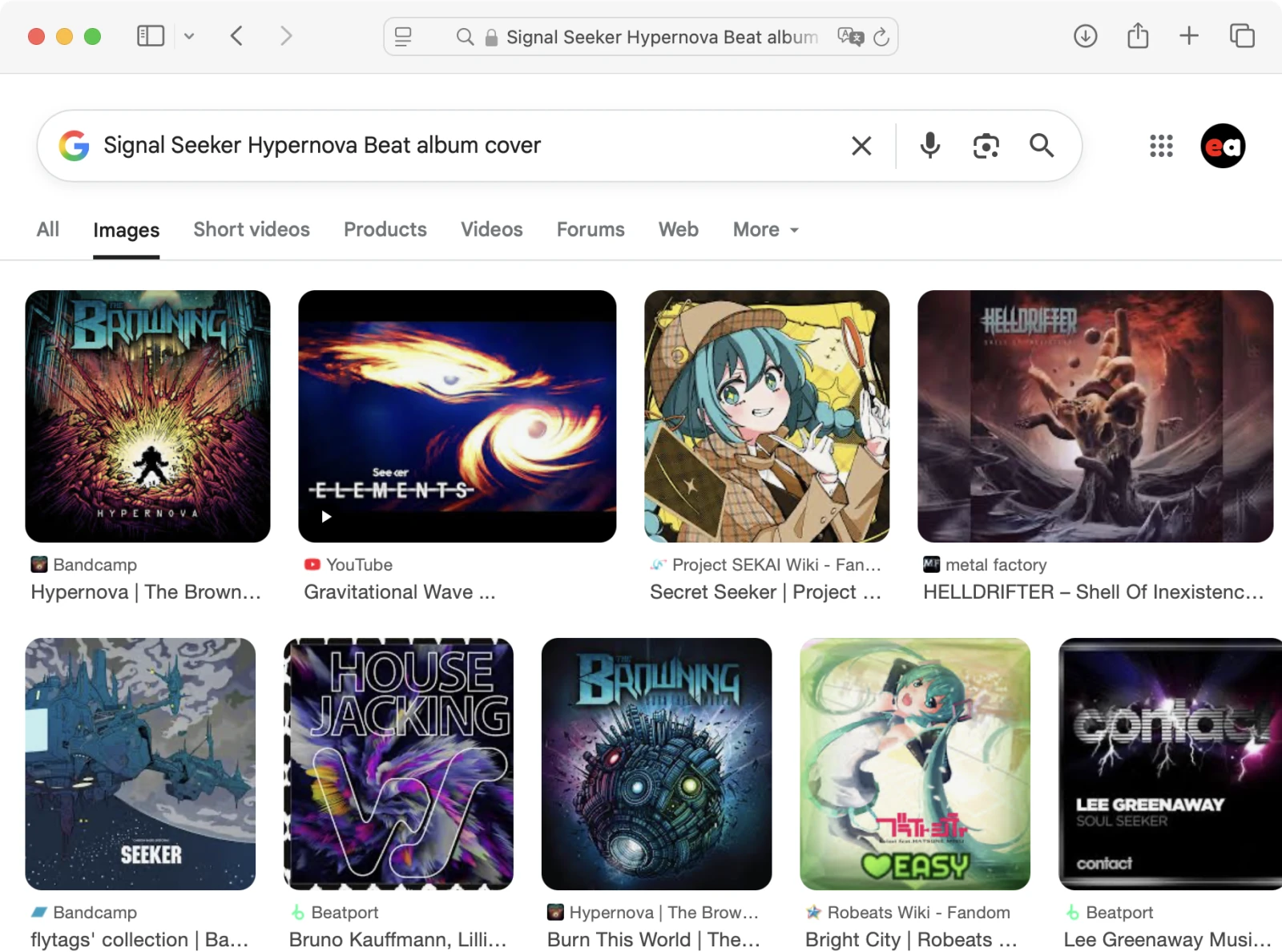
Search Album Cover
Use metadata to search the web for the correct album artwork.
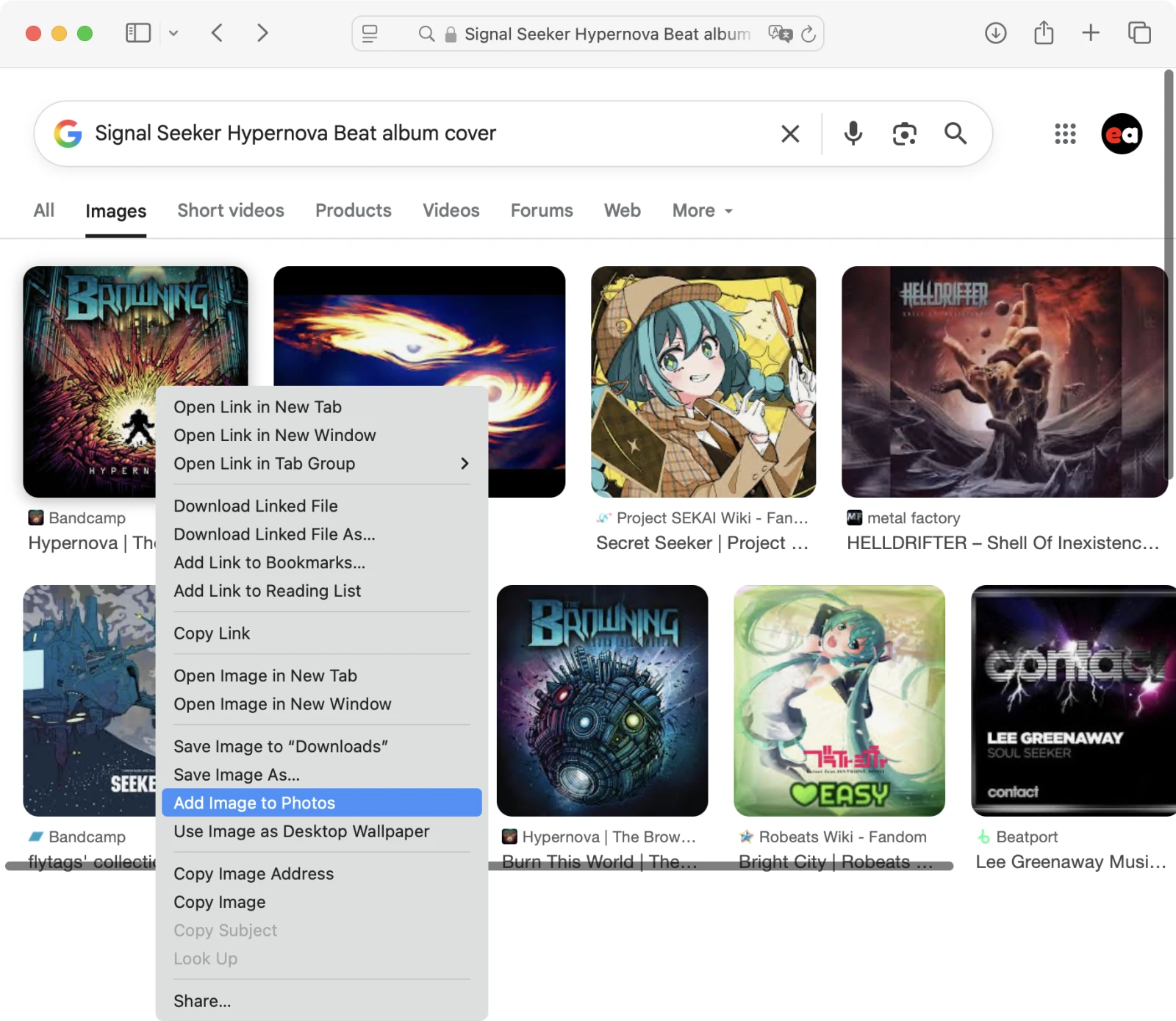
Once found, save the image to your Photos using the system context menu.
After that, return to the tag editor, tap the Camera icon, go to Photos Library, and select the saved image. The app will set it as the cover for your audio file.
You can adjust how cover images are scaled in the app’s settings.
Save Album Artwork
This action saves the current album artwork to the Documents folder, so you can reuse it later.
Normalize Encoding
This action will normalize the text encoding of all tags in the audio file’s metadata. It’s especially helpful if you’re switching from a Windows PC, where files may use different encodings that appear as unreadable or garbled characters on a Mac.
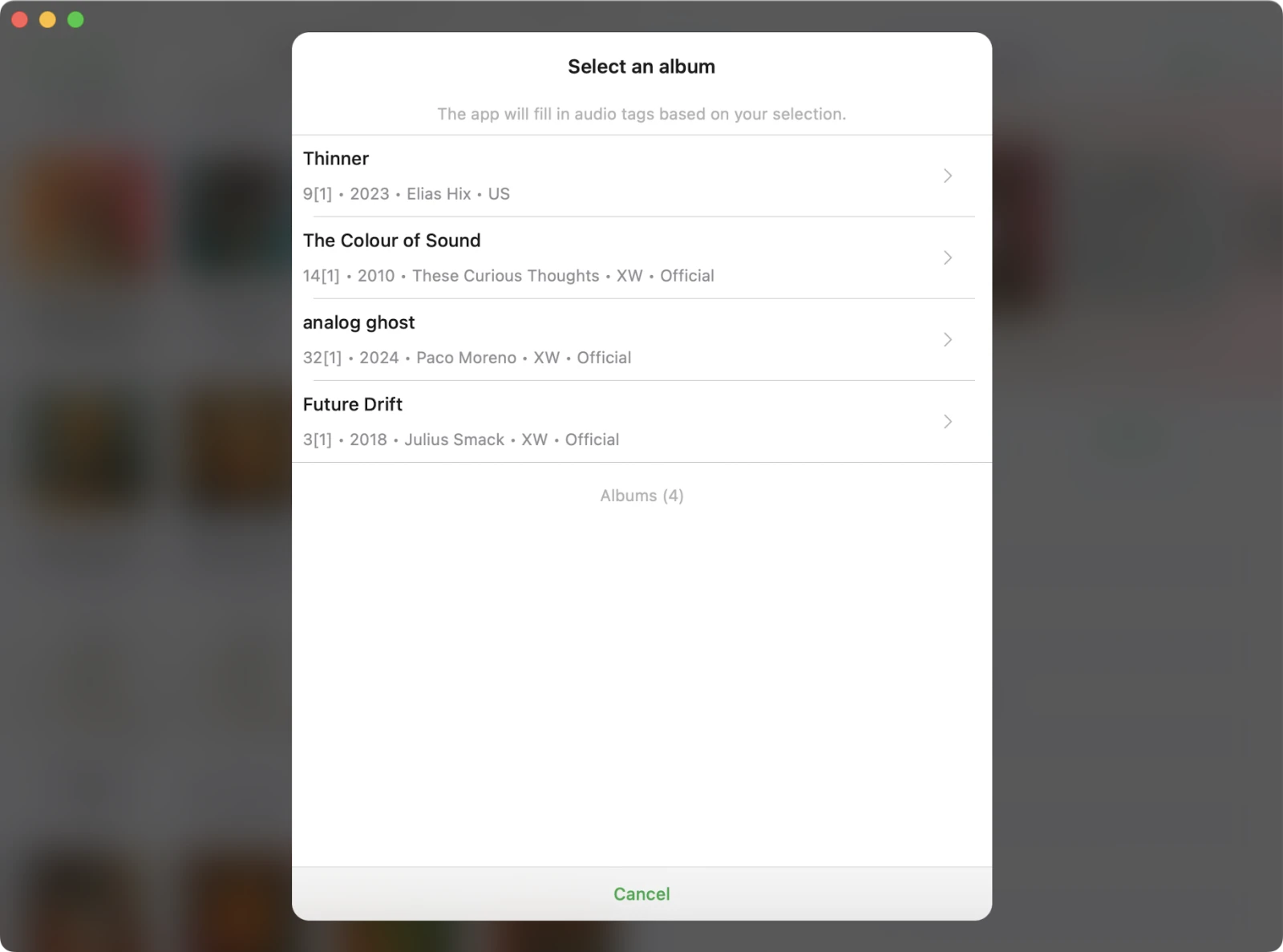
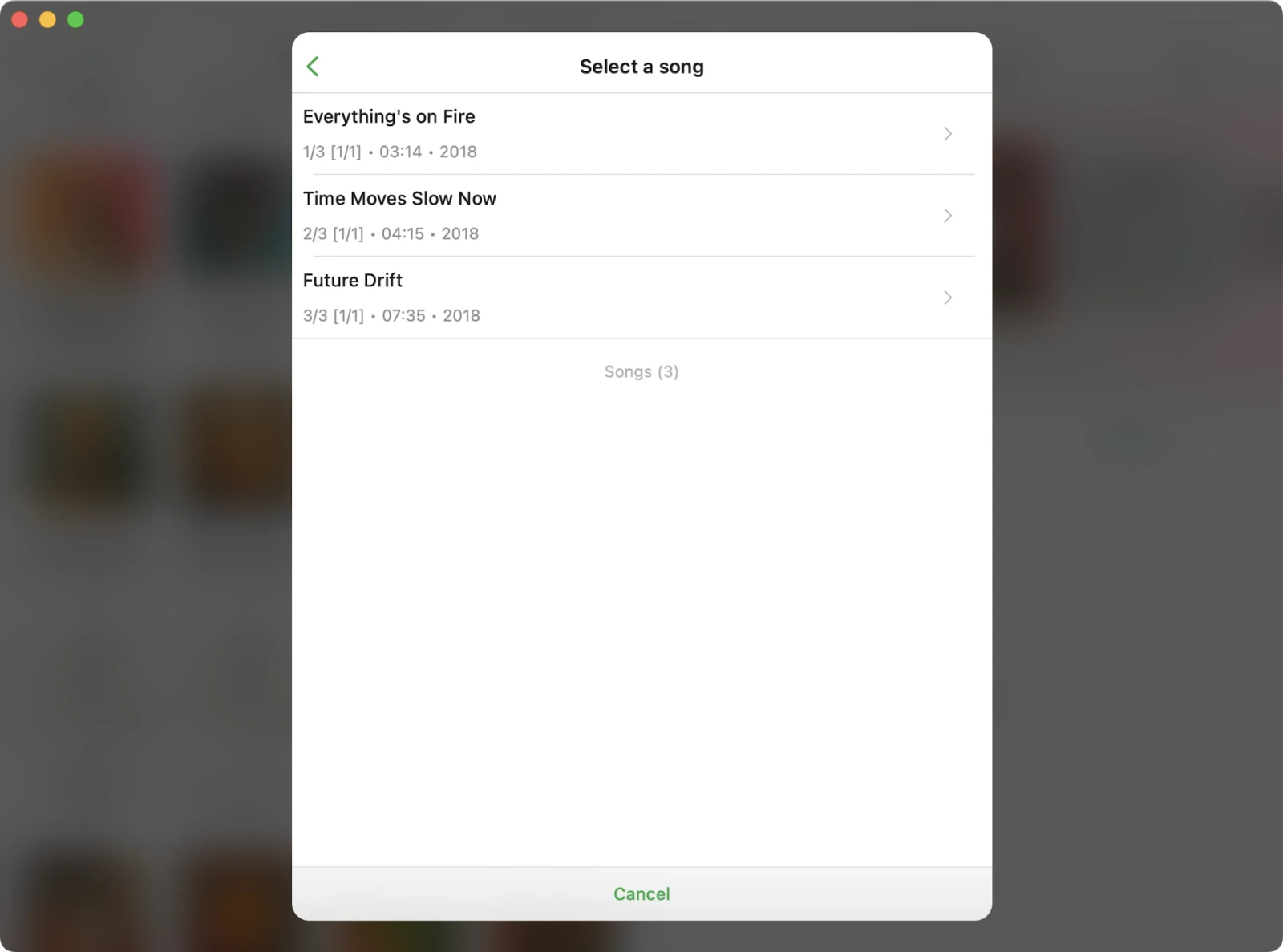
Manual Tags Search
Search for album metadata manually using the MusicBrainz database.
- Select the album
- Pick the correct song
- Choose which tags to apply
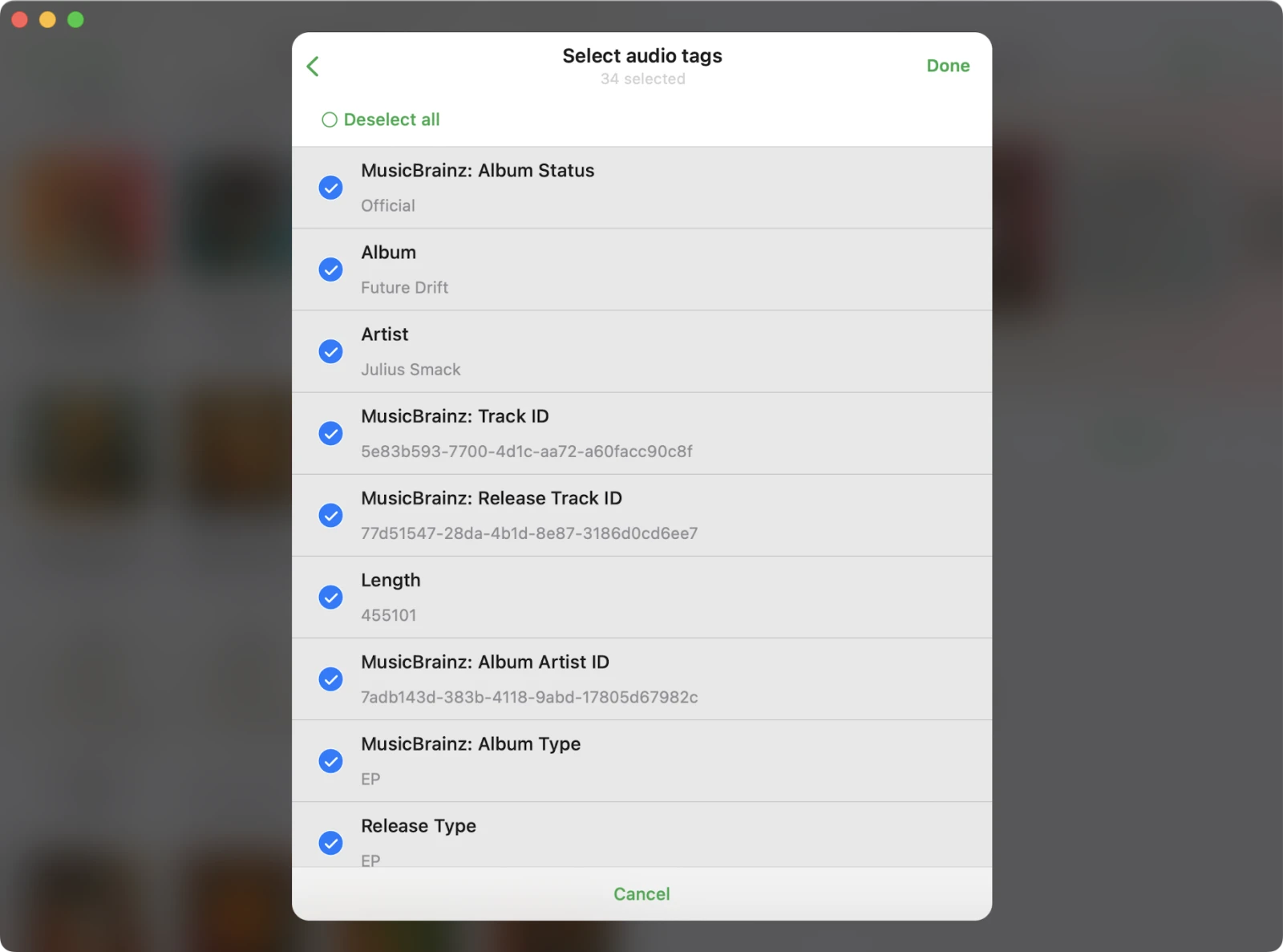
Tap Done to apply the selected metadata to your track.
Delete Audio Tags
Clear all metadata fields for a file. Useful when starting from scratch. Tap Save to confirm.
Tag Editor Settings
Navigate to Settings → Audio tags editor to customize behavior.
Album Cover Scaling
Select how album covers should be scaled when saved into audio files. You can disable scaling to keep the original image size, but be aware that some players may not support large artwork files. The “original size” option is part of the Premium personalization features.
Tag Saving Options
- ID3v2.4 — When enabled, the app saves tags in the ID3v2.4 format when possible. Disable to fall back to the more widely-supported ID3v2.3 if your audio tags aren’t displayed correctly on older players or devices.
- Duplicate tags — When enabled, common metadata fields are duplicated into both tag sections of the file. This improves compatibility with older audio players, but in most cases is not required.
Cloud File Metadata Update Options
You can control how the app updates metadata for audio files stored in cloud services:
-
Show confirmation message
Ask before applying metadata changes to cloud files. -
Automatically update file’s metadata
Save metadata changes to the cloud file automatically after editing. -
Do not update file’s metadata
Skip updating cloud files—changes will apply only locally.
Edit Online Files
Choose what happens to locally downloaded copies of cloud files after editing:
-
Always delete downloaded file
Remove the local copy after saving changes. -
Do not delete downloaded file
Keep the downloaded file on your device after editing.
Main Screen Buttons
Customize which actions appear on the main screen of the tag editor (Auto-search audio tags, Manual search audio tags, Search album artwork, Save album artwork, Normalize encoding, Delete audio tags). You can also toggle Show extended tags and Edit files simultaneously so the editor always opens in your preferred mode.