How to View Embedded Lyrics, Comments, and LRC Files for Music on Your iPhone or Mac

TL;DR: Evermusic for iPhone and Mac displays embedded lyrics, comment tags, and external .lrc files for any audio track. Open the player, tap More Actions, then select Comments to view lyrics in three modes: Comments, Embedded Lyrics, and LRC File.
Discover how to easily view embedded lyrics for your music on your iPhone or Mac using the Evermusic app. Whether it’s text, lyrics, comments, or LRC files, this guide will show you step-by-step how to access and enjoy your song lyrics seamlessly.
View Lyrics and Comments in Evermusic
-
Start playing an audio file by tapping on it.
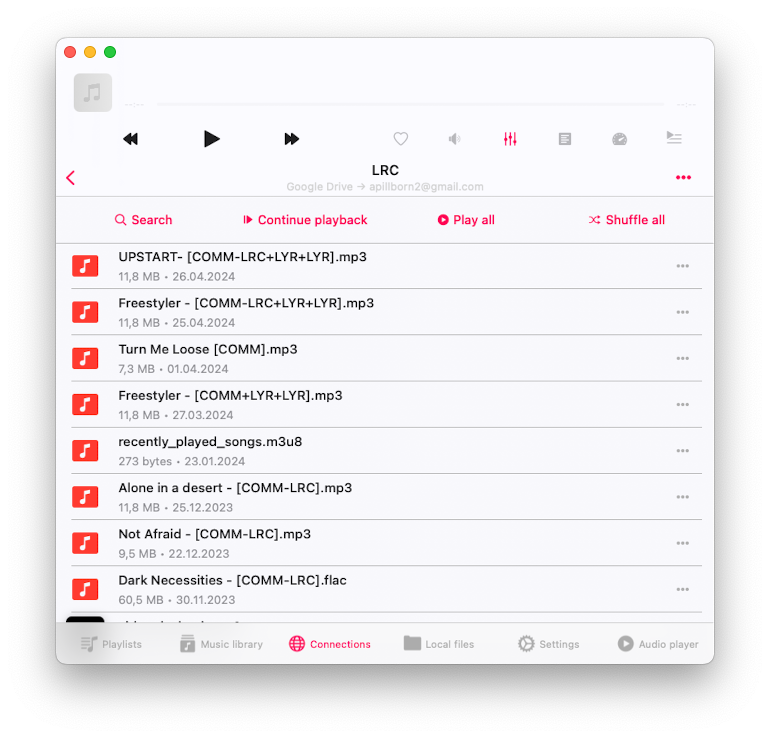
-
Open the full-screen audio player.
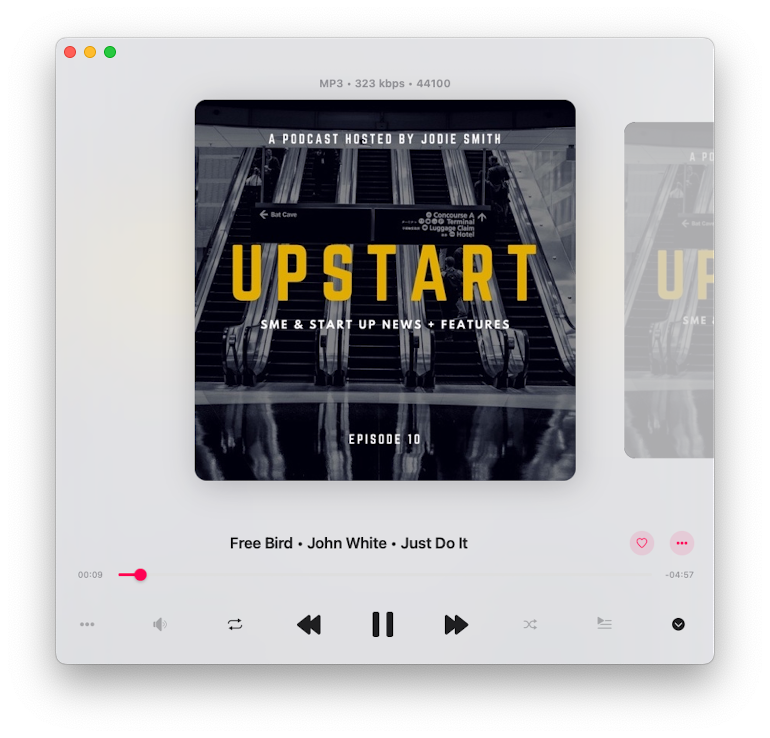
-
Tap the More Actions button in the top right corner.
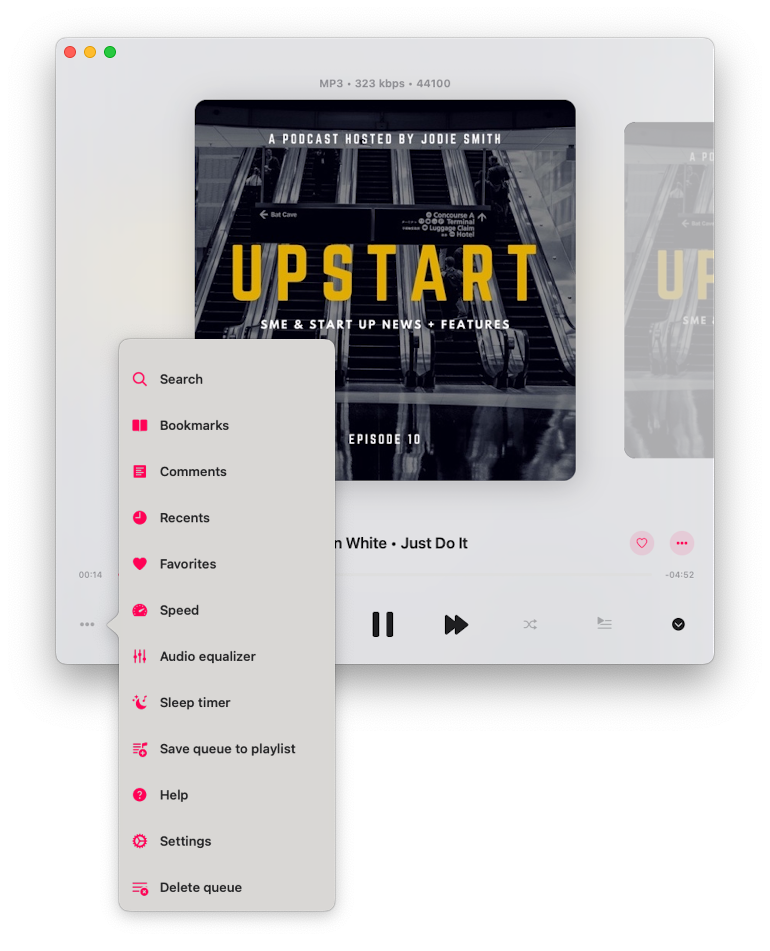
-
Select the Comments menu item.
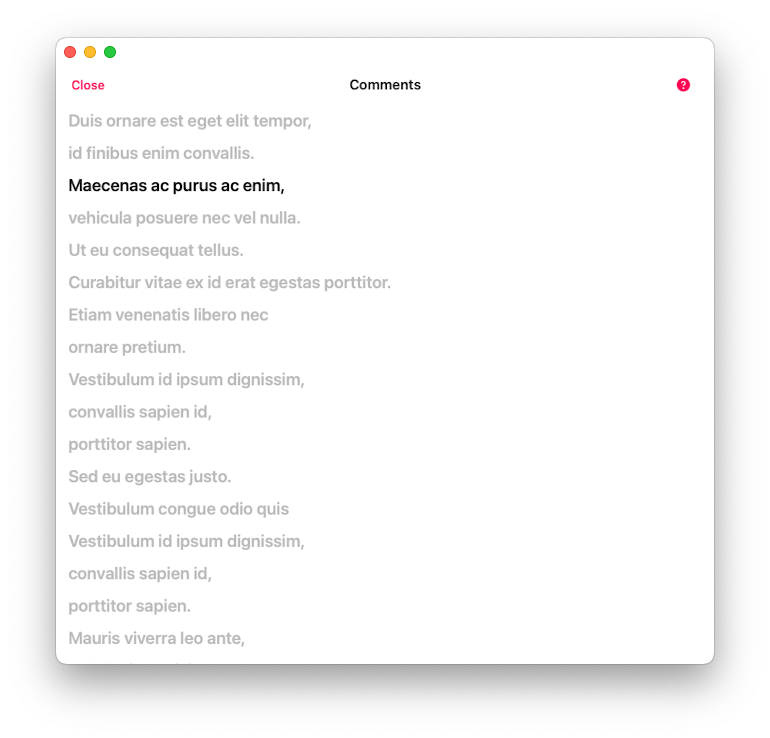
-
On the Track Comments screen, swipe to switch between three display modes:
- Comments
- Embedded Lyrics
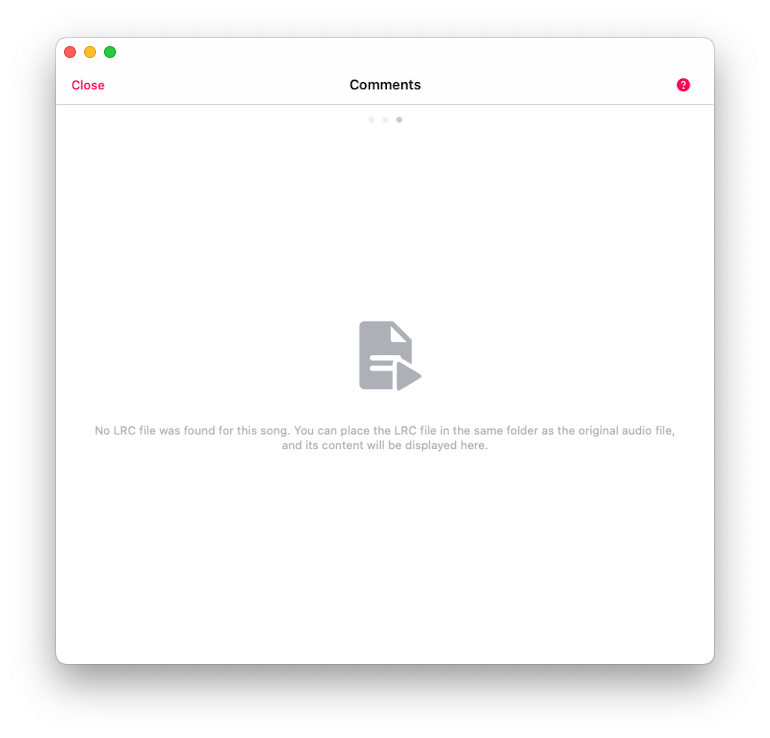
- LRC File
Understanding the Display Modes
-
Comments Mode:
Shows the content from theCOMMENTfield of your audio file. -
Lyrics Mode:
Displays embedded lyrics from tags. Timed text in LRC format is supported here. To edit lyrics, use a tag editor like Evertag. You can also find LRC content at websites like Lyricsify, copy it into your tag fields, and view it in this screen. -
LRC File Mode:
Instead of tagging the audio file, place a.lrcfile with the same filename in the same folder as the audio file. The app will detect and display it automatically on this screen.
Enable Quick Comments Access from Audio Player
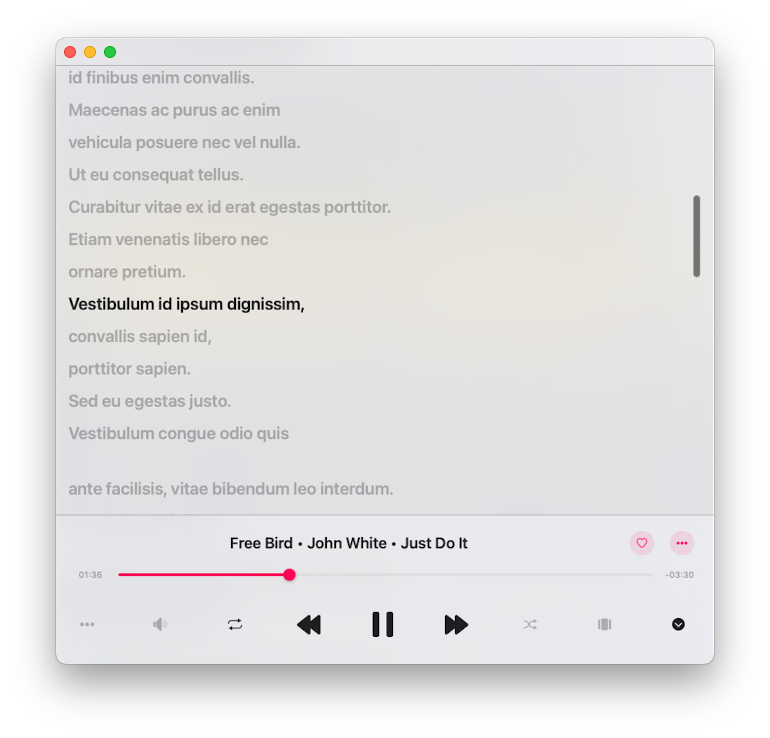
You can switch between Artwork, Queue, and Comments views using the view toggle on the audio player screen.
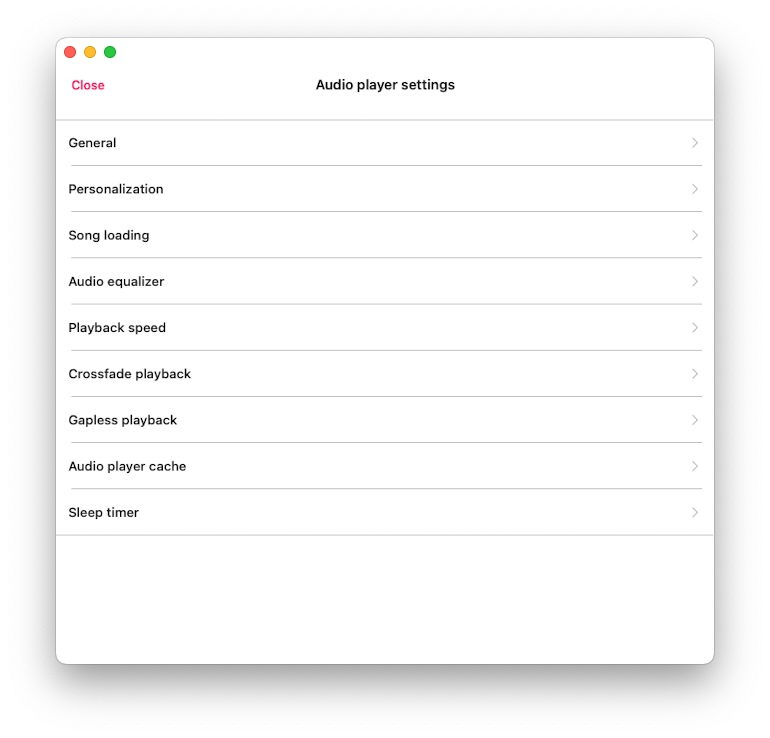
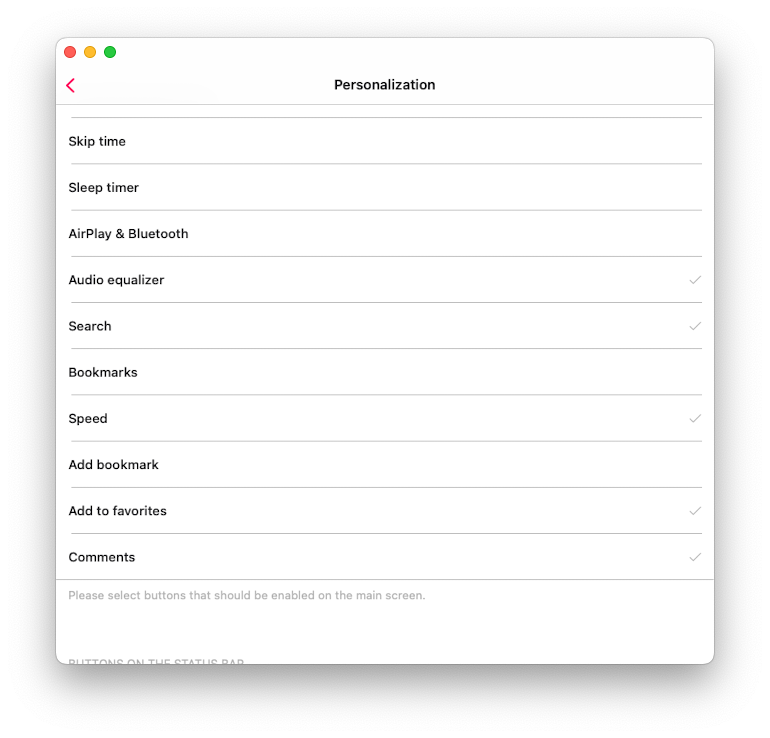
- Go to Settings > Audio Player > Personalization
- Scroll to Buttons on the Main Screen
- Enable the Comments menu item
Return to the main player and tap the audio queue button several times to cycle views and reach the Comments screen.
Conclusion
Viewing embedded lyrics, comments, or synced .lrc files in Evermusic is effortless. Whether you’re editing tags or using external lyric files, the app makes it convenient to explore your music’s metadata and lyrics. For enhanced control, don’t forget to enable the Quick Comments View for faster access while listening.
FAQ
How do I view embedded lyrics on my iPhone?
What is an LRC file and how does it work?
Can I add lyrics to my music files on iPhone?
Does Evermusic support synced (timed) lyrics?
.lrc file.