Settings
On this screen, you can access the application settings and upgrade it to the Premium version. The Settings root is grouped into the following sections:
- Purchases & updates — upgrade to Premium, restore purchases, view software update / “What’s new”
- App preferences — passcode, file manager, audio tags editor, Wi-Fi Drive, personalization, window settings (iPad/Mac), language
- Feedback & more — rate the app, send feedback, tell a friend, subscribe, discover more apps
- Help — Help Center, User Guide, How To, FAQ
- Legal & privacy — Terms, Privacy Policy, Legal Notices, Analytics & data collection
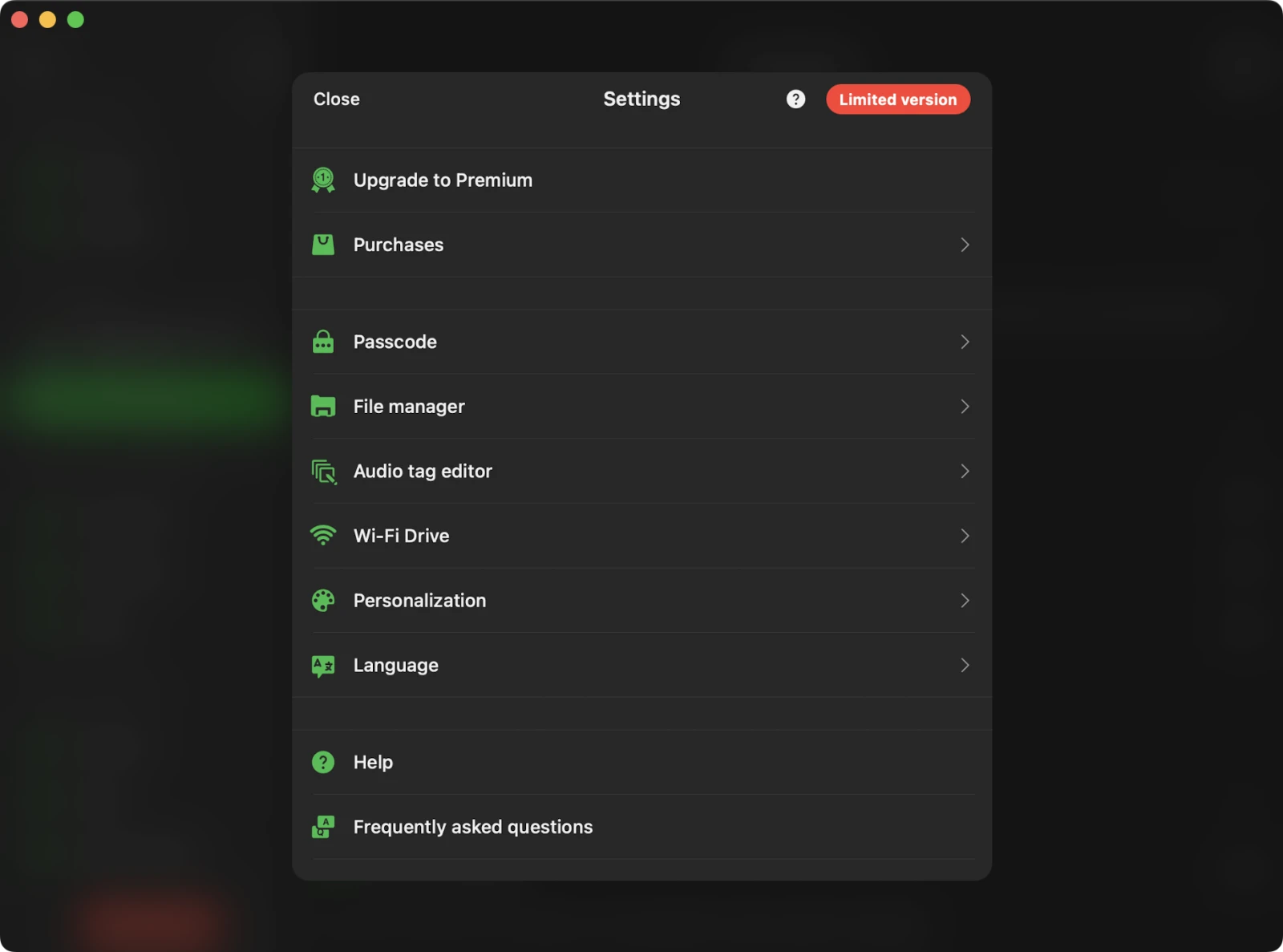
Upgrade to Premium
Upgrade the application to the Premium version to remove all limits. The free version of the application offers one-lifetime in-app purchase and two subscription options that allow you to remove all restrictions and upgrade to the Premium version.
Also, please keep in mind that Family Sharing is enabled for all purchases and plans, so you can share the Premium version with members of your family.
You can read more about purchases and Premium version here: What is the difference between Evertag and Evertag Premium.
Sharing Purchases Between iOS and Mac
Please keep in mind that lifetime purchases and subscriptions are shared between iOS and Mac, using iCloud to sync this information. If you have the premium version on your iOS device, please ensure you have the latest version installed and that iCloud is enabled. Start the app on iOS and wait one minute for your purchase information to upload to iCloud.
You can also try pressing the “Restore Purchases” button in the app settings. Afterward, install the latest app version from the App Store on your Mac and start the app. Ensure you have an internet connection and are using the same iCloud and App Store account on your Mac that you used on your iOS device. Wait one minute for the app to download purchase info from iCloud. The premium version should activate on your Mac automatically.
Restore purchases on a New Device
To restore your purchase on the new device just use the Purchases -> Restore purchases menu. You will see the list of your purchases. If you don’t see all your purchases please check if the device is connected to the same iTunes account that was used to make purchases, and make sure iCloud is enabled.
Try Premium for Free
You can upgrade to the Premium version for free but for a limited time only using this menu. Just watch an advertisement or tell your friends about this app to get the Premium version for free.
Purchases
You can restore previous purchases from this menu. If you encounter activation errors, try enabling the “Restore Purchases at App Launch” option.
What’s new
This menu is available after new version released. You can see what is new in the updated application.
Passcode
Activates the password protection screen if you want to protect your application data.
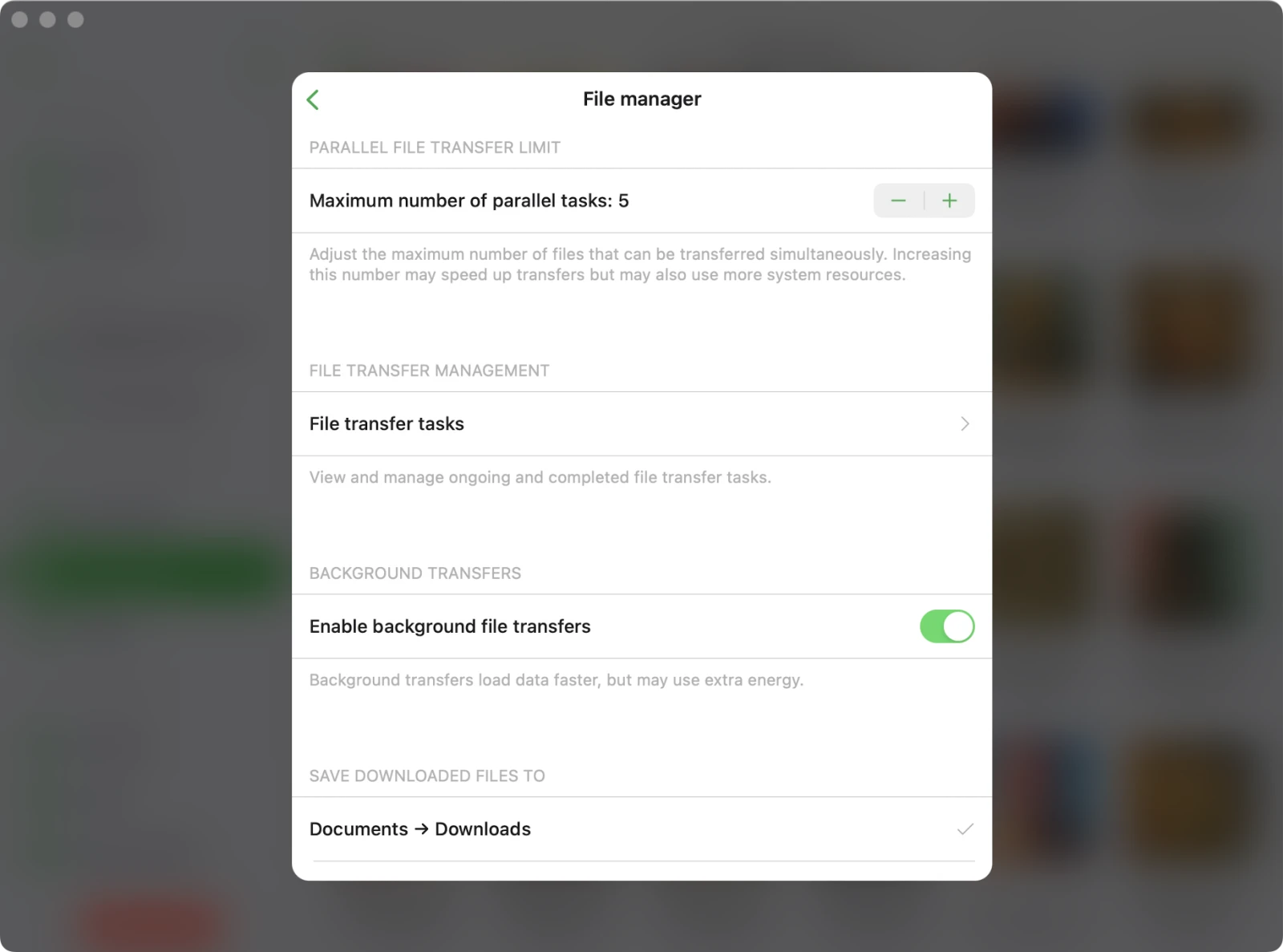
File manager
The file manager supports access to connected cloud storage accounts and offers batch operations for quick management of multiple files.
File transfers
Choose your network preference when downloading files to your device — Wi-Fi only or Wi-Fi & Cellular Data.
Parallel file transfer limit
Set the maximum number of files transferred simultaneously. A higher number can speed up transfers but may use more system resources and battery.
File transfer tasks
Open the transfer queue to view and manage ongoing and completed upload/download tasks.
Background transfers
You can enable downloads even when the app is running in the background. Please be aware that if this operation consumes a significant amount of energy, the operating system may suspend the app.
Save downloaded files to
Define your default downloads directory or opt to be prompted every time to choose where to save files.
Show full filenames
Activate this option if you need to view complete filenames, including extensions, in the file manager.
Thumbnails for files
Choose whether thumbnails for files in cloud storage are loaded (and whether cellular data is allowed), open the cache folder, or delete cached thumbnails to free up storage space.
Delete temporary files
Clear the application’s cache folder to reclaim storage space.
Audio tags editor
In this section, you can configure the built-in audio tags editor.
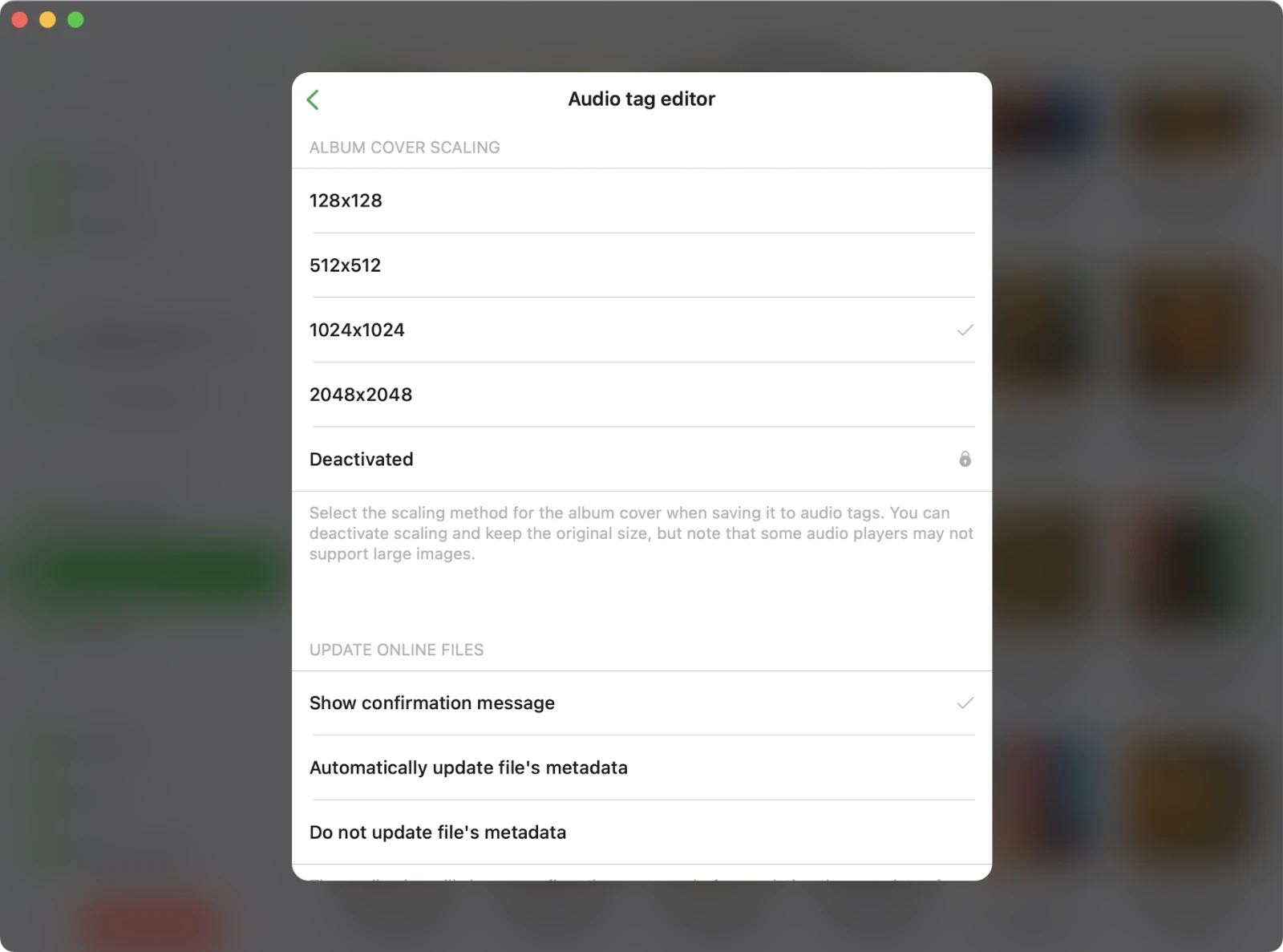
Album cover scaling
Choose the scaling method (Small / Medium / Large / Extra Large) for the album cover when saving it to audio tags, or deactivate scaling to keep the original size. Original-size scaling is part of the Premium personalization features.
Tag saving options
- ID3v2.4 — Save tags in the ID3v2.4 format when possible. Disable if older players don’t read the tags correctly and the app will fall back to ID3v2.3.
- Duplicate tags — Duplicate common metadata fields into both tag sections of the file for compatibility with older players.
Update online files
Control how the app updates metadata for audio files stored on a connected cloud service: ask before each save, always upload, or never upload (local-only changes).
Edit online files
Decide whether the locally downloaded copy of a cloud file is deleted automatically after you finish editing, or kept on your device for offline access.
Main screen buttons
Choose which actions appear on the main screen of the audio tags editor — Auto-search audio tags, Manual search audio tags, Search album artwork, Save album artwork, Normalize encoding, Delete audio tags — and whether Show extended tags and Edit files simultaneously are always on by default.
WiFi-Drive
In this section, you can activate the WiFi Drive feature, which allows you to transfer files from your computer to this device using a desktop web browser. We have detailed instructions on how to use WiFi Drive here.
Personalization
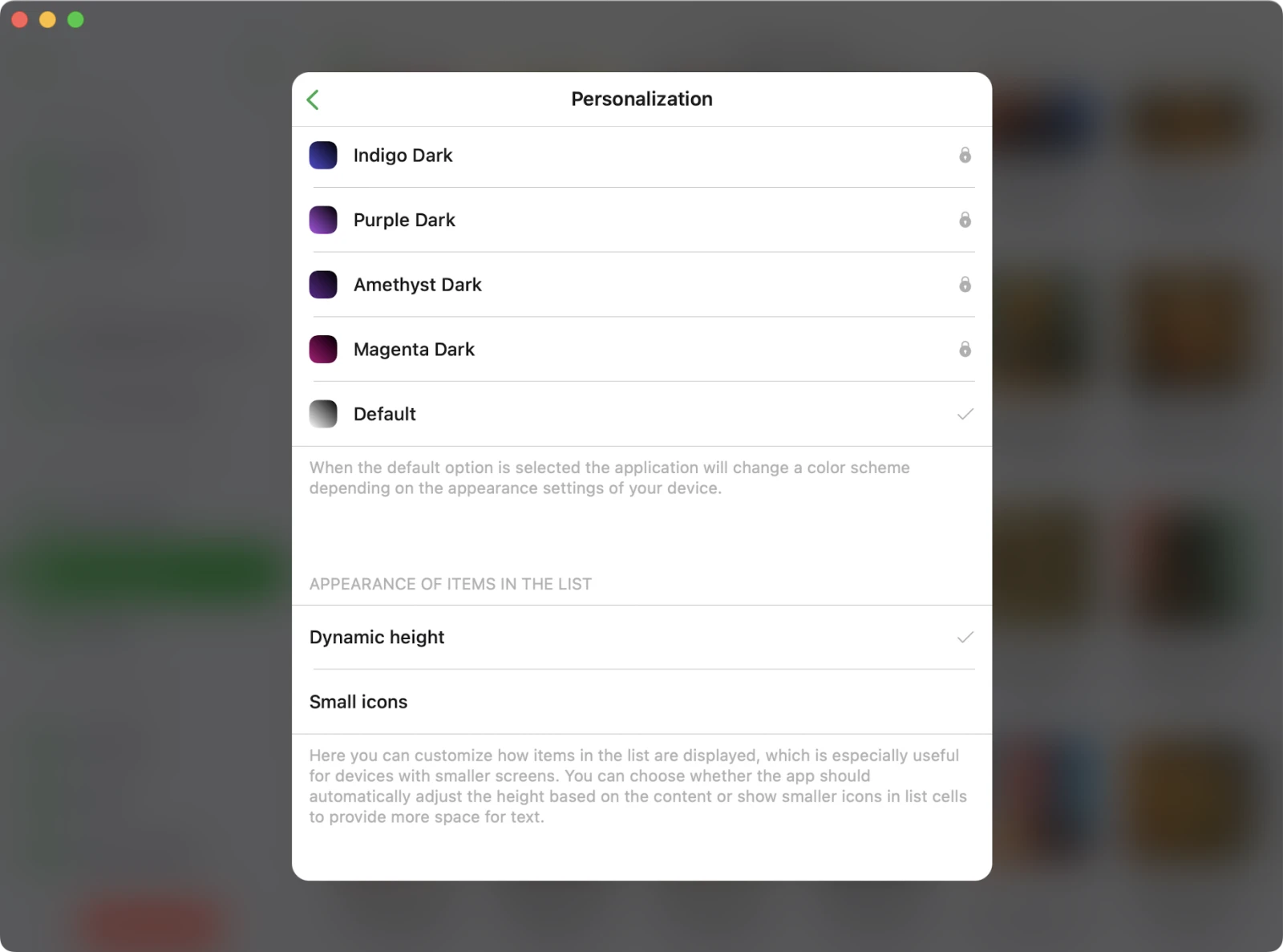
In this section, you can customize the user interface settings to suit your preferences.
Application icon
Pick an alternate Home Screen / Dock icon for the app, or keep the default. Some alternate icons are part of the Premium personalization features.
Color scheme
Customize the user interface theme and enable dark mode here. When the default option is selected, the application will adapt its color scheme based on your device’s appearance settings.
Appearance of items in the list
Customize how items in the list are displayed, which is especially useful for devices with smaller screens. You can choose whether the app should automatically adjust the height based on the content or show smaller icons in list cells to provide more space for text.
Content loading limit
Set the maximum number of items the app loads per page in a folder (100, 500, 1000, 5000, or no limit). Pagination keeps folder loading fast; disable the limit if you’d rather load everything at once.
Main menu style (iPad and Mac)
On iPad and Mac, choose between a plain main menu or an expandable, grouped menu in the sidebar.
Local files screen style
Pick a plain or grouped layout for the Local Files screen.
Context menu style
Select a style for the context menu that appears when you tap the ‘More Actions’ button — system menu or the app’s custom bottom sheet.
Window settings (iPad and Mac)
On iPad and Mac, decide whether the screen should stay active while you’re using the application, and configure other window-level options.
Language
In this section, you can change the application language and override the default system settings. Currently, the app supports following localizations: Afrikaans, Akan, Albanian, Amharic, Arabic, Armenian, Assamese, Aymara, Azerbaijani, Bambara, Bangla, Basque, Belarusian, Bosnian, Bulgarian, Burmese, Catalan, Cebuano, Chinese, Simplified, Chinese, Traditional, Corsican, Croatian, Czech, Danish, Dhivehi, Dogri, Dutch, English, Esperanto, Estonian, Ewe, Filipino, Finnish, French, Galician, Ganda, Georgian, German, Greek, Guarani, Gujarati, Haitian Creole, Hausa, Hawaiian, Hebrew, Hindi, Hmong, Hungarian, Icelandic, Igbo, Iloko, Indonesian, Irish, Italian, Japanese, Javanese, Kannada, Kazakh, Khmer, Kinyarwanda, Korean, Krio, Kurdish, Kurdish, Sorani, Kyrgyz, Lao, Latin, Latvian, Lingala, Lithuanian, Luxembourgish, Macedonian, Maithili, Malagasy, Malay, Malayalam, Maltese, Māori, Marathi, Mizo, Mongolian, Nepali, Northern Sotho, Norwegian Bokmål, Nyanja, Odia, Oromo, Pashto, Persian, Polish, Portuguese, Punjabi, Romanian, Russian, Samoan, Sanskrit, Scottish Gaelic, Serbian, Shona, Sindhi, Sinhala, Slovak, Slovenian, Somali, Southern Sotho, Spanish, Sundanese, Swahili, Swedish, Tajik, Tamil, Tatar, Telugu, Thai, Tsonga, Turkish, Turkmen, Ukrainian, Urdu, Uyghur, Uzbek, Vietnamese, Welsh, Xhosa, Yiddish, Yoruba, Zulu
Help
Access the application guide for assistance and guidance on using the app effectively.
Frequently Asked Questions
Find answers to common questions in the FAQ section.
Send Feedback
Have feedback or need assistance? Send your feedback to our support team.
Share This App
Share this application with your friends and spread the word.
Discover More Apps
Explore our other apps and discover more from our collection.
Terms and Conditions
This section outlines the terms and conditions for using the application. Please read it before using the application.
Privacy Policy
Visit the privacy policy page to understand our data handling practices. Please read it before using the application.
Analytics and Data Collection
Here you can check what services are enabled for analytics and data collection and deactivate them if you need.
Legal Notices
This section contains information about all the libraries and app version details used in the application.