Navigation
Evertag offers an intuitive user interface. What sets it apart from many popular apps is its built-in file manager, giving users the power to edit audio files and seamlessly transfer them to and from cloud storage.
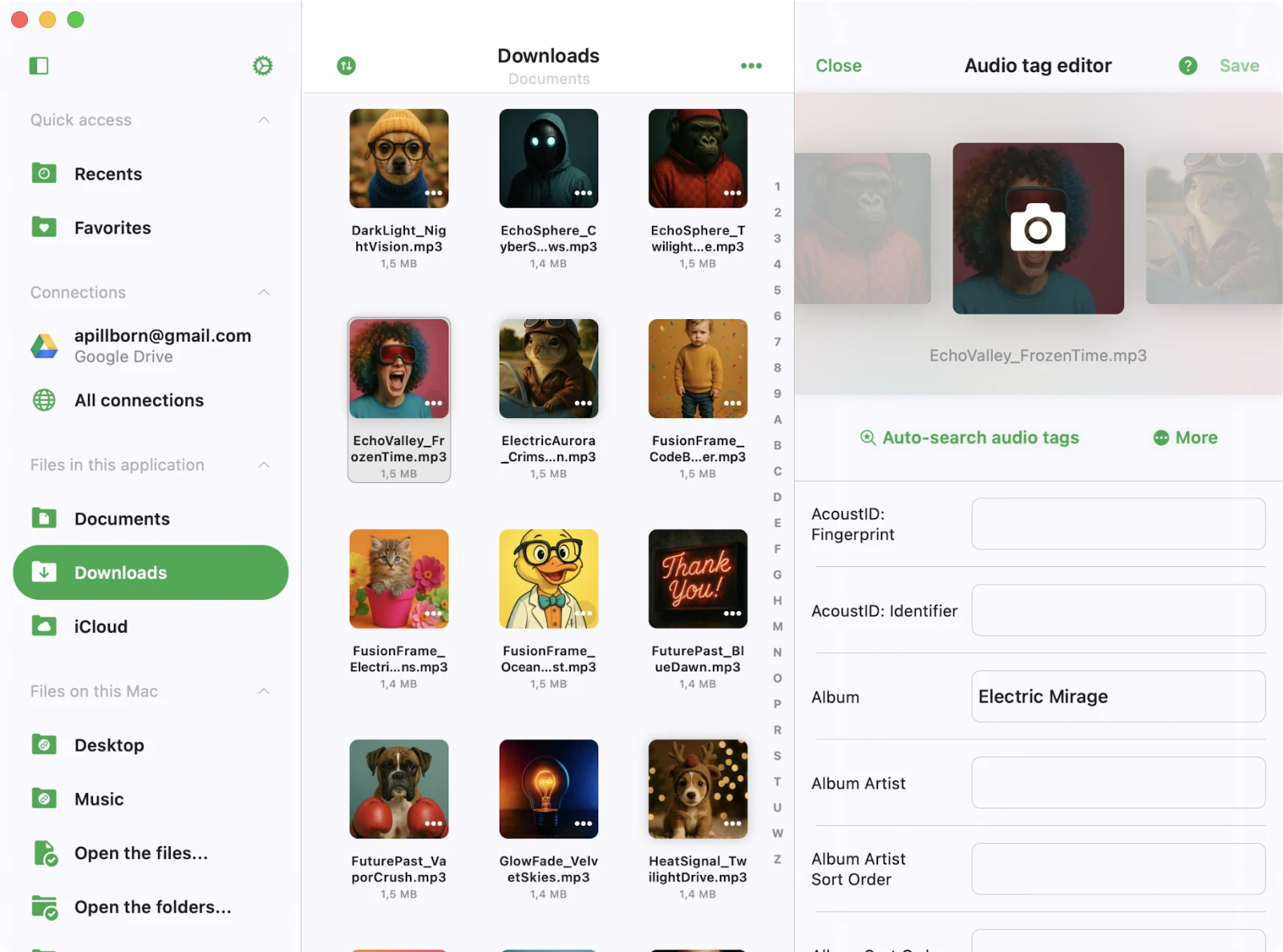
Sections
Whether you’re using an iPhone, iPad, or compact mode on a Mac, all app features are easily accessible through the tab bar at the bottom of the screen. For iPad and Mac users, the same menu can be found on the left side of the screen. This thoughtful organization categorizes all app features into easily accessible sections, ensuring a user-friendly and efficient experience.
Recents: Default tab that opens when the app starts. Lists your recently opened audio files so you can resume editing where you left off.
Favorites: Quickly jump to files and folders you’ve marked as favorites — including deeply nested cloud folders.
Connections: You can effortlessly connect cloud storage services such as iCloud Drive, Google Drive, MEGA, OneDrive, and Dropbox, as well as your computer and personal NAS from this screen. The top of the screen also shows a Quick access list with the cloud folders you’ve added to favorites for one-tap access.
Local Files: Effortlessly locate and oversee your downloaded files, complete with control over the transfer queue. You can edit these local files using a range of file management actions. To access the transfer queue, tap the spinning arrows icon found at the top left corner of the “Local Files” screen.
The Local Files section is divided into two categories: Files in this application, displaying local files within the application’s Documents directory, and Files on this iPad/iPhone/Mac, revealing local files located on the device but outside the application’s Documents directory.
Settings: Modify application settings, including the file manager, tag editor preferences (album cover scaling, ID3v2.4 / duplicate tags, main-screen buttons), Wi-Fi Drive, personalization (app icon, theme, list density, context menu style), language, passcode, accessibility, and window settings (iPad/Mac).
Tag Editor: The tag editor opens when you tap on a file or choose the “Edit Audio Tags” option from the menu. On iPad and Mac the tag editor is presented as the detail side of the main split view, so it stays on the right while you navigate files on the left.
More Actions
Virtually every content item on the screen features a “More Actions” button. Tap it to access all available actions.
Top Toolbar
The top toolbar, situated conveniently just beneath the navigation bar, provides quick access to several useful actions.
You can easily reveal or conceal this toolbar with a straightforward swipe-down gesture. Here is a list of the actions:
- Search: Begin a search within the current context.
Context Menu
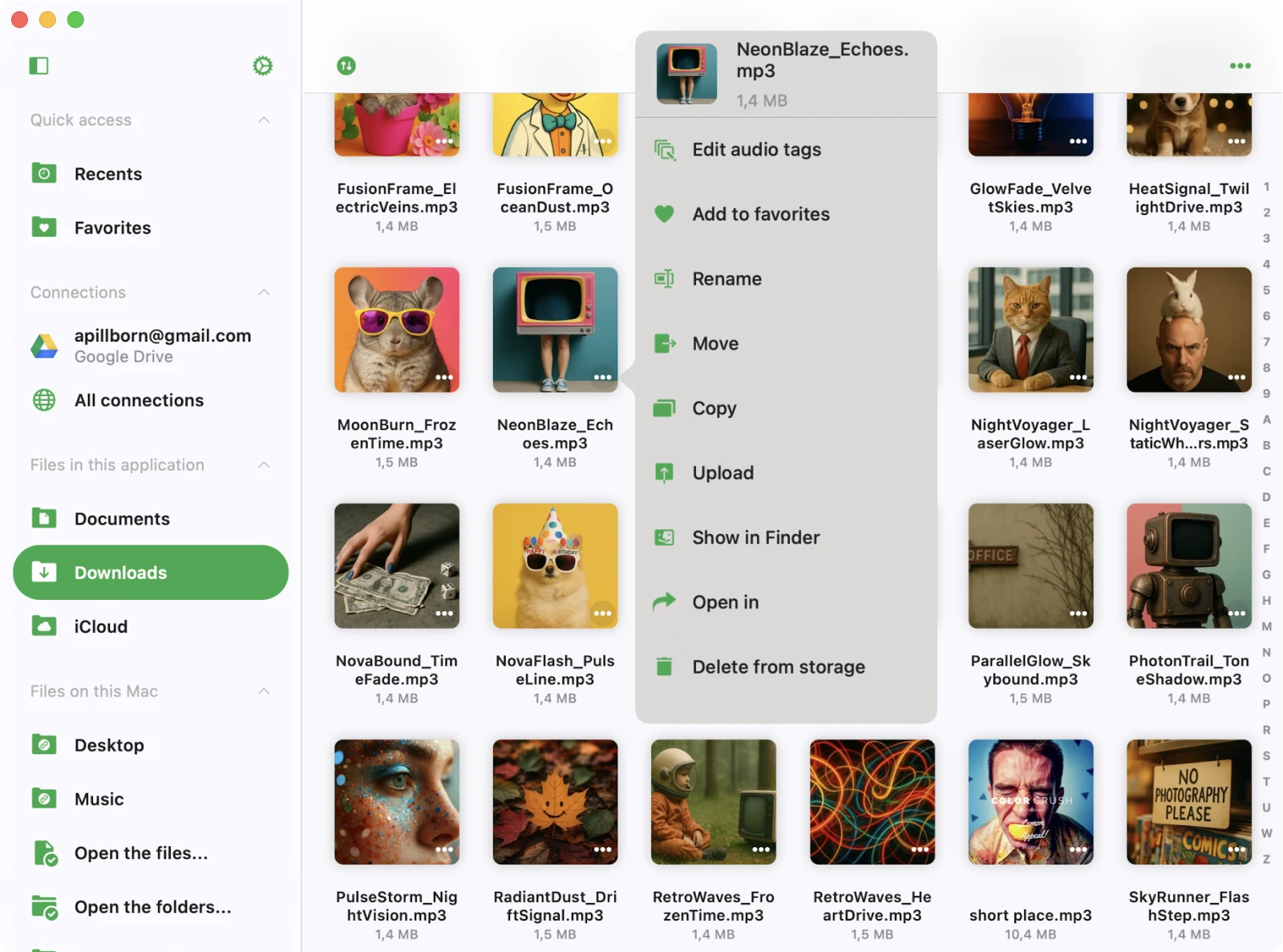
Every cell in Evertag — a local file, a cloud file, a folder, a Recents/Favorites entry, even a connected cloud account — has a context menu attached. It’s the fastest way to act on a single item without entering selection mode, and it surfaces every relevant action for the item type.
How to open it
There are two ways to summon the context menu, and both produce the same set of actions:
- The “…” button. Each cell shows a “…” (More Actions) button near its title. Tap it to bring up the menu. This works the same on iPhone, iPad, and Mac and is accessible to VoiceOver users.
- Long press / right click. On iPhone and iPad, tap and hold the cell to open the menu. On Mac, right-click (or Control-click) the cell instead. A targeted preview of the item appears alongside the menu so you can confirm you’re acting on the right file.
The same gesture also works on the folder’s own title bar at the top right of the screen — that menu acts on the currently opened folder and gives you access to Select, New Folder, Search, Sort, Grid/List, and folder-level actions.
What’s inside
The exact list depends on the item, but you’ll typically see actions such as:
- Edit Audio Tags — open the file in the built-in tag editor.
- Add to Favorites — pin the file or folder to the Favorites tab.
- Download — fetch a cloud file or folder for offline use; downloads appear in the transfer queue.
- Upload — push a local file or folder to a connected cloud service.
- Rename / Move / Copy — manage the file on its origin storage.
- Open In — export the file to another app via the system share sheet.
- Show in Finder (Mac and “Files on this Mac”) — reveal the file in Finder.
- Delete — remove the file from its current location. This action is irreversible.
If the actions list overflows the screen, scroll inside the menu to reveal the rest.
Context menu style
You can choose how the context menu is presented from Settings → Personalization → Context menu style:
- System menu — uses the native iOS / macOS context menu with a targeted preview. Default on iPhone and iPad.
- Bottom sheet — Evertag’s custom bottom-sheet menu, useful when you prefer a larger touch target or want labels to be easier to read.
The choice is per-device, so you can mix system menus on iPhone with the bottom sheet on iPad (or vice versa).