Media Player
The Media Player is the main screen of the app where you control playback and most of Evervideo’s features. It plays both video and audio files and is built on a custom FFmpeg-based player with hardware-accelerated H.264 and HEVC decoding that does the heavy lifting. Let’s explore how to use it.
Accessing the Media Player
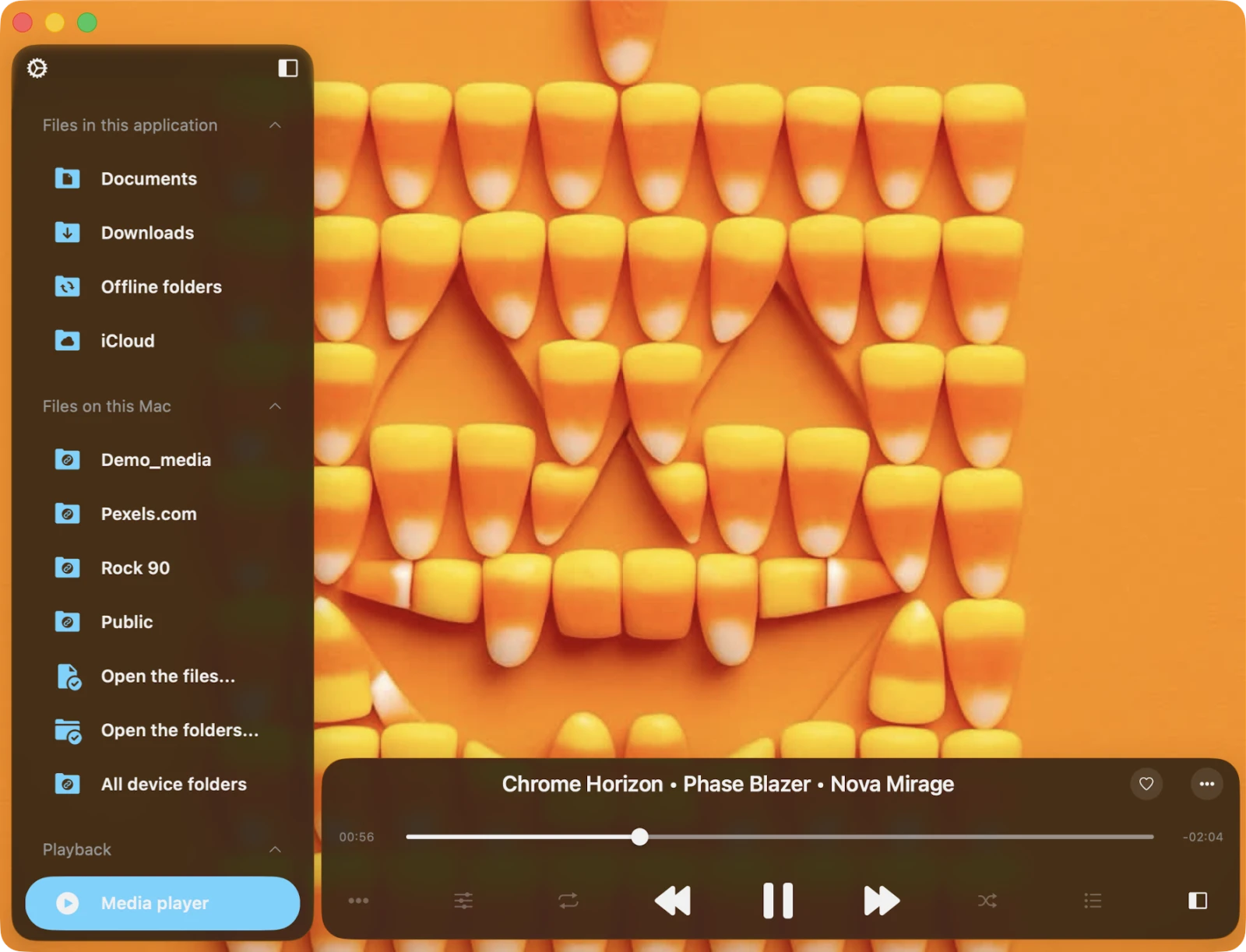
You can get to the full-screen player from the compact player bar. On iPhone, the compact player sits at the top of the main screen. On iPad and Mac, it’s on the left side (or the top of the main panel). To collapse the full-screen player back into the compact view, tap the close button in the bottom-right corner or swipe down. To fully hide the compact player, tap and swipe down once more.
The compact player stays visible while you browse your library, your file manager, or your settings, so you never lose your video while looking for the next one.
Supported Video and Audio Formats
Evervideo plays virtually every modern container and codec through the bundled FFmpeg engine, with hardware-accelerated H.264 and HEVC decoding on supported devices.
- Video containers: MP4, M4V, MKV, MOV, AVI, FLV, WMV, ASF, WebM, TS, M2TS, MTS, MPG, MPEG, OGV, 3GP, 3G2, F4V, RM, RMVB, VOB, DAT — and many more.
- Video codecs: H.264 (AVC), H.265 (HEVC), VP9, VP8, AV1, MPEG-2, MPEG-4, MJPEG, ProRes, Theora, WMV — plus virtually every other codec that FFmpeg supports.
- Audio codecs: AAC, MP3, FLAC, ALAC, OGG / Vorbis, OPUS, AC-3, EAC-3, DTS, AMR, WMA, APE, TTA, MPC, WV — and many more.
- Subtitle formats: SRT, VTT (WebVTT), ASS / SSA, and embedded text or image subtitle tracks.
- Streaming protocols: HTTP / HTTPS, HLS (m3u8), RTSP (IP cameras and IPTV), and direct file streaming over SMB / WebDAV / FTP / SFTP / NFS / DLNA.
That covers virtually every video file you’re likely to encounter — including MKV rips, security-camera RTSP streams, and AV1 webm web downloads.
Playback Controls
At the bottom of the player screen, you’ll see buttons for Play, Pause, Next, and Previous. There are also optional buttons like Skip Forward and Skip Backward (default 10 seconds) that you can enable in the app settings. Hold the Next / Previous buttons to fast-forward or rewind. Drag the playback slider to jump to any position.
Repeat and Shuffle
Tap the repeat button to cycle through repeat modes:
- Repeat All — loops every video in your queue.
- Repeat One — repeats just the current video.
- Repeat Stop — pauses when the current video ends.
- Repeat None — plays the queue once through without repeating.
Use the Shuffle button to randomize the order of videos in the queue.
Picture-in-Picture (PiP)
On iPhone and iPad, Evervideo fully supports Picture-in-Picture (PiP). Tap the PiP icon on the player screen or simply swipe Evervideo into the background — the video continues playing in a floating window above every other app. Drag the floating window to any corner; pinch to resize; tap once to bring up basic play / pause / skip controls; tap the small expand button to return to full Evervideo.
PiP works with every video format Evervideo plays, including cloud-streamed files and RTSP streams. PiP also keeps running while your phone is locked (depending on your Auto-Lock setting).
Compact Player
The compact player is a persistent mini-player that stays visible at the top of every screen in the app while you browse the library, the file manager, or settings. Tap it to expand into the full-screen player; swipe down to collapse it again.
AirPlay 2
For AirPlay, tap the AirPlay button on the player. Evervideo supports AirPlay 2, so you can stream video to Apple TV, HomePod, or any AirPlay 2-compatible speaker or smart TV. On a setup with multiple AirPlay devices, you can route audio to multiple receivers simultaneously.
Google Chromecast
For Google Cast users, the Cast icon appears on the player. Tap it to choose a device and start casting. Make sure your phone and the Cast receiver are on the same Wi-Fi network. Not every codec is supported by Chromecast hardware — some files may need transcoding.
RTSP Live Streams
Evervideo can play RTSP sources directly — IP cameras, doorbell cameras, IPTV streams, broadcast feeds, and any other rtsp:// URL. Add the stream as an RTSP connection in Files → Online Links → Add link, then tap it to start watching. RTSP streams work in Picture-in-Picture, the compact player, and they cast over AirPlay 2 and Chromecast just like a regular video.
Audio Track Selection
For videos with multiple audio tracks (commentary, alternate language dubs, director’s tracks), tap the More Actions button on the player and choose Audio Track — then pick the track you want. This is essential for foreign-language films, BDMV / MKV files with multiple dubs, and instructional content with commentary tracks.
Video Track Selection
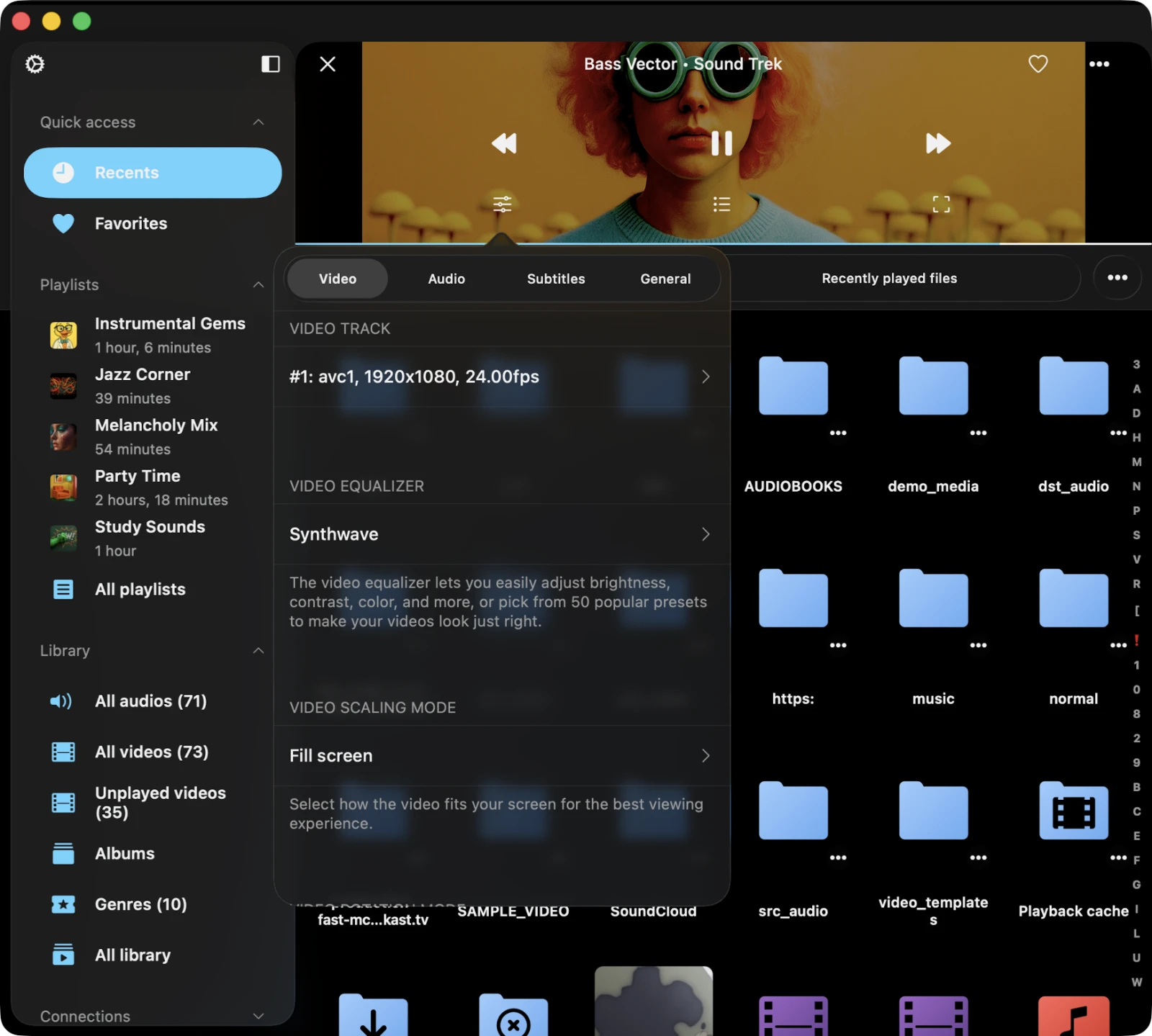
Some video files include multiple video streams (multi-angle Blu-rays, alternate cuts). Choose Video Track from the More Actions menu to switch between them mid-playback.
Subtitles — Internal and External
Evervideo gives you fine-grained control over subtitles:
- Subtitle track — pick from the tracks embedded in the file.
- External subtitle files — load
.srt,.vtt,.ass, or.ssafiles from your device, iCloud Drive, or any connected cloud service. - Libass rendering — advanced ASS / SSA styling (fonts, colors, positions, karaoke effects) is rendered correctly thanks to bundled libass.
- Font selection — choose a custom font for primary subtitles and a separate font for secondary subtitles. Bundled fonts plus any font installed on your device are available.
You can configure all of this in Settings → Subtitles before playback, or use More Actions → Subtitles from the player to switch on the fly.
Audio Equalizer
Evervideo includes a full audio equalizer to tune video soundtracks for your headphones, speakers, or hi-fi setup. Tap the equalizer icon on the volume view (or the Audio Equalizer action on the player More Actions menu), turn the equalizer on with the switch in the top-right corner, and either pick a preset or drag the band sliders to build your own preset. Custom presets can be exported and imported so you can share them across devices or back them up.
Video Equalizer
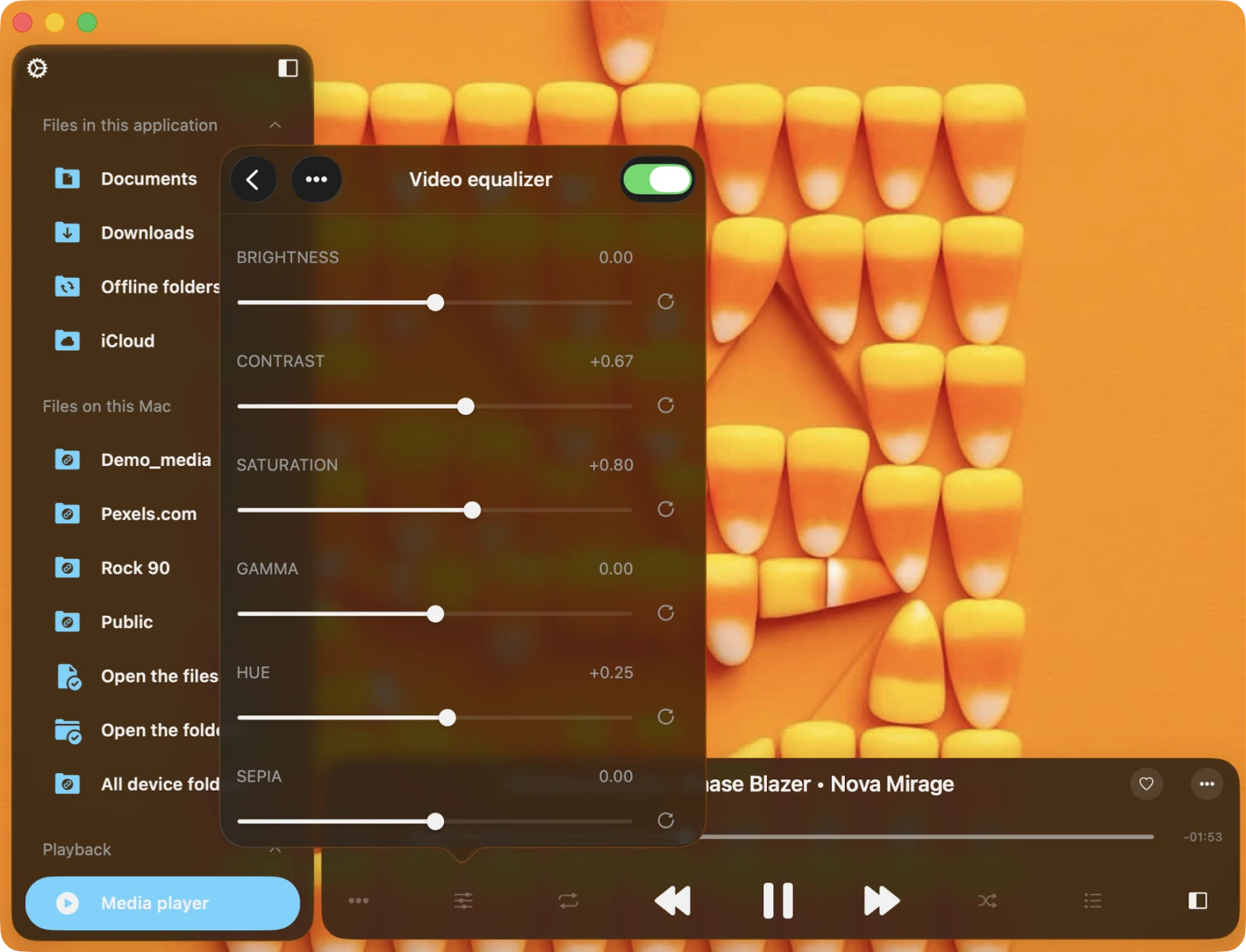
For tuning the picture, Evervideo provides a dedicated video equalizer — adjust brightness, contrast, saturation, and hue in real time during playback. Like the audio equalizer, custom video presets can be exported and imported for sharing or backup. Use it to brighten a dark scene on a sunny day, boost saturation on washed-out content, or warm up a cold color cast.
Video Scaling Mode
Choose how the video fills the screen:
- Fit — preserve the original aspect ratio; black bars where needed.
- Fill — fill the entire screen, cropping the video if necessary.
- Stretch — stretch the video to fill the screen, distorting if necessary.
- Original — keep the native resolution at 1:1.
Video Rotation
For videos recorded with the wrong orientation, choose More Actions → Rotation and pick 0°, 90°, 180°, or 270° to rotate the picture without leaving the player.
Hardware Decoding (H.264 and HEVC)
In Settings → Player → Video, you can enable / disable Hardware Decode H.264 and Hardware Decode H.265 (HEVC) independently. Hardware decoding is faster, uses less battery, and runs cooler — but in rare cases (corrupt files, exotic profiles) you may need to disable hardware decoding and fall back to software FFmpeg decoding. Evervideo lets you do that file-by-file from the player More Actions menu.
VR 360° Viewport
Evervideo includes a VR / 360° viewport for spherical video files. When playing a 360° video, you can drag to look around, pinch to zoom, and Evervideo will warp the rendering in real time.
Playback Speed
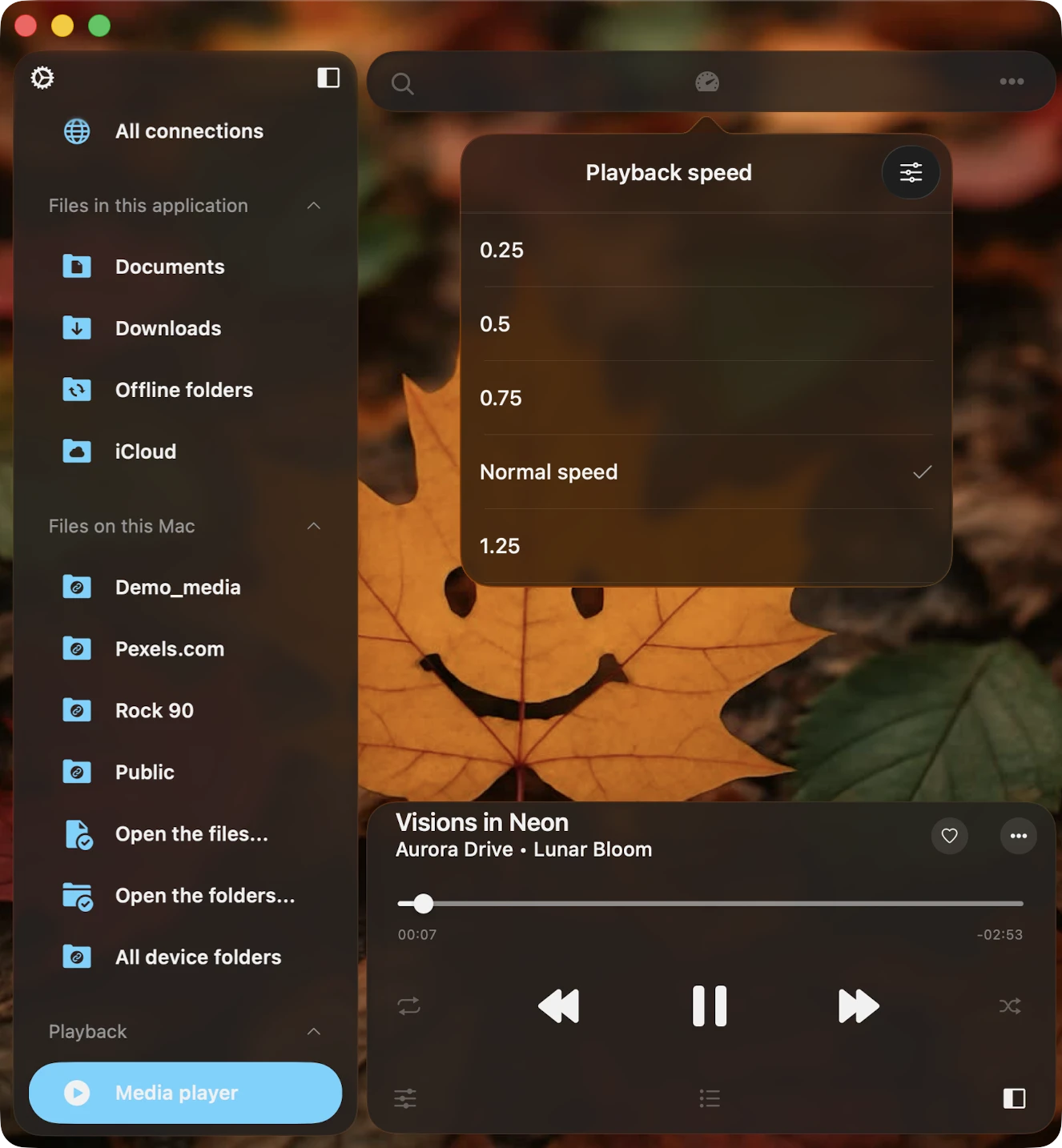
Tap the Speed control on the player toolbar to change playback speed — slow it down for analysis (0.25× or 0.5×) or speed it up for tutorials and lectures (1.25×, 1.5×, 2×, and up to 3×). Tap the configuration icon in the top-right corner of the Speed screen to switch to precise mode with finer adjustments. Per-track pitch correction is also available.
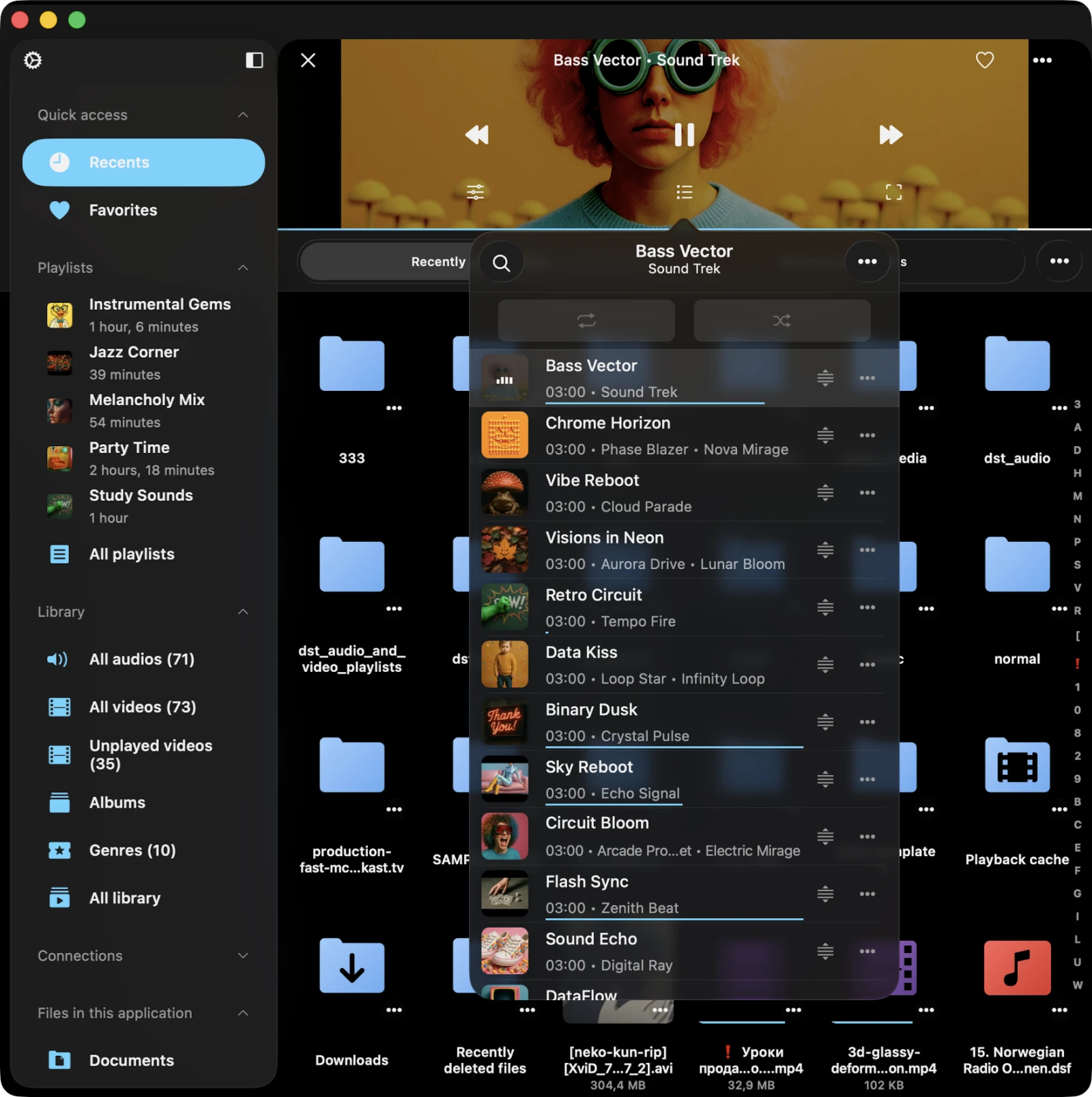
Player Queue
To see your player queue, tap the queue button on the player. Each video in the queue has more actions — tap the three dots to view them. To reorder a video in the queue, use the reorder indicator near the title and drag it to a new position.
Sleep Timer
Open Settings → Player → Sleep Timer, turn it on, and choose how long you want playback to continue before automatically stopping. You can also add the Sleep Timer button directly to the main player screen via Settings → Player → Personalization → Main Screen Actions.
Player Bookmarks
Save your spot in long videos — lectures, audiobooks-on-video, tutorials, hour-long YouTube downloads — by tapping Add Bookmark from the More Actions menu. Bookmarks appear in the video’s More Actions → Bookmarks list and persist between sessions.
More Actions Menu
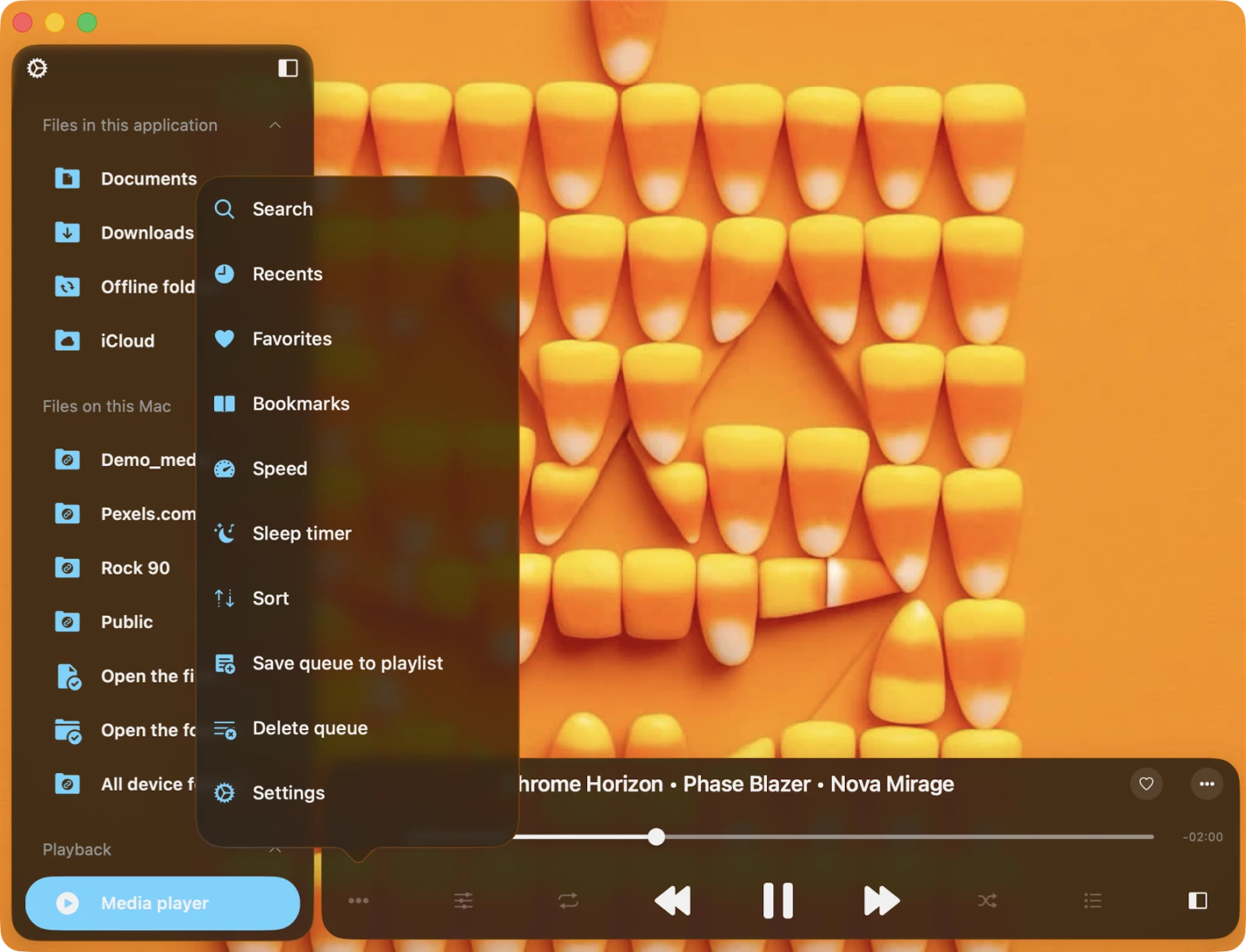
Tap the More Actions “…” button on the player to access additional functions.
- Continue Playback — resume the queue from the last position.
- Search — find a specific video in your queue.
- Bookmarks — view and jump to bookmarks.
- Speed — adjust playback speed.
- Recents — recently played videos.
- Favorites — favorited videos.
- Audio Equalizer — activate the audio equalizer.
- Video Equalizer — activate the video equalizer.
- Audio Track — pick the audio stream.
- Video Track — pick the video stream.
- Subtitles — primary / secondary track, external file, font.
- Rotation — rotate the picture 0° / 90° / 180° / 270°.
- Scaling Mode — Fit / Fill / Stretch / Original.
- Picture-in-Picture — enter PiP mode.
- AirPlay / Chromecast — send to a device.
- Sleep Timer — set a timer to stop playback.
- Save Queue to Playlist — save the current queue as a new playlist.
- Delete Queue — clear the queue and stop playback.
- Settings — jump straight to player settings.
- Help — open guidance.
Player Settings
The full Player settings tree is documented in the Settings guide. The most-used sections:
- General — Repeat mode, Shuffle mode, Save Player State, Save Playback Position, Skip-time intervals.
- Video — Hardware decode H.264 / HEVC, video equalizer, scaling mode, rotation, display mode, preferred FPS, preferred pixel format, VR view-port.
- Audio — Audio equalizer, sample rate, channels, IO buffer duration, mixed mode.
- Subtitles — Primary / secondary track, external file selection, font, secondary font.
- Devices (iOS) — AirPlay / Chromecast.
- Personalization — Player layout style (Minimal / Bottom / Antique / Classical), main-screen actions, lock-screen controls.
- Playback Cache — disk cache for smoother streaming.
- Sleep Timer — automatic stop.
Accessibility
Evervideo is fully accessible with VoiceOver. Every component has a well-designed label and description. When VoiceOver is active, the app switches to Text Mode so only meaningful elements are surfaced — improving navigation speed and clarity. You can also activate Text Mode in Settings → Accessibility → Text Mode.
Adjusting Sliders with VoiceOver
- Select the slider — swipe left or right until VoiceOver announces it.
- Adjust the value — double-tap and hold the slider, then drag up or down to change the value quickly. VoiceOver announces the new value as you go.
Other components work as expected, using system-provided VoiceOver patterns.