How to Use the Audio Equalizer on Your iPhone, iPad, or Mac with Evermusic and Flacbox

TL;DR: Evermusic and Flacbox include a professional 10-band audio equalizer with presets (Rock, Hip-Hop, Bass Booster, and more), custom preset creation, and a preamplifier for volume boosting. Available on iPhone, iPad, and Mac.
When it comes to audio players, finding the right equalizer can make all the difference in your music-listening experience. Our audio apps, Evermusic and Flacbox, stand out as full-featured players equipped with a professional 10-band equalizer and a range of exciting features.
In a perfect world, where music files and headphones are flawless, an equalizer might seem unnecessary. However, our daily lives often involve less-than-ideal listening environments — commuting, working out, or strolling through noisy city streets. These situations, combined with the limitations of standard headphones, call for the power of EQ adjustments. An equalizer lets you fine-tune frequency balance, compensate for imperfect headphones or speakers, and adapt to background noise. Whether you’re boosting bass and treble for a party vibe or fine-tuning sound for a DJ session, our equalizer offers creative audio enhancement to elevate your listening experience.
How Does the Equalizer in Evermusic and Flacbox Work?
Our apps boast a powerful 10-band equalizer, offering precise control over specific sound frequencies. Here’s how it works:
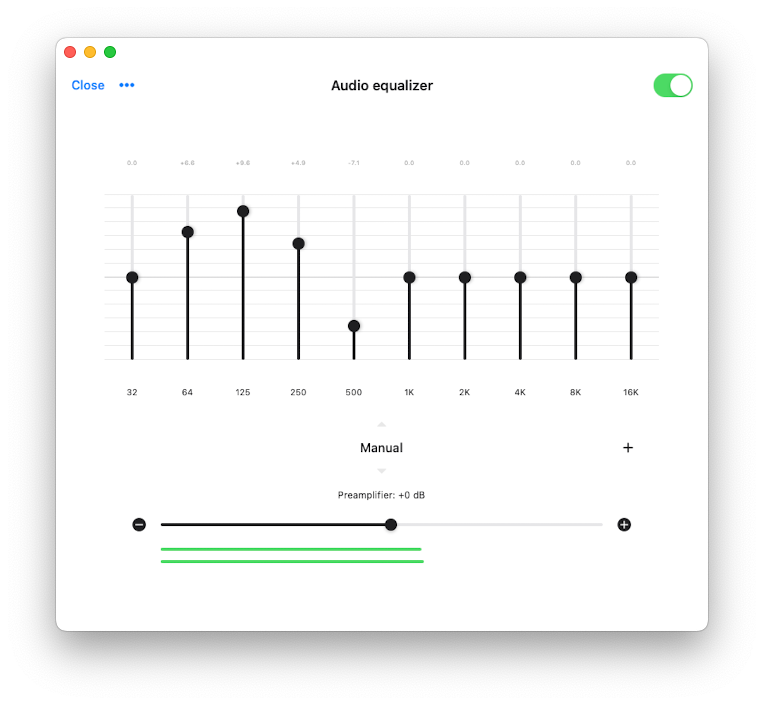
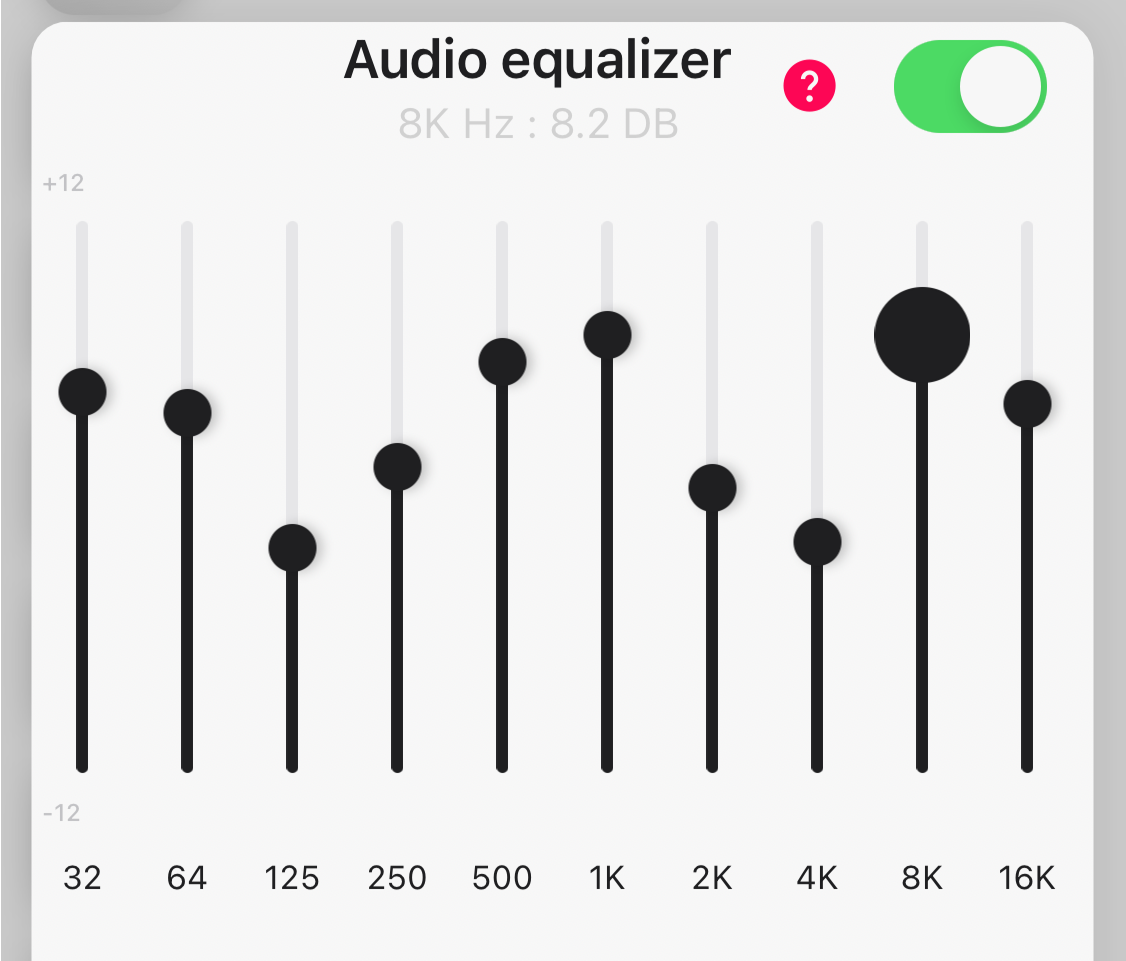
Frequency Control: The equalizer spans 10 different frequencies, ranging from 32 Hz to 16 kHz. Adjust the amplifier gain for each frequency using intuitive sliders.
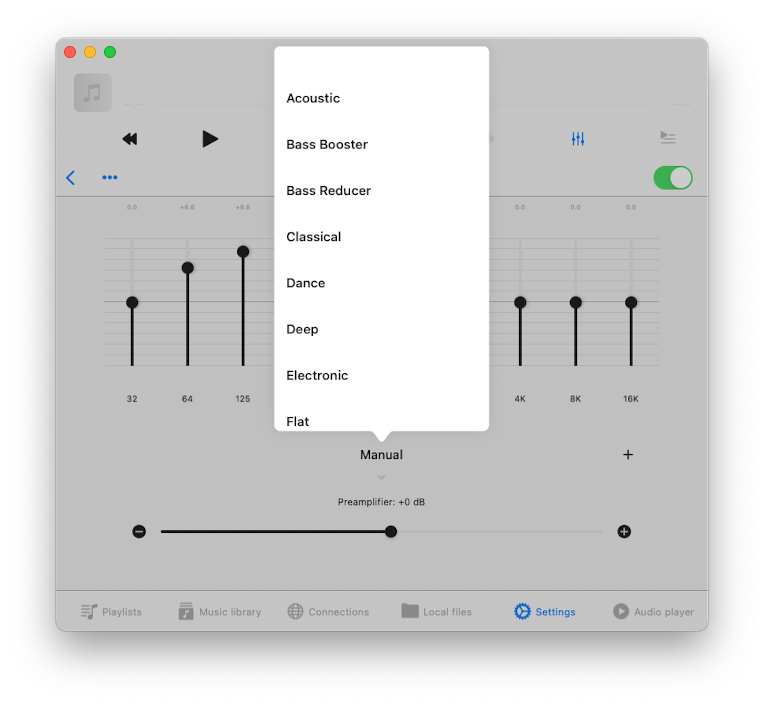
Presets: Choose from a variety of predefined equalizer presets, including Acoustic, Bass Booster, Hip-Hop, Rock, and more.
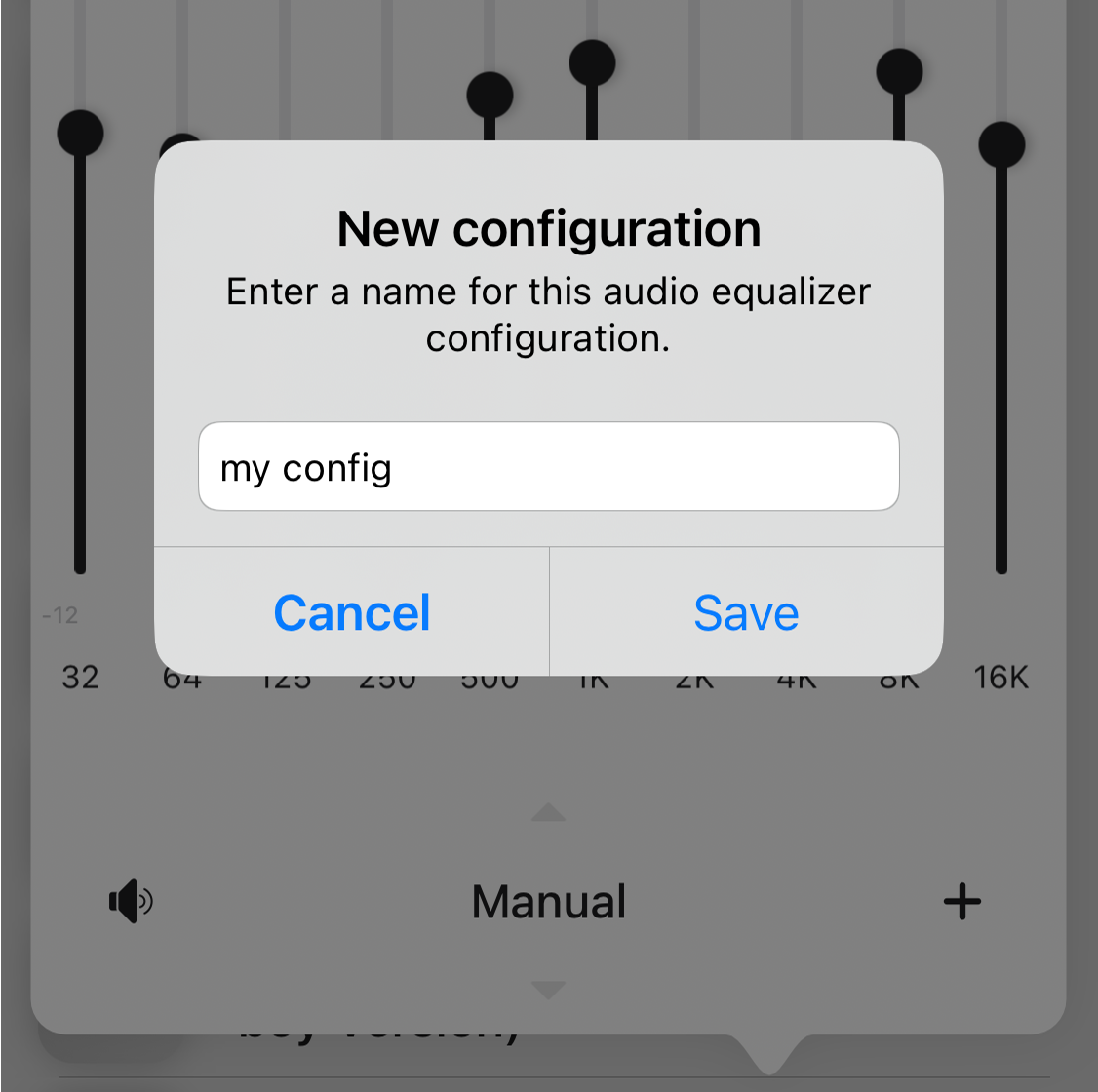
Create Your Own Presets: Feeling creative? Craft and save your custom equalizer presets to match your unique preferences or audio equipment.
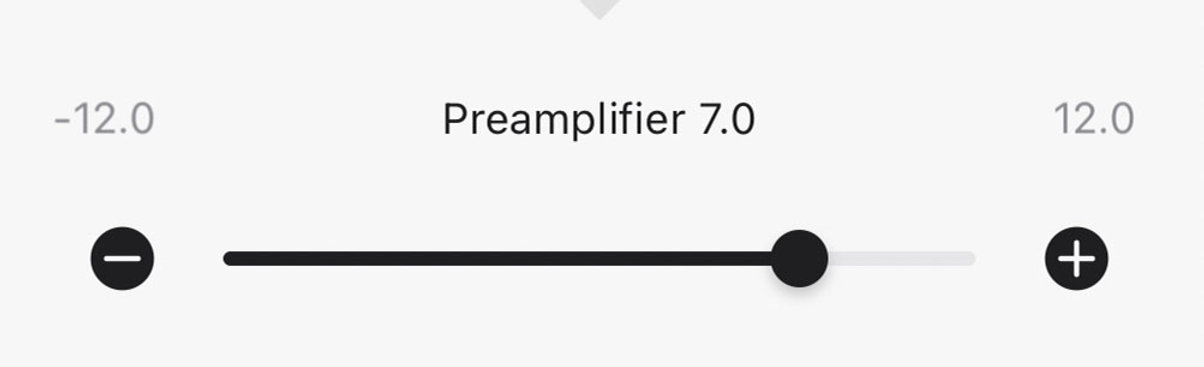
Preamplifier Gain: If your track lacks volume, use the preamplifier slider to boost the output and enjoy a louder, clearer sound.
Audio Level Indicators: Once the song is playing, you can check the output level indicators and adjust the preamplifier gain accordingly.
Activating the Equalizer in Evermusic and Flacbox
It’s a breeze to activate and customize the equalizer in our apps:
-
Open the Audio Player screen in Evermusic or Flacbox.
-
Tap the equalizer icon at the bottom of the screen.
-
Toggle the switch at the top to activate the equalizer.
(Alternatively, go to Settings > Audio Player > Audio Equalizer) -
Choose from the array of preset options in the pop-up menu.
- Fine-tune your sound by dragging the frequency sliders up or down to adjust the volume in decibels.
- Save your unique equalizer configuration for future listening.
- For an extra volume boost, use the preamplifier slider.
Manage Presets Configurations
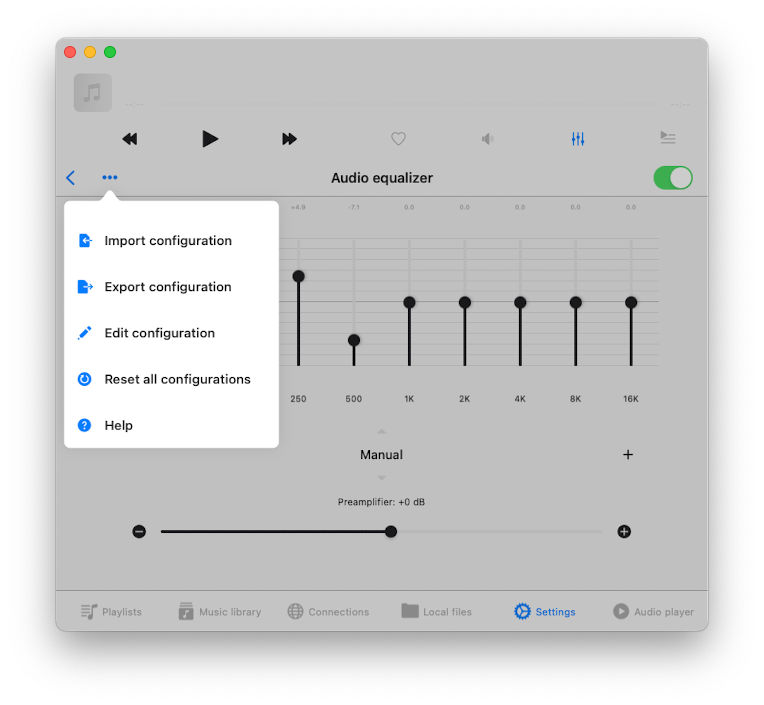
On the top-left corner of the equalizer screen, tap the More Actions (three dots) button to access advanced options:
- Import Configuration: Load a saved equalizer file.
- Export Configuration: Save your presets to a file.
- Edit Configuration: Sort and organize your saved presets.
- Reset All Configurations: Restore defaults and remove all custom presets.
Built-In Equalizer Presets
Evermusic and Flacbox include 22 built-in presets. The 10 bands correspond to frequencies: 32 Hz, 64 Hz, 125 Hz, 250 Hz, 500 Hz, 1 kHz, 2 kHz, 4 kHz, 8 kHz, and 16 kHz. All values are in dB.
| Preset | 32 | 64 | 125 | 250 | 500 | 1k | 2k | 4k | 8k | 16k |
|---|---|---|---|---|---|---|---|---|---|---|
| Acoustic | +5.0 | +4.9 | +4.0 | +1.1 | +2.2 | +1.8 | +3.5 | +4.1 | +3.6 | +2.2 |
| Bass Booster | +5.5 | +4.3 | +3.5 | +2.5 | +1.3 | 0 | 0 | 0 | 0 | 0 |
| Bass Reducer | -5.5 | -4.3 | -3.5 | -2.5 | -1.3 | 0 | 0 | 0 | 0 | 0 |
| Classical | +4.8 | +3.8 | +3.0 | +2.5 | -1.5 | -1.5 | 0 | +2.3 | +3.3 | +3.8 |
| Dance | +3.6 | +6.6 | +5.0 | 0 | +1.9 | +3.7 | +5.2 | +4.5 | +3.6 | 0 |
| Deep | +5.0 | +3.6 | +1.8 | +1.0 | +2.9 | +2.5 | +1.5 | -2.2 | -3.6 | -4.6 |
| Electronic | +4.3 | +3.8 | +1.2 | 0 | -2.2 | +2.3 | +0.9 | +1.3 | +4.0 | +4.8 |
| Flat | 0 | 0 | 0 | 0 | 0 | 0 | 0 | 0 | 0 | 0 |
| Hip-Hop | +5.0 | +4.3 | +1.5 | +3.0 | -1.0 | -1.0 | +1.5 | -0.5 | +2.0 | +3.0 |
| Jazz | +4.0 | +3.0 | +1.5 | +2.3 | -1.5 | -1.5 | 0 | +1.5 | +3.0 | +3.8 |
| Latin | +4.5 | +3.0 | 0 | 0 | -1.5 | -1.5 | -1.5 | 0 | +3.0 | +4.5 |
| Loudness | +6.0 | +4.0 | 0 | 0 | -2.0 | 0 | -1.0 | -5.0 | +5.0 | +1.0 |
| Lounge | -3.0 | -1.5 | -0.5 | +1.5 | +4.0 | +2.5 | 0 | -1.5 | +2.0 | +1.0 |
| Piano | +3.0 | +2.0 | 0 | +2.5 | +3.0 | +1.5 | +3.5 | +4.5 | +3.0 | +3.5 |
| Pop | -1.5 | -1.0 | 0 | +2.0 | +4.0 | +4.0 | +2.0 | 0 | -1.0 | -1.5 |
| R&B | +2.6 | +6.9 | +5.7 | +1.3 | -2.2 | -1.5 | +2.3 | +2.7 | +3.0 | +3.8 |
| Rock | +5.0 | +4.0 | +3.0 | +1.5 | -0.5 | -1.0 | +0.5 | +2.5 | +3.5 | +4.5 |
| Small Speakers | +5.5 | +4.3 | +3.5 | +2.5 | +1.3 | 0 | -1.3 | -2.5 | -3.5 | -4.3 |
| Spoken Word | -3.5 | -0.5 | 0 | +0.7 | +3.5 | +4.6 | +4.8 | +4.3 | +2.5 | 0 |
| Treble Booster | 0 | 0 | 0 | 0 | 0 | +1.3 | +2.5 | +3.5 | +4.3 | +5.5 |
| Treble Reducer | 0 | 0 | 0 | 0 | 0 | -1.3 | -2.5 | -3.5 | -4.3 | -5.5 |
| Vocal Booster | -1.5 | -3.0 | -3.0 | +1.5 | +3.8 | +3.8 | +3.0 | +1.5 | 0 | -1.5 |
You can use any preset as a starting point and adjust individual bands to your taste. Use the real-time level indicators to check output and avoid distortion.
Conclusion
Elevate your music experience, tailor your audio to any scenario, and enjoy the perfect sound with the versatile equalizer in Evermusic and Flacbox.