How to Create M3U Playlist for Internet Archive or Live Music Archive

TL;DR: Paste any Internet Archive URL into archivetom3u.com, pick your audio format (MP3, FLAC, OGG), and download a ready-to-play M3U playlist – no account required. Then import it into Evermusic on iPhone or Mac for instant playback.
In this step-by-step guide, you’ll learn how to generate and download M3U playlists from Internet Archive items — including the Live Music Archive — using a simple, browser-based tool.
What Is the Internet Archive?
The Internet Archive is a non-profit digital library offering millions of free books, movies, software, music, and more. Among its audio collections is the Live Music Archive, which includes thousands of high-quality concert recordings, available in formats like FLAC, 24-bit FLAC, MP3, and OGG — all completely free to access and download.
Open the M3U Generator Tool
Start by visiting the M3U playlist generator website:
This free tool allows you to paste any Internet Archive item URL and instantly generate a playable .m3u file — no signup or software installation required.
How the Tool Works
The tool uses the official Internet Archive Metadata API to retrieve track listings and generate playlist files. No media is hosted or mirrored by the site. You can also preview tracks directly in your browser using the built-in player.
Supported Audio Formats
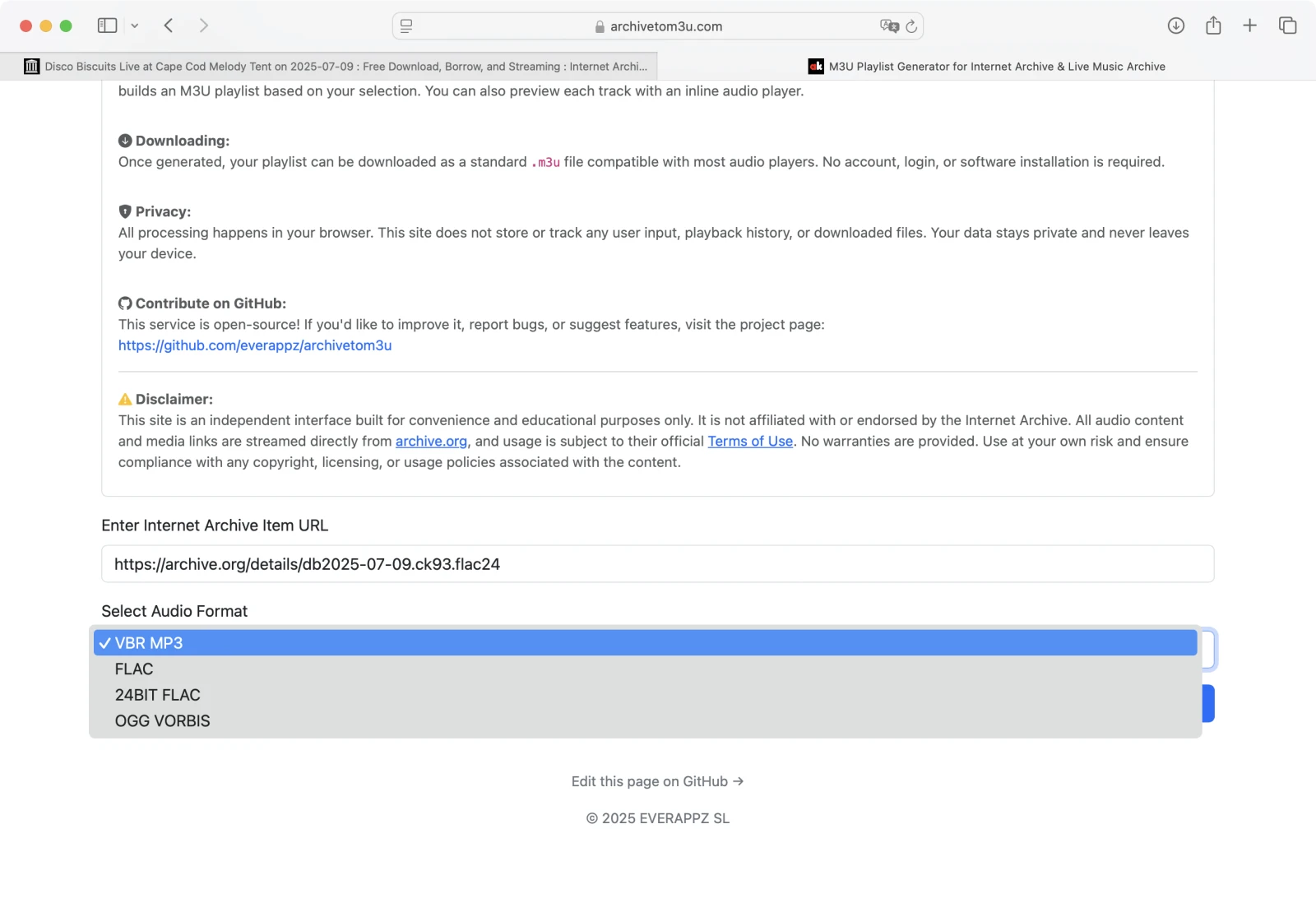
You can choose from the following formats:
- VBR MP3
- FLAC
- 24-BIT FLAC
- OGG VORBIS
⚠️ Only tracks available in your selected format will be included in the generated playlist.
Step-by-Step Instructions
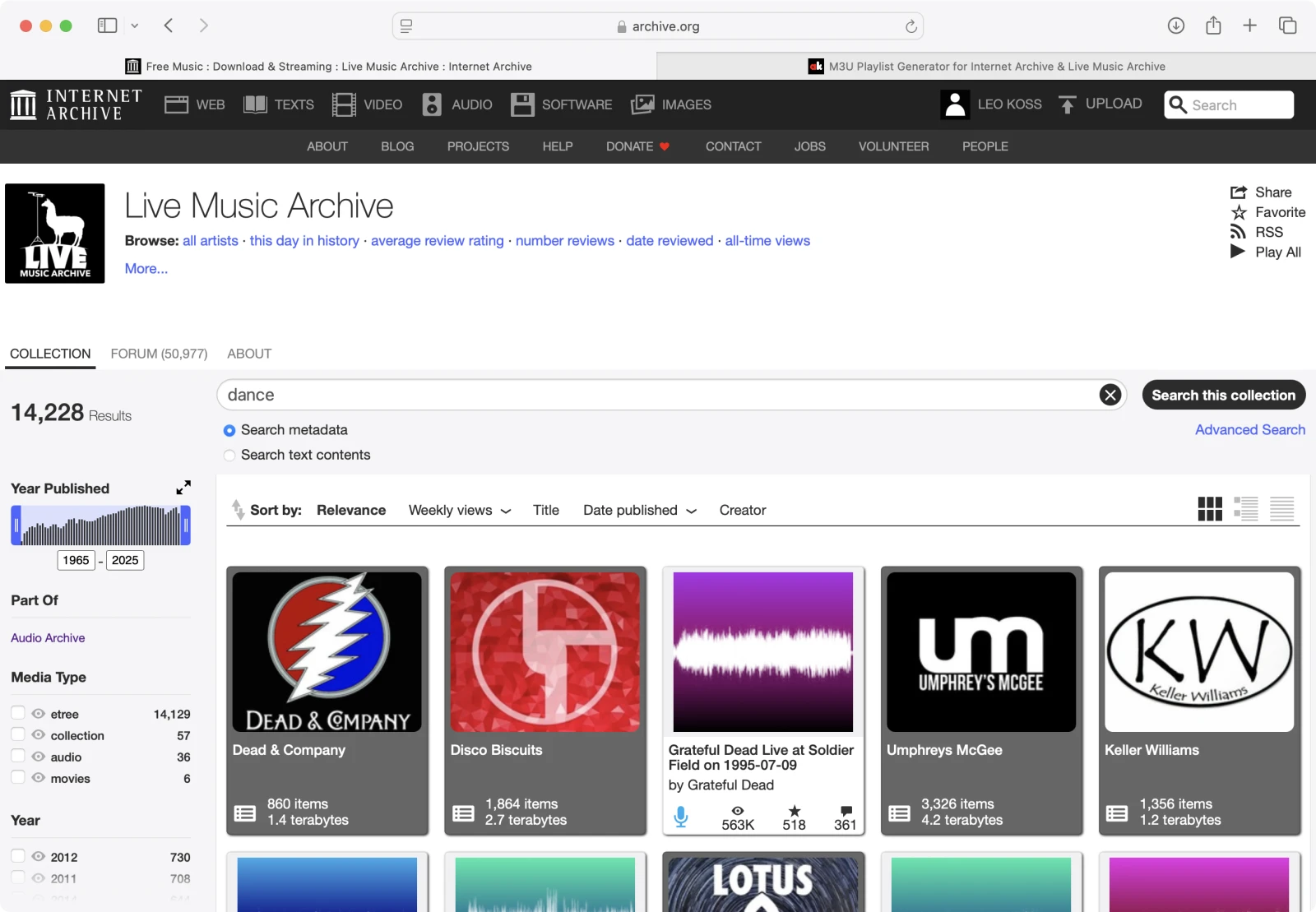
1. Search for Audio on Archive.org
Go to archive.org, tap Audio, and select Live Music Archive. Use the search bar to find a genre, artist, or concert you want.
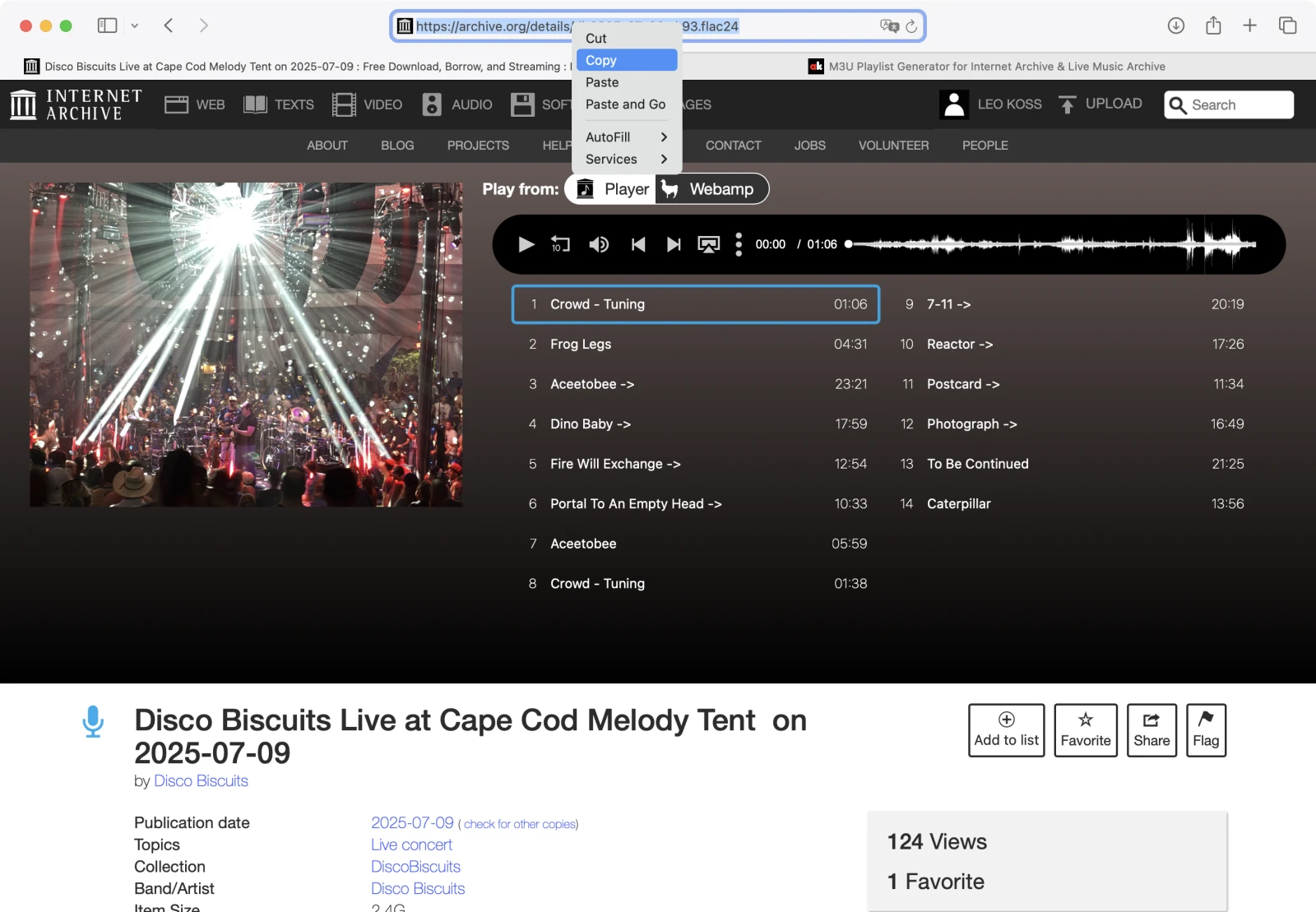
2. Copy the Item URL
Click on the item you want, and copy its URL from the browser address bar.
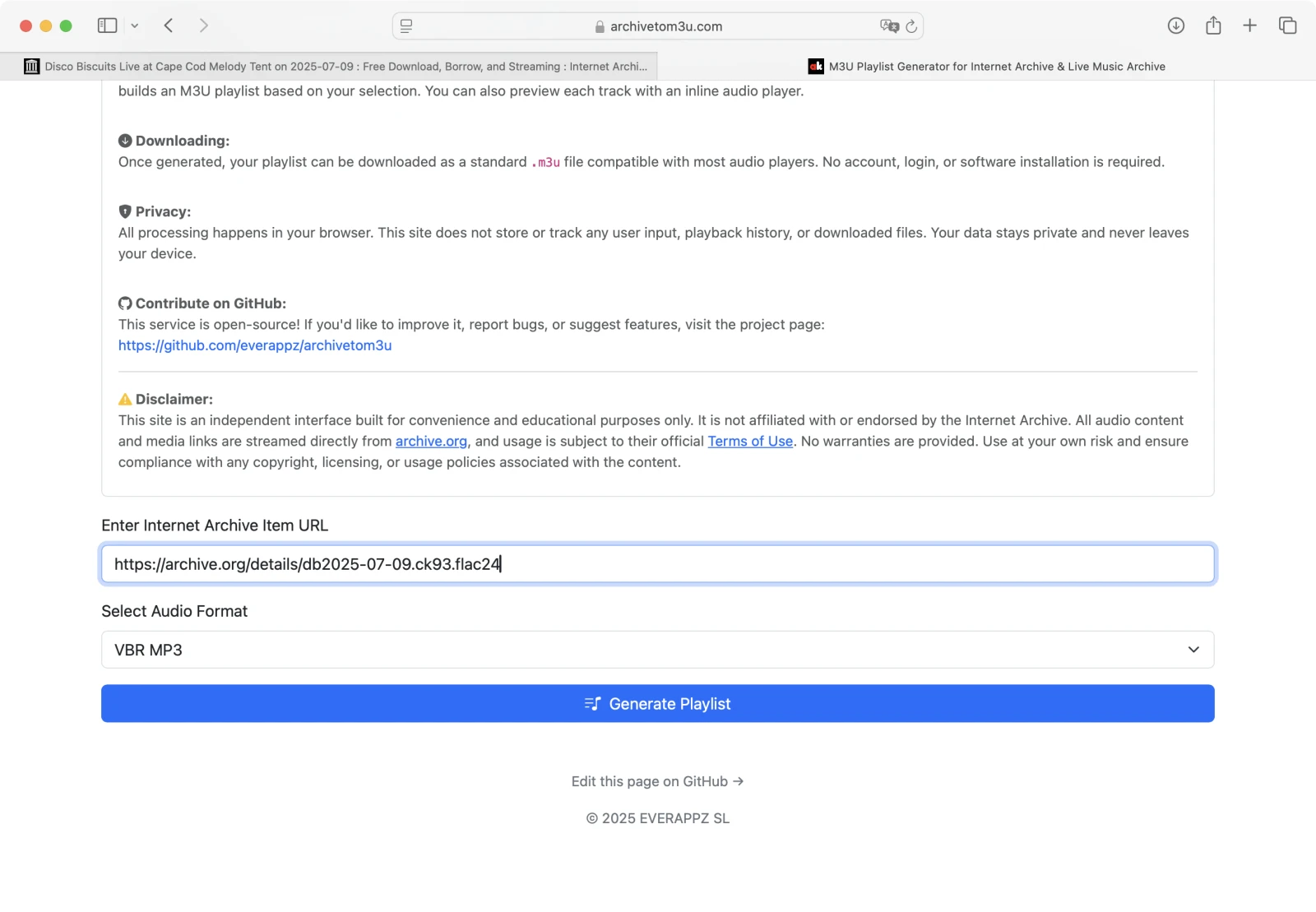
3. Paste the URL Into the Generator
Head back to archivetom3u.com and paste the copied URL into the input field.
4. Select Your Audio Format
Choose the format you want (MP3, FLAC, etc.).
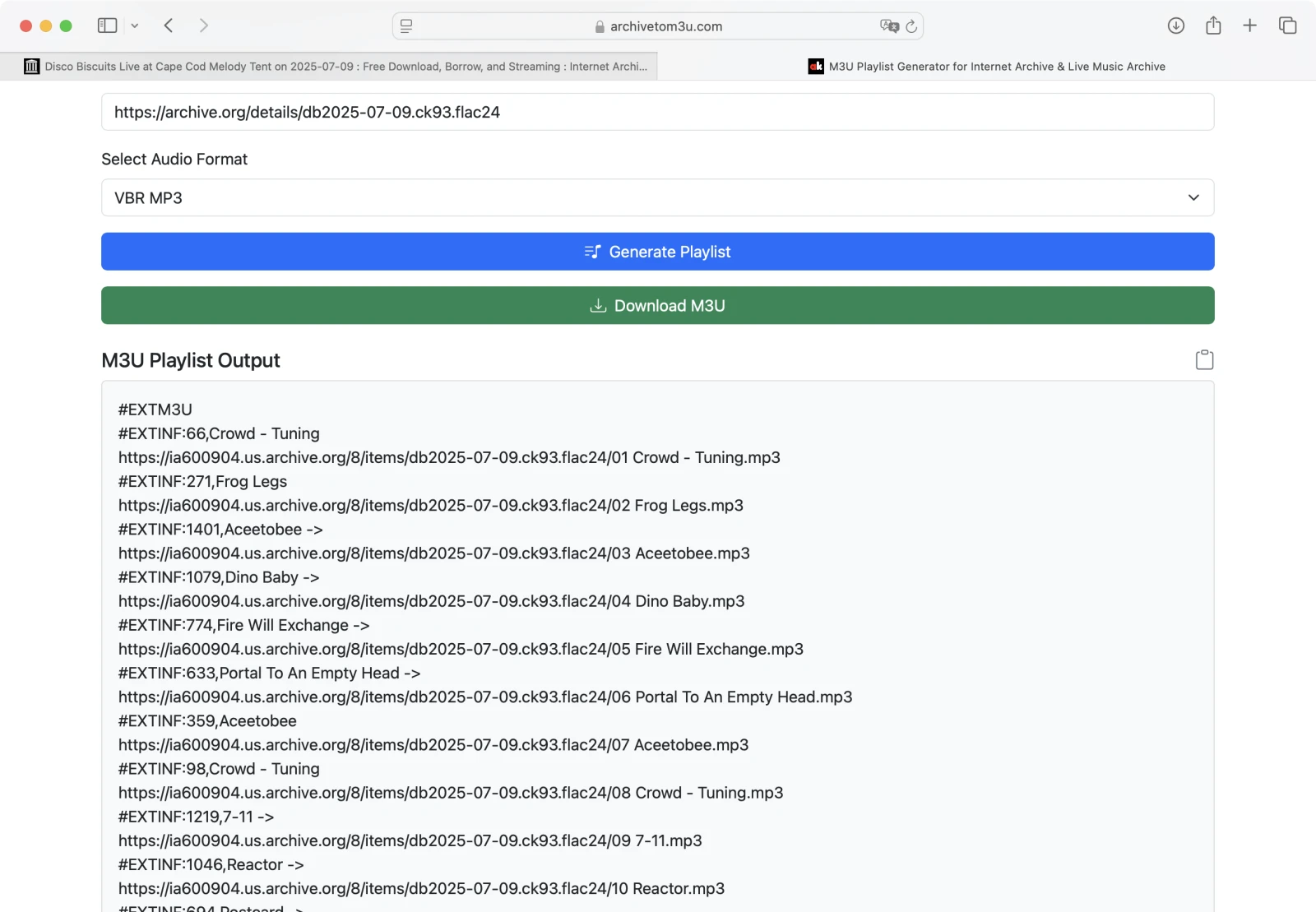
5. Generate the Playlist
Click Generate Playlist. The .m3u content will be displayed below. You can copy or download it.
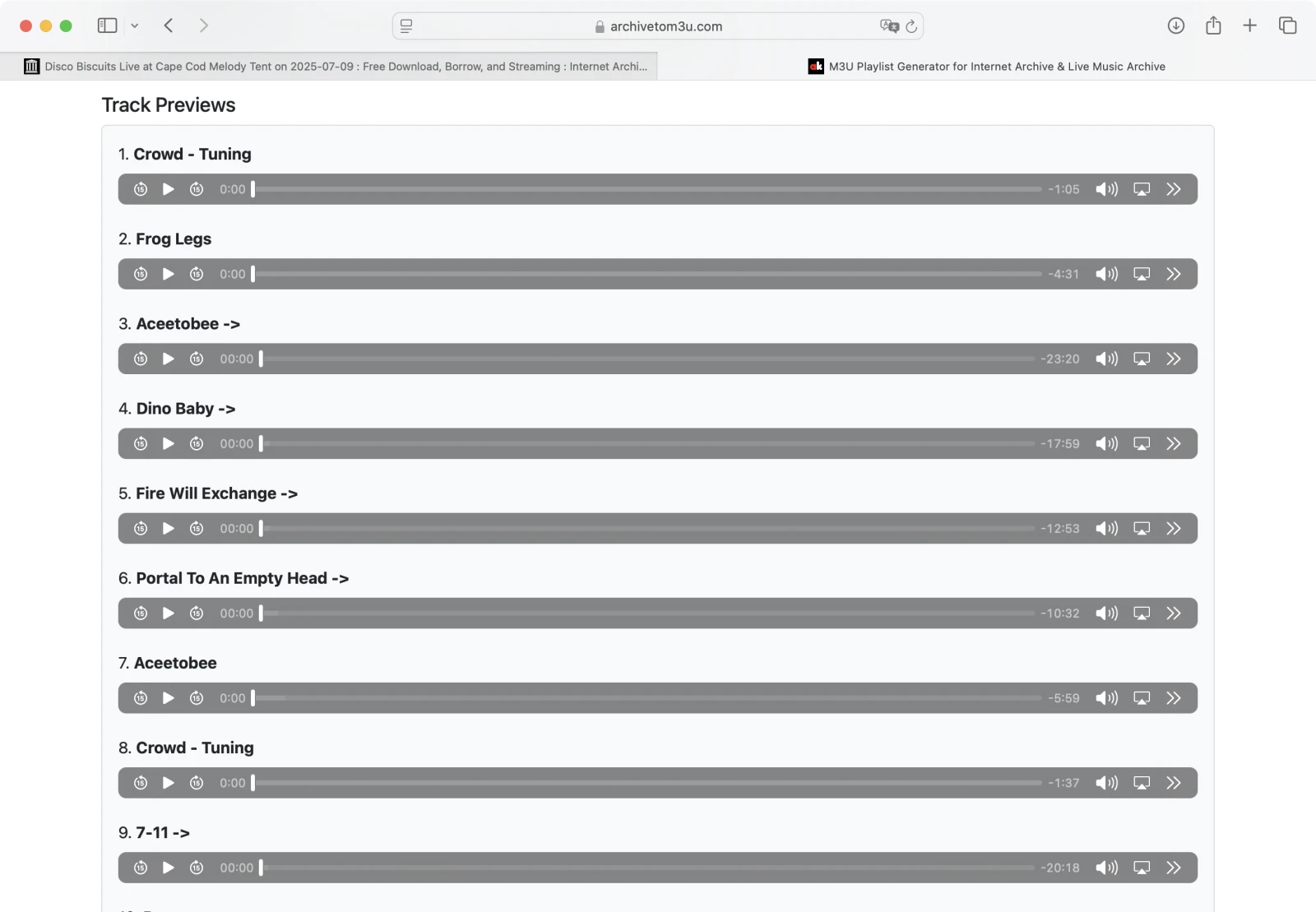
6. Preview the Tracks
Scroll down to preview each track. Make sure everything plays correctly.
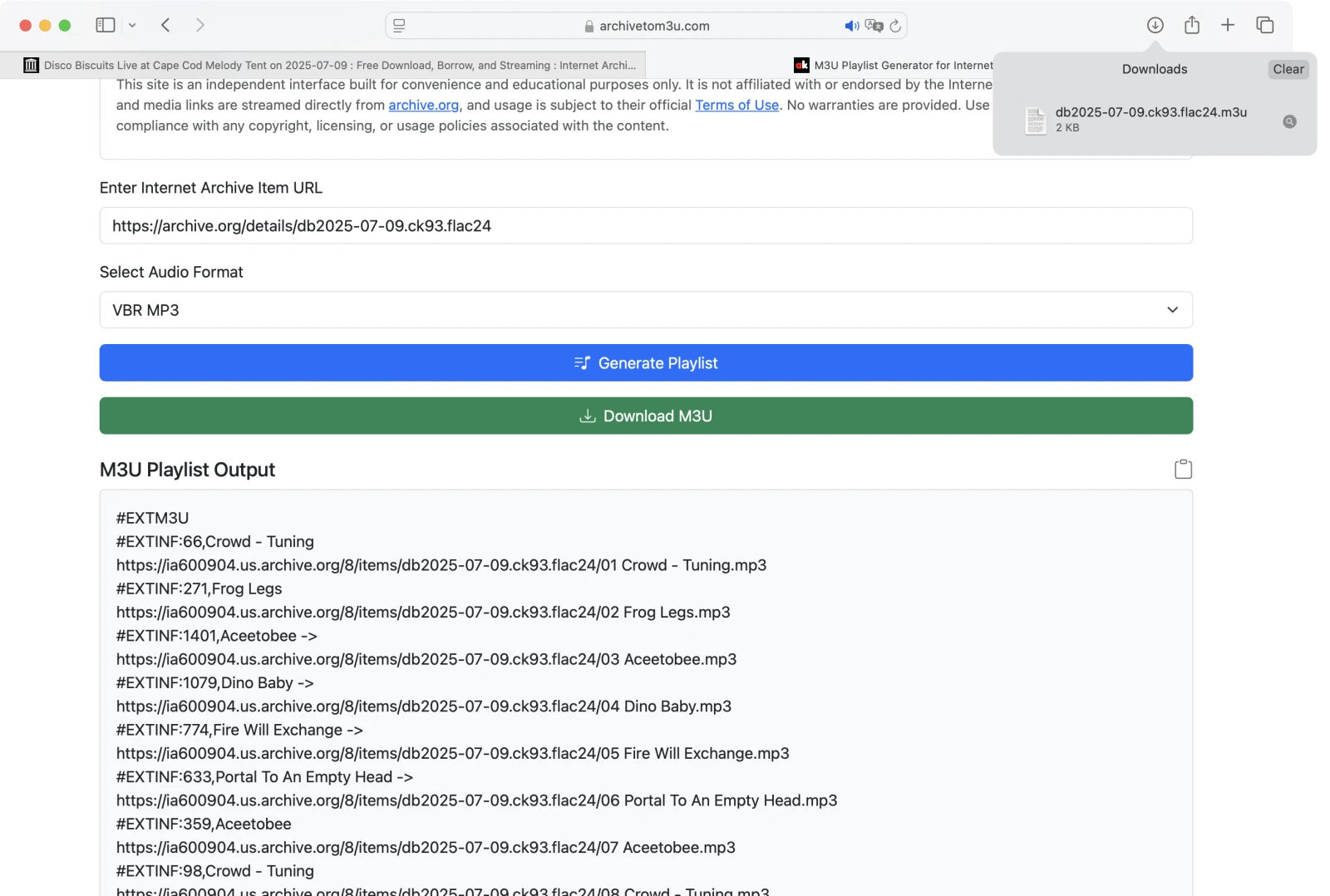
7. Download the Playlist
Click Download Playlist to save the .m3u file to your device. No login or account is needed.
How to Play M3U Playlist on macOS or iOS
To play the downloaded .m3u file on your Apple device, use the Evermusic app (free download):

Evermusic



Evermusic


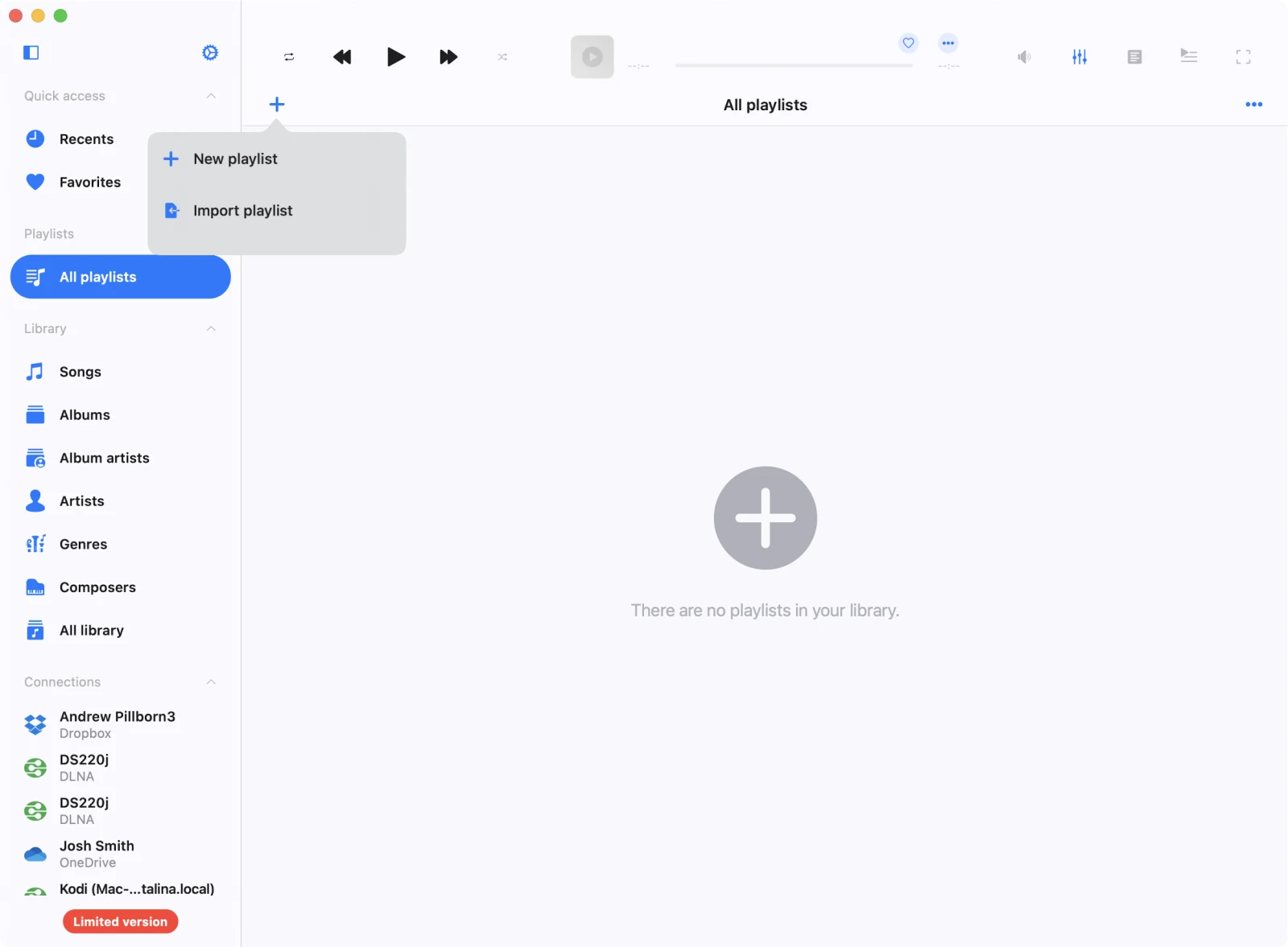
1. Open Evermusic and Go to Playlists
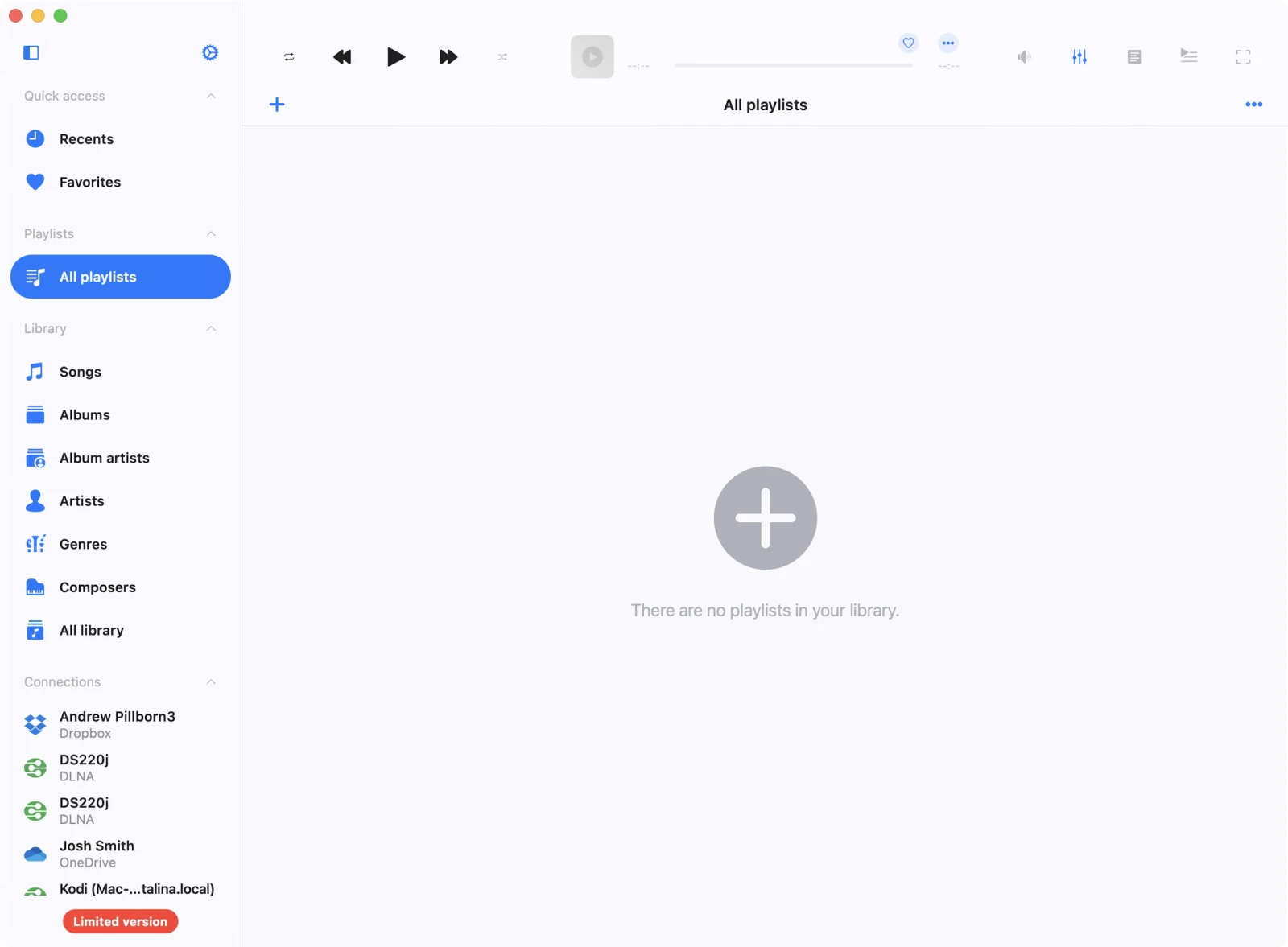
2. Import the Playlist
Tap Add Playlist, then choose Import Playlist.
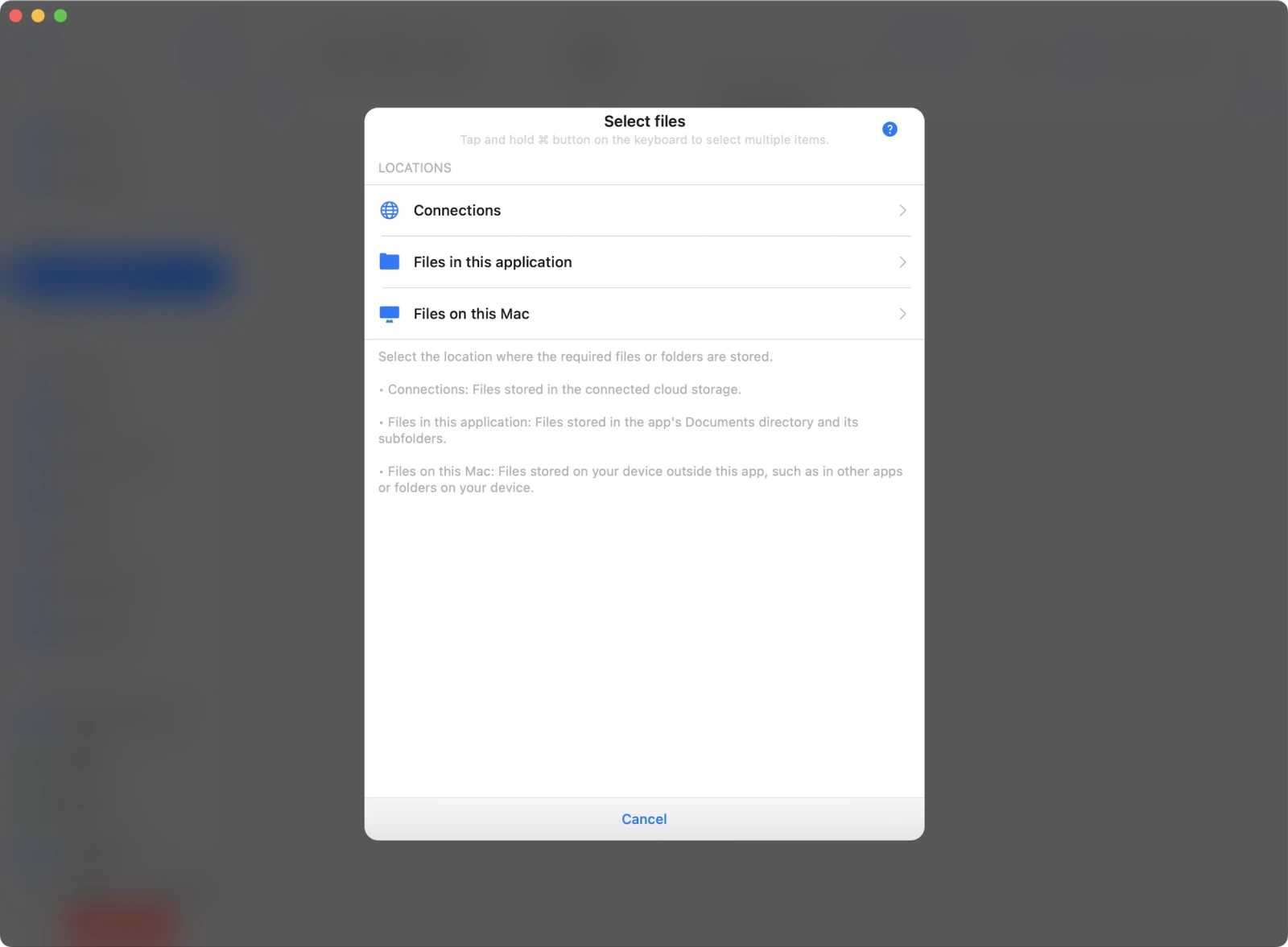
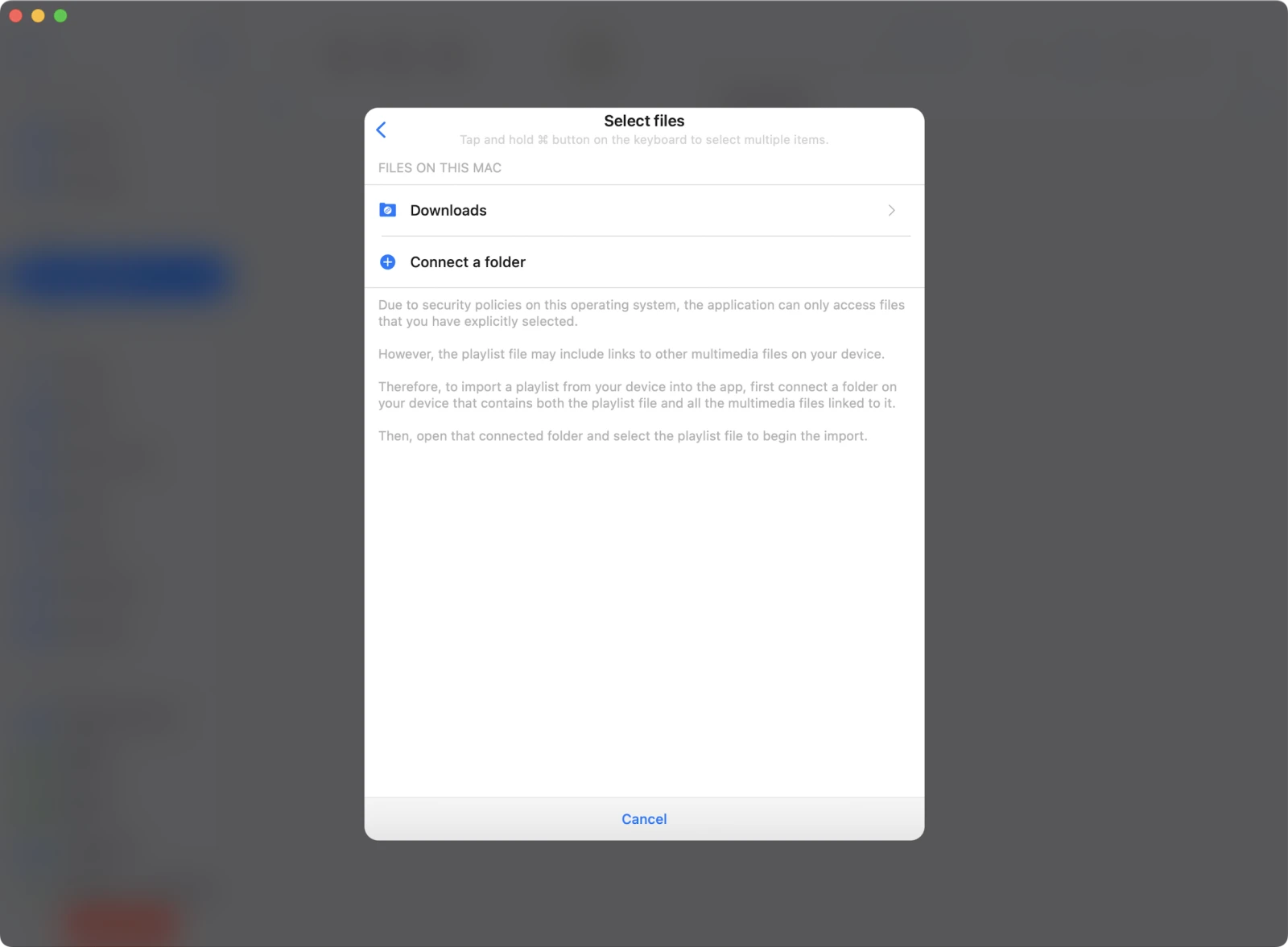
3. Select Playlist Location
Choose Files on this Mac (or another location where you saved the file).
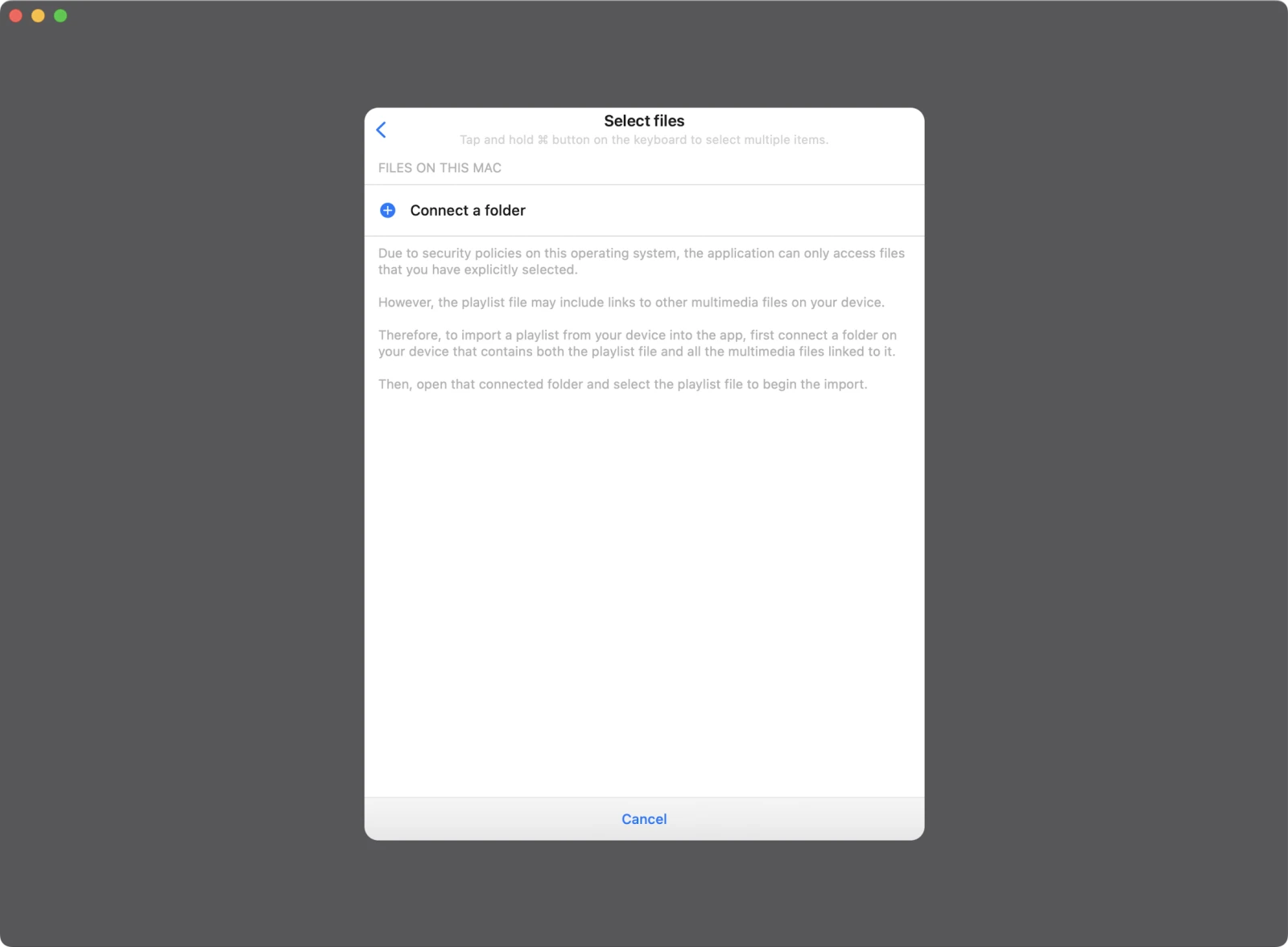
4. Grant Folder Access
Evermusic can only access files if you allow folder-level access. Select the folder that contains your .m3u file and the audio files linked inside it.
5. Choose the Downloads Folder
In most cases, the playlist is saved in your Downloads folder.
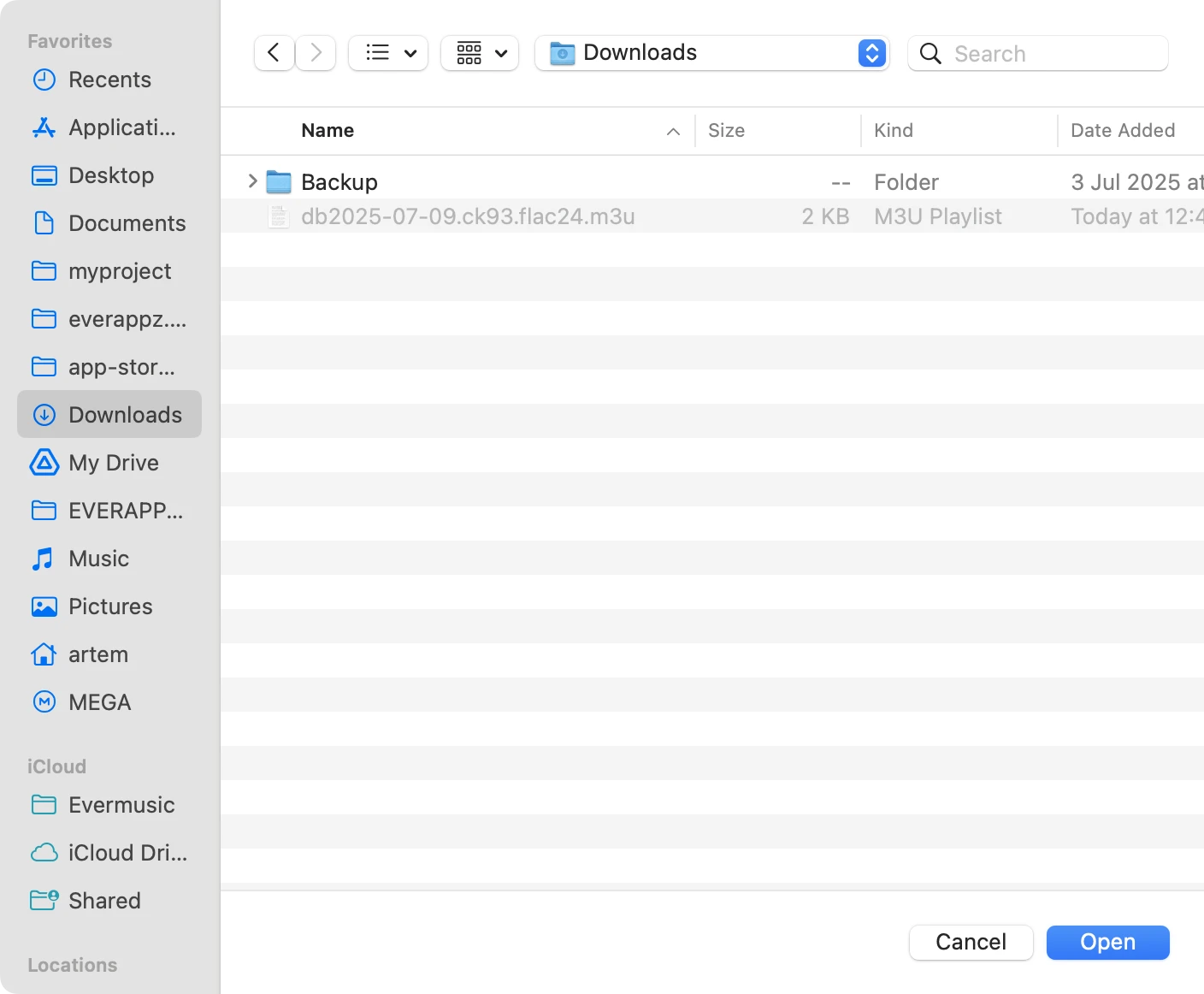
Tap Open to confirm selection.
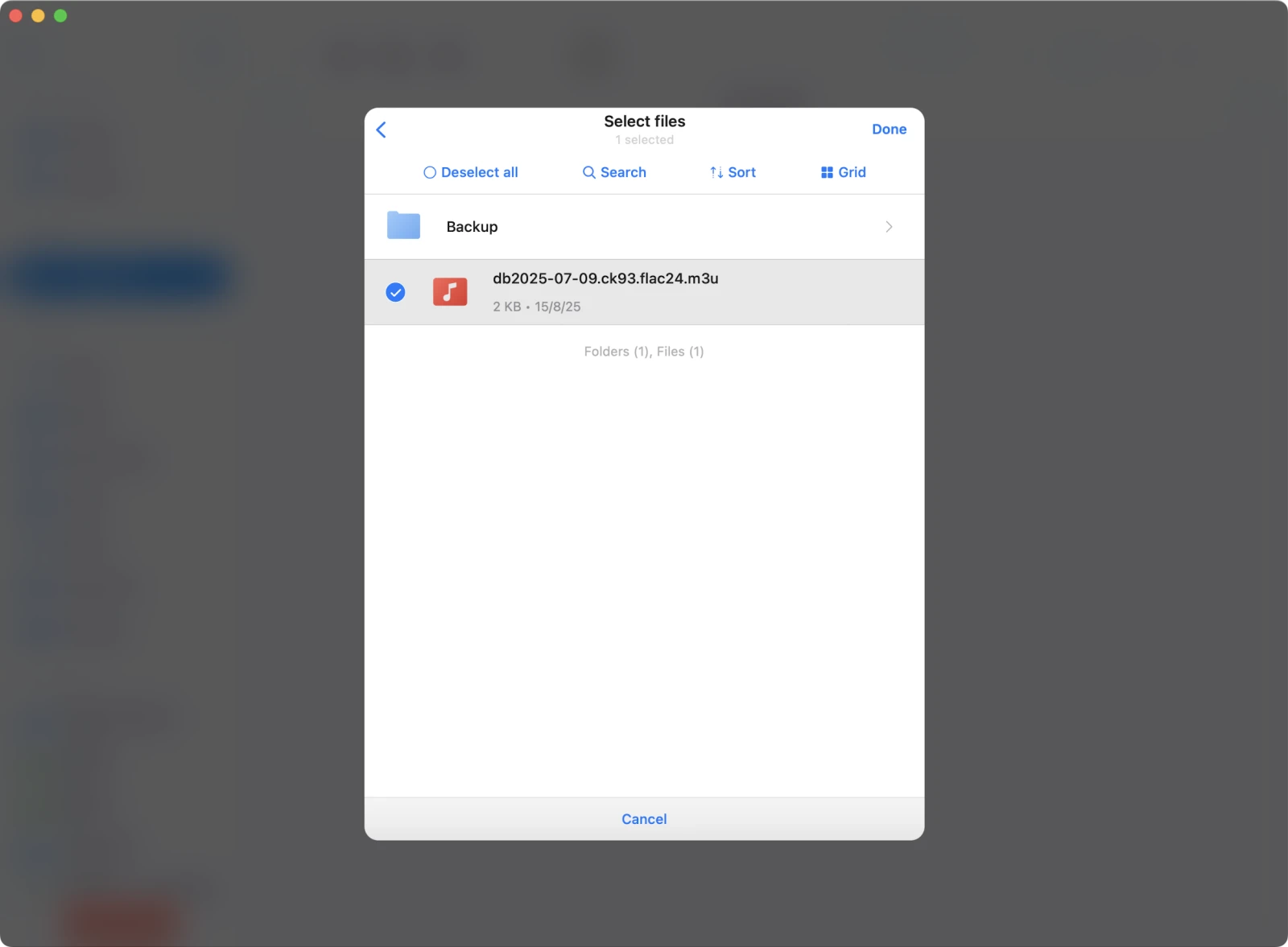
6. Select the Playlist File
Once the folder is connected, find and select your .m3u file.
Tap Done to confirm selection.
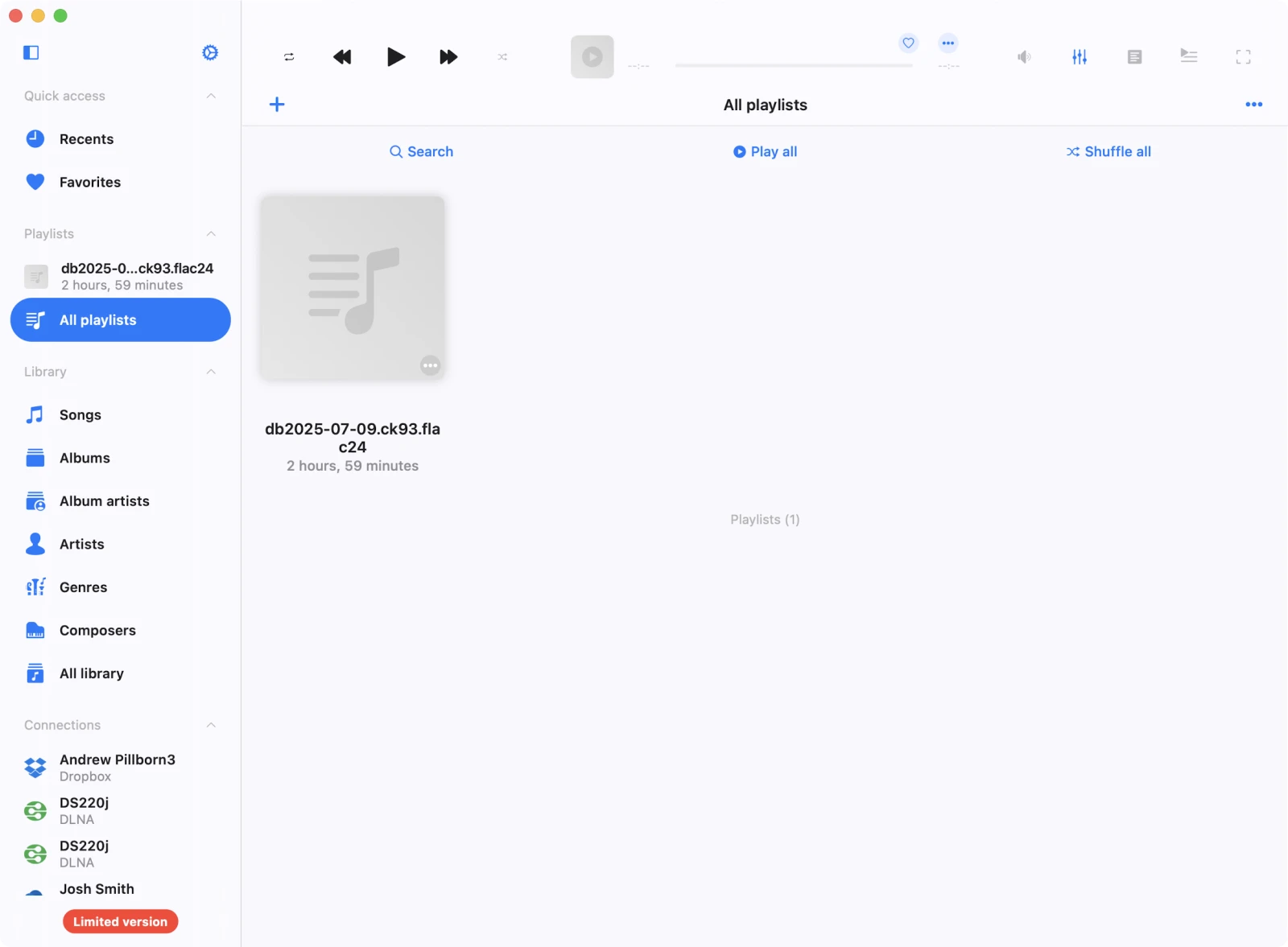
7. Playlist Successfully Imported
The app will parse the playlist and add it to your library.
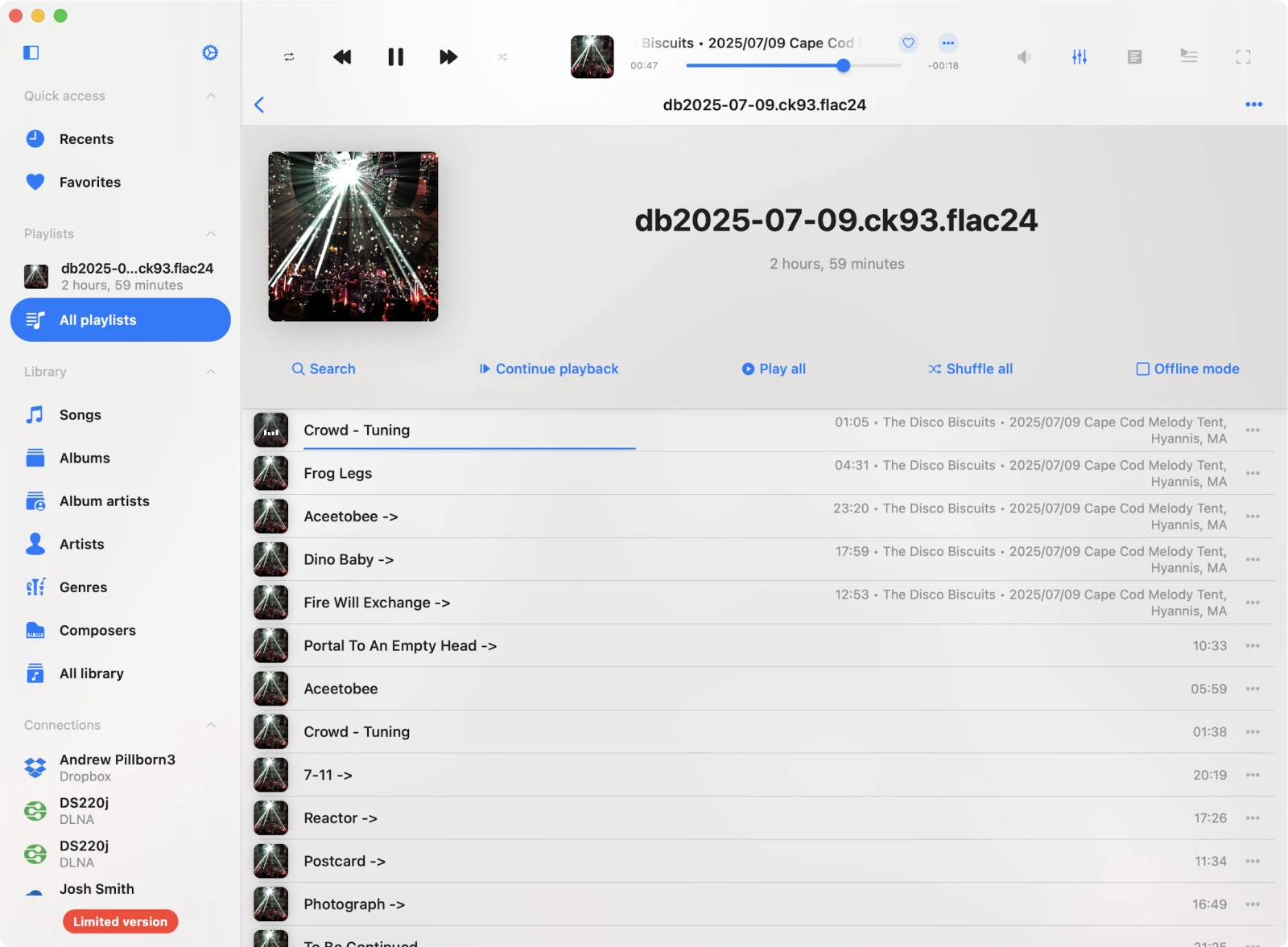
8. Open and Play the Playlist
Tap on the playlist to see all tracks and start playback.
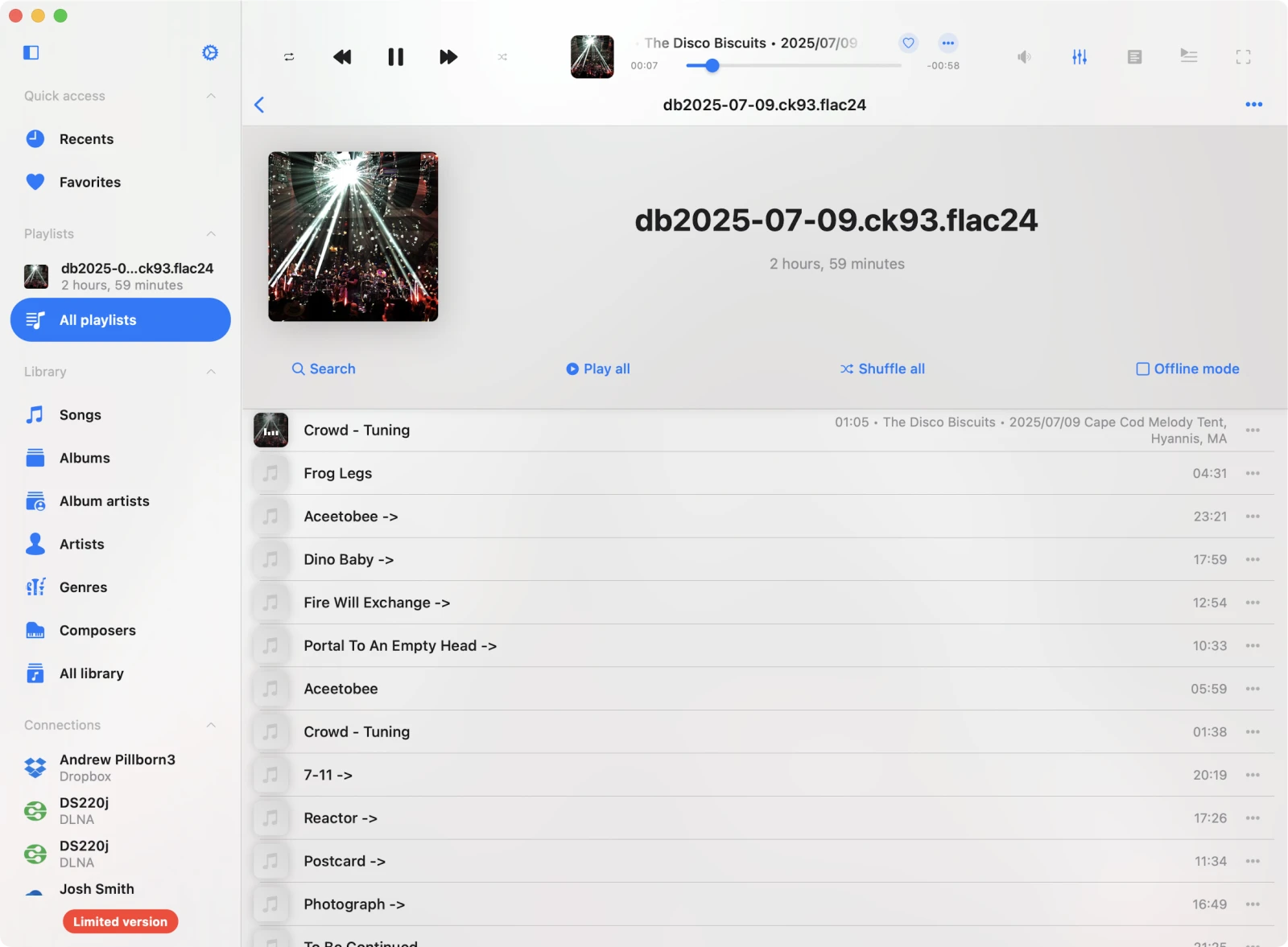
After a few seconds, Evermusic will load all metadata and update the track view.
Privacy & Open Source
All playlist generation happens in your browser. No data is stored or sent to any server. The project is fully open-source — contribute on GitHub if you’d like to help improve it.
Disclaimer
This is an unofficial tool created for convenience and educational purposes. It’s not affiliated with the Internet Archive. All audio content and media links are streamed directly from archive.org, and usage is subject to their official Terms of Use.
No content is hosted or redistributed by this site. Please ensure you comply with copyright, licensing, and usage policies associated with each item. Use at your own risk.
Conclusion
Now you know how to create and import M3U playlists from the Internet Archive and Live Music Archive in just a few clicks - completely free and private. Enjoy your music on any device.
FAQ
Is the M3U generator tool free to use?
What audio formats can I include in the M3U playlist?
Can I play M3U playlists on iPhone or Mac?
.m3u file.