How to Connect NAS Storage Using WebDAV and Listen to Music on Your iPhone or Mac

TL;DR: Install and enable WebDAV on your Synology NAS, configure shared folder permissions, then connect from Evermusic or Flacbox using the NAS IP address and WebDAV port (default 5005/5006). You can stream and manage your entire music library without copying files to your device.
Discover how to connect your NAS storage using WebDAV and effortlessly stream your music library to your iPhone or Mac. WebDAV (Web-based Distributed Authoring and Versioning) is a protocol that allows you to manage and share files over the Internet. By setting up WebDAV on your NAS, you can access and stream your music collection, ensuring you always have your favorite tunes at your fingertips.
In this guide, we will show you how to set up a WebDAV connection on one of the most popular NAS servers, Synology NAS. Follow our simple steps to configure WebDAV on your Synology NAS, and you’ll be able to browse, stream, and manage your music library directly from your iPhone or Mac.
Step 1: Install WebDAV on Synology NAS
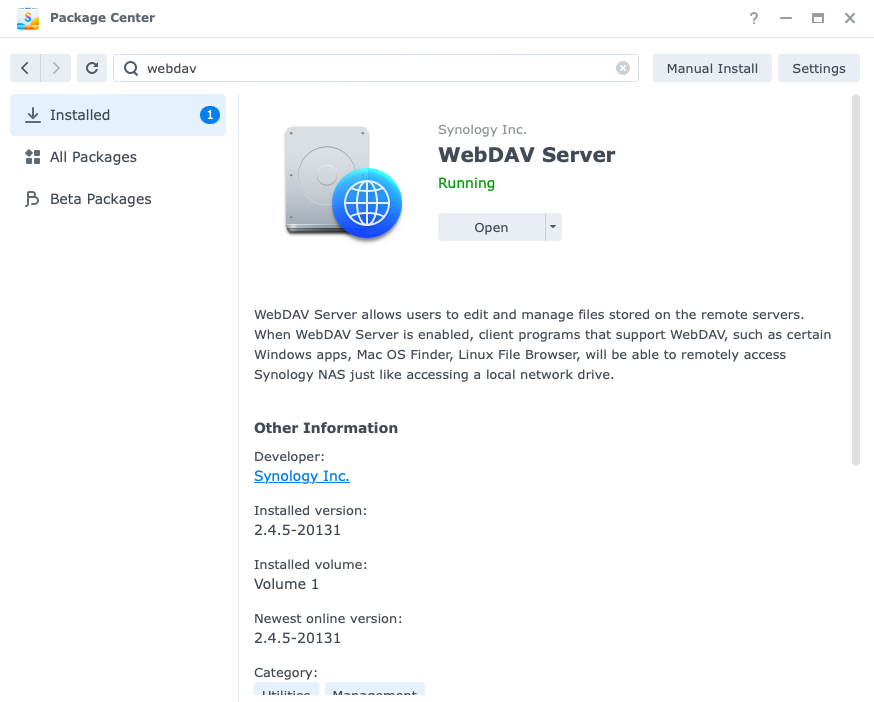
- Log in to your Synology NAS and open Package Center.
- Search for “webdav” and install the WebDAV package if it’s not already installed. Open the WebDAV server to configure it.
Step 2: Configure WebDAV Server
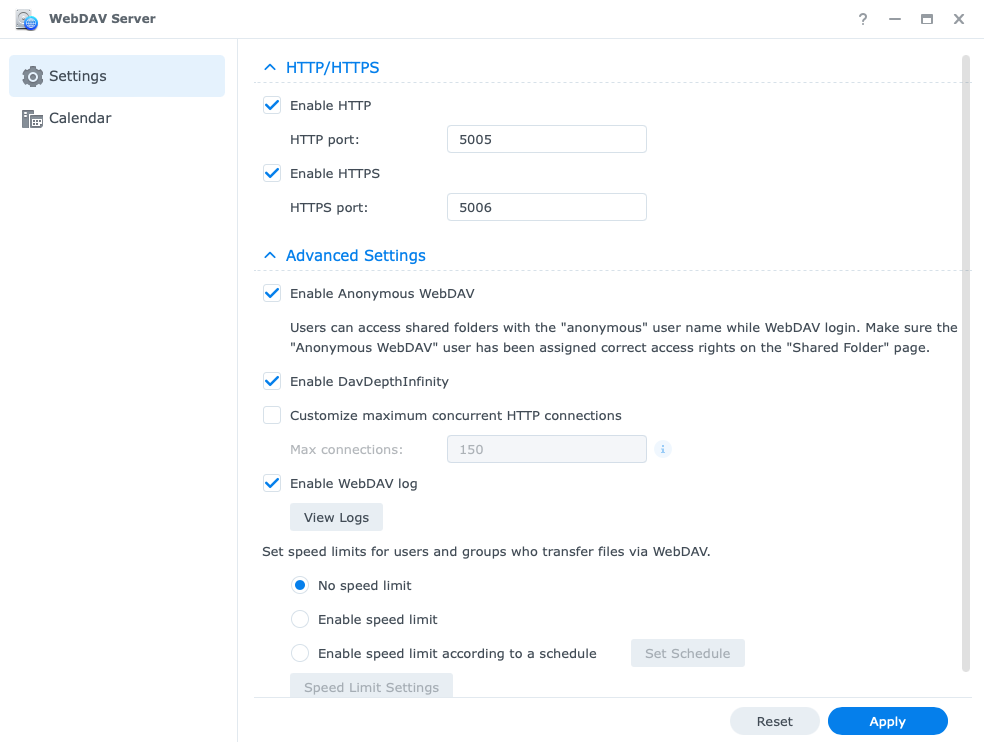
- On the WebDAV settings page, check the boxes for Enable HTTP, Enable HTTPS, Enable Anonymous WebDAV, and Enable DavDepthInfinity.
- Click Apply to save changes. Note the port numbers for HTTP and HTTPS connections, which are 5005 and 5006 by default.
Step 3: Configure Shared Folder Permissions
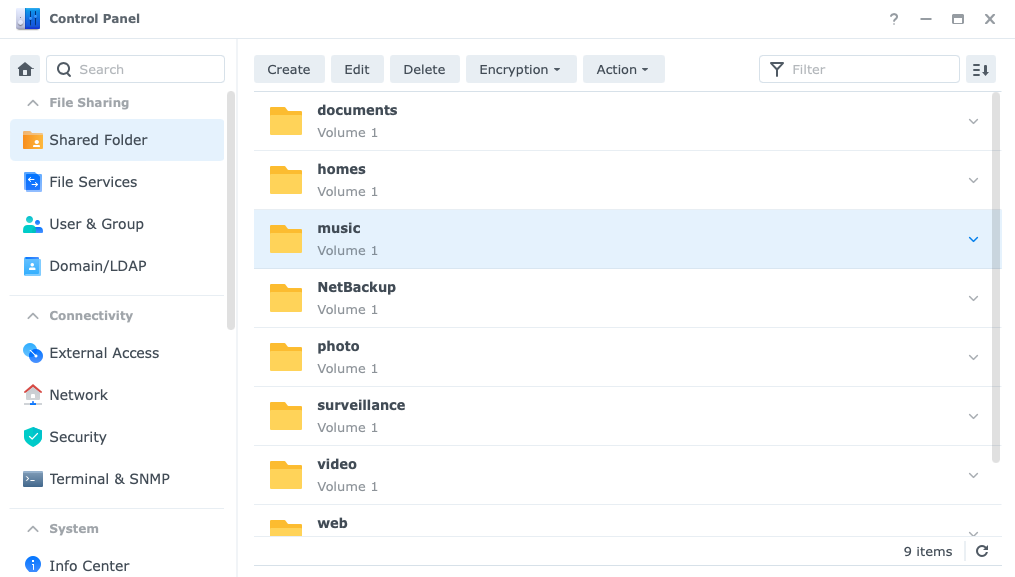
- Open the Control Panel and go to the Shared Folder section.
- Select the Music folder and click Edit.
- In the Permissions tab, configure the permissions. Enable guest access with Read-only if you just need to listen to music, or Read/Write if you need to modify files. Save the changes.
Step 4: Find Synology NAS IP Address
- Open the Control Panel and go to the Network Interface tab, or use your web browser to visit find.synology.com.
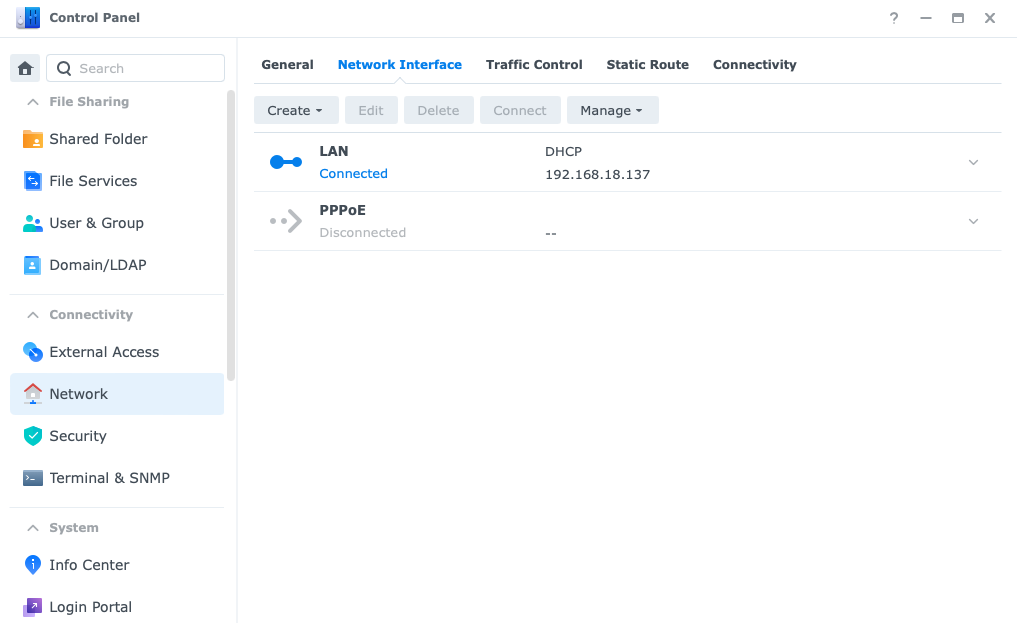
- Note the IP address of your Synology NAS (e.g., 192.168.18.137).
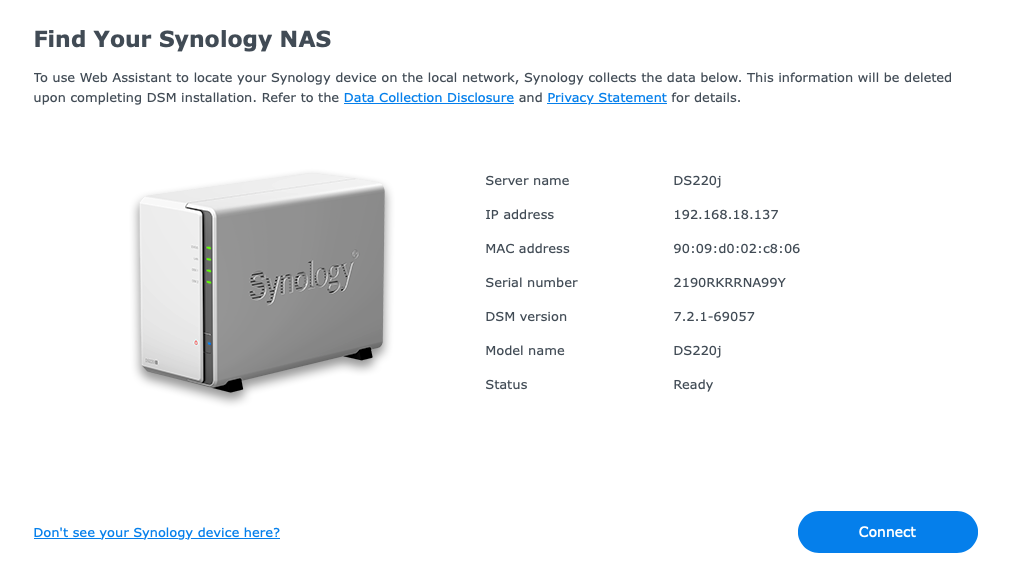
Step 5: Connect to Synology NAS Using Evermusic/Flacbox
- Open the Evermusic or Flacbox app and go to the Connections tab.
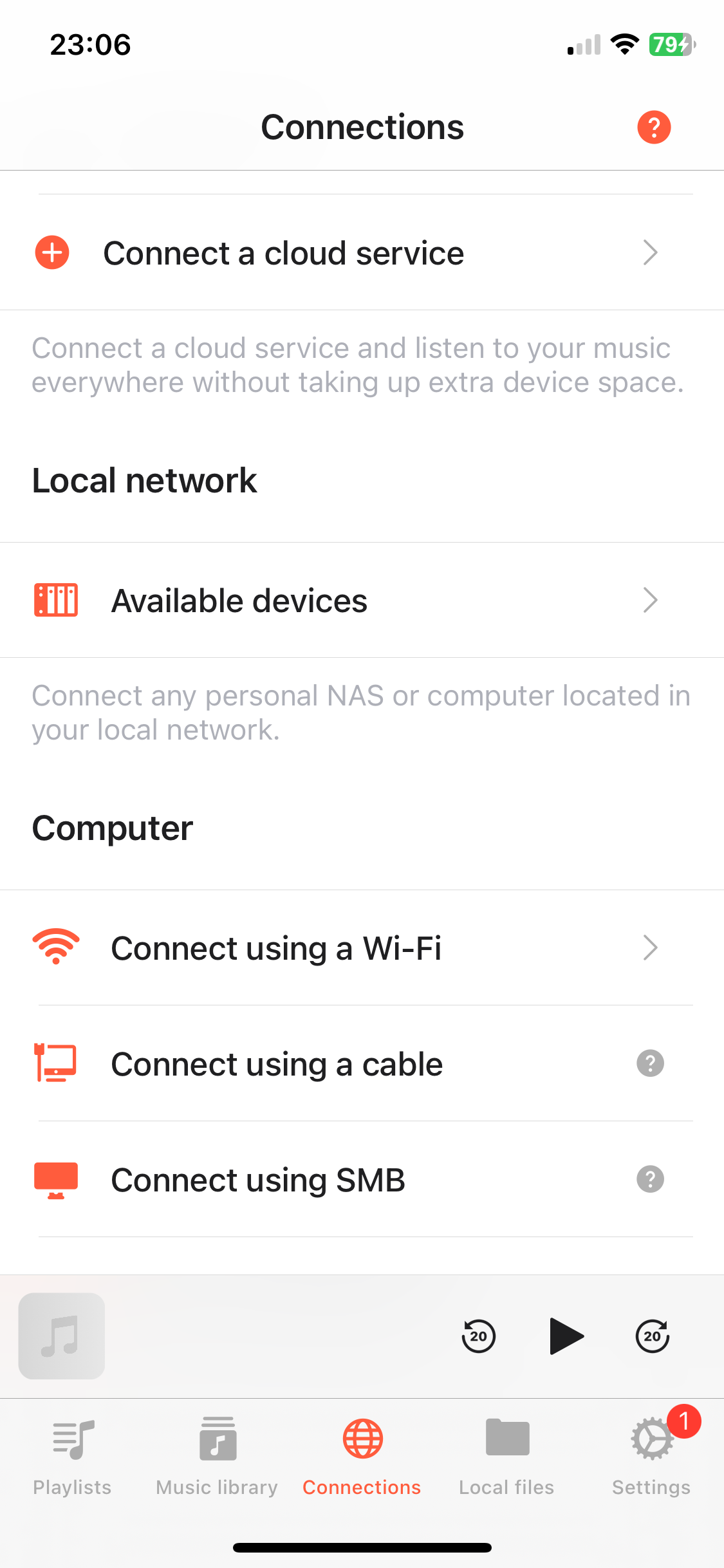
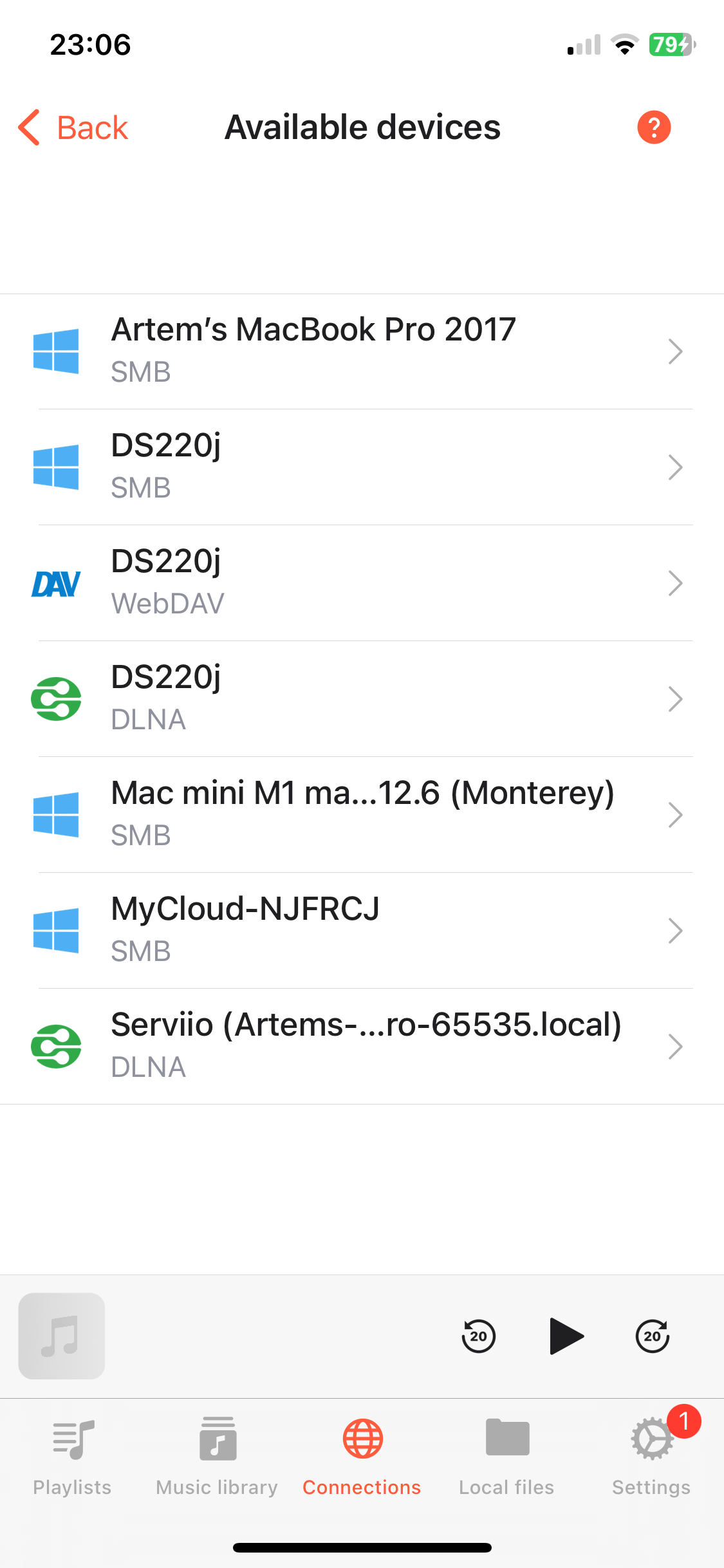
- For automatic connection, find your Synology NAS in the Available Devices section and tap it to connect.
- For manual connection, choose Connect a cloud service and select WebDAV. Enter the server address in the format: PROTOCOL_NAME://IP_ADDRESS:PORT_NUMBER (e.g., https://192.168.18.137:5006).
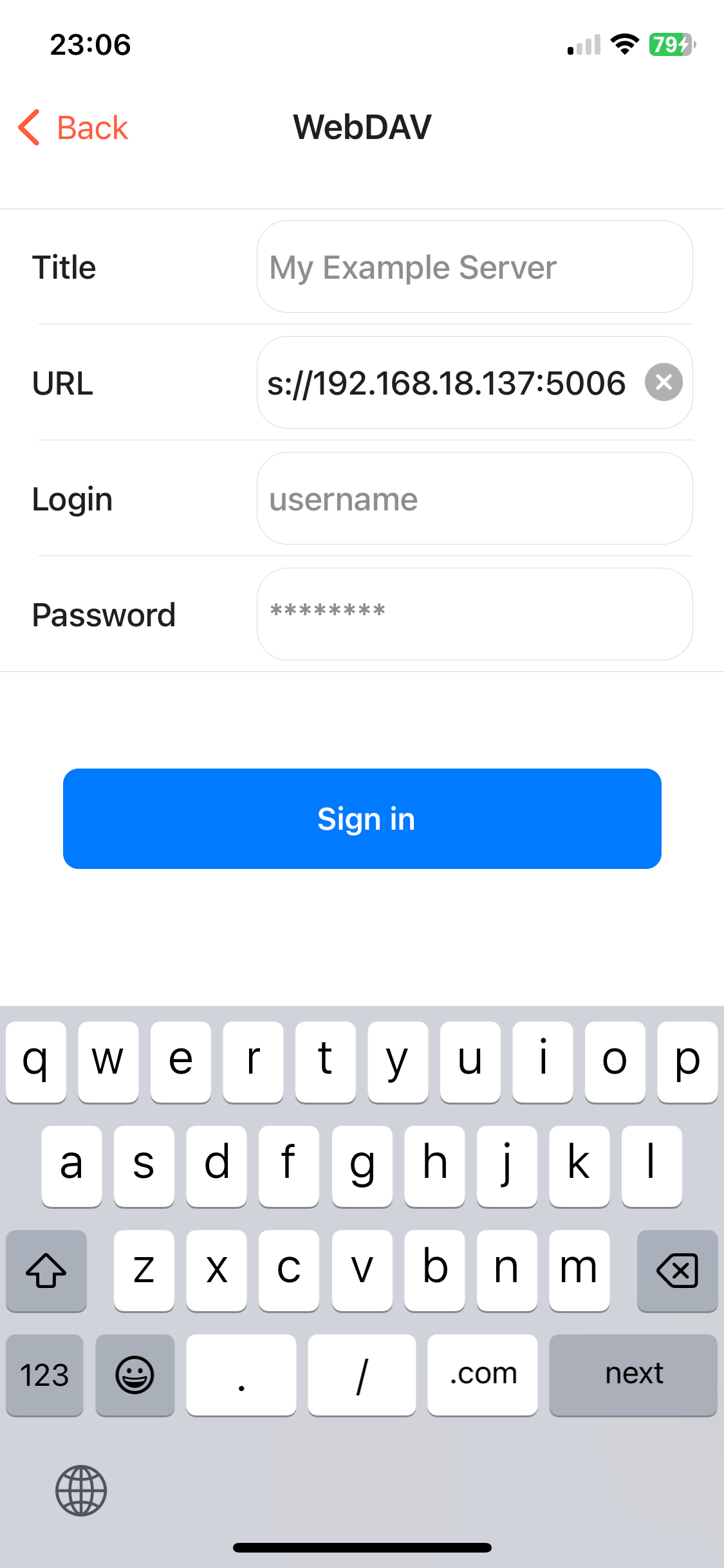
- Leave the login and password fields empty for guest access, or enter your Synology credentials. Tap Sign In.
Step 6: Navigate and Play Music
- Once connected, the device will appear in the Connected Devices list.
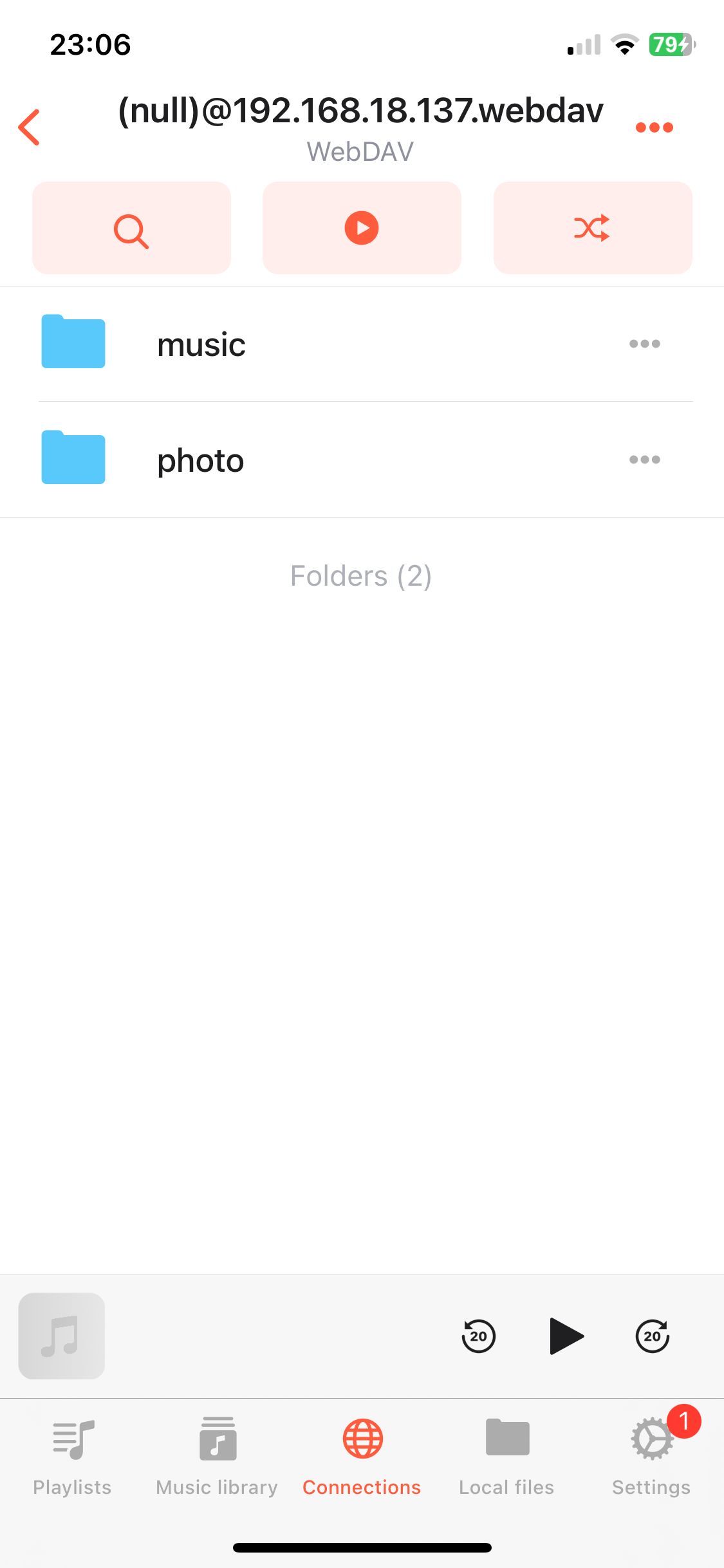
- Navigate to the Music folder and tap any audio file to start playback.
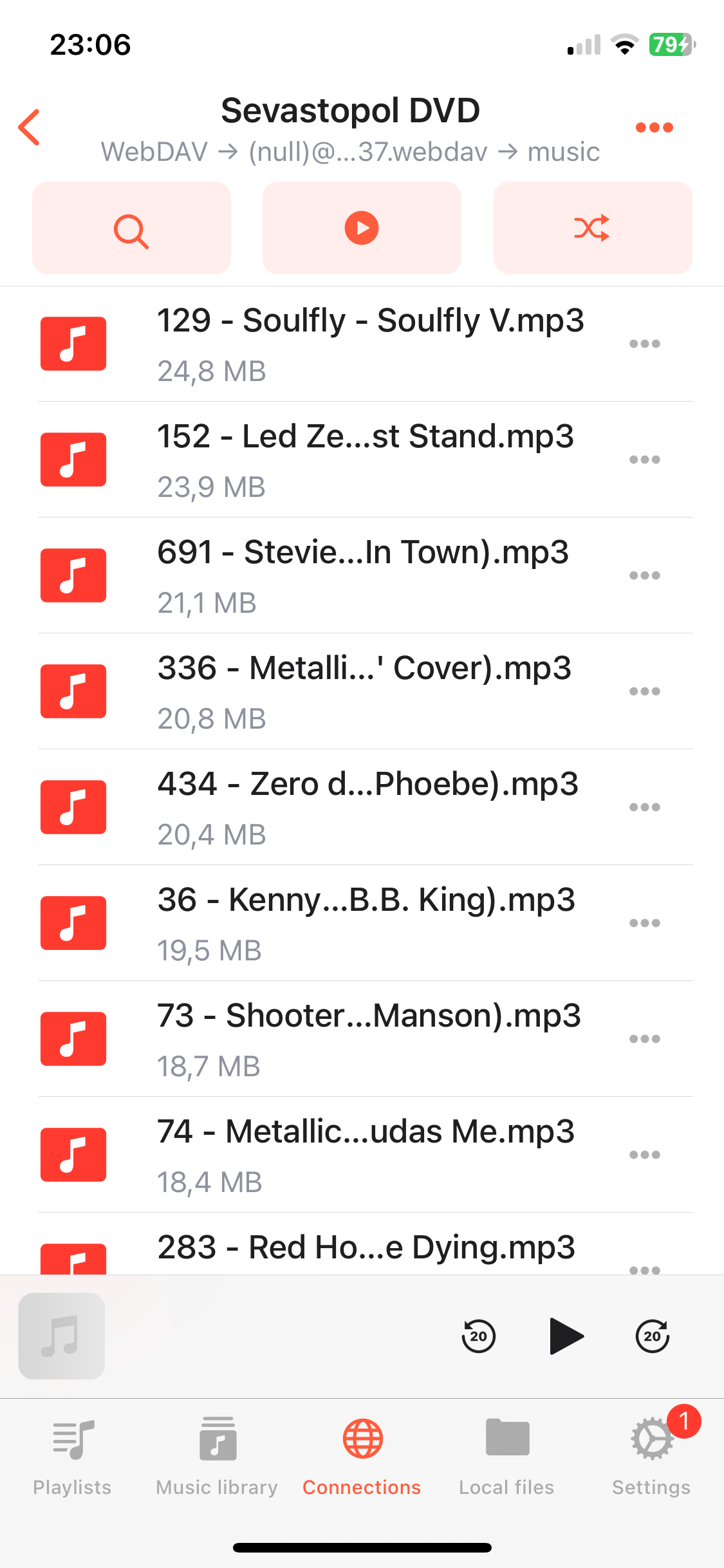
Step 7: Add Connected Cloud Folder to Music Library
- Open the Music Library section in the app.
- Choose Add Music and select Connections.
- Choose your connected NAS server and select the Music folder. Tap Done.
- The app will scan the music folder and add supported audio files to the music library. Metadata will be loaded, and your tracks will be grouped by album, artist, and genre.
Conclusion
By following these steps, you can easily set up a WebDAV connection on your Synology NAS and stream your music library to your iPhone or Mac using Evermusic or Flacbox. Enjoy seamless access to your favorite tracks anytime.