How to Fetch App Store Metadata, Icons and Screenshots for Free

Get App Store Data in Seconds
Short version: AppLookup.pro is a free tool that pulls public data for any iOS, iPadOS, macOS or tvOS app. You get the title, description, what’s new, version, price, ratings, app icon, screenshots, supported devices and the raw iTunes API response. Every field has a one tap copy button. Open the site, paste an App Store link or type the app name, and you have the data.
Use it for:
- ASO research. See how top apps write their titles, subtitles, descriptions and keywords.
- Competitor tracking. Check version updates, ratings and prices across markets.
- Asset download. Save the official app icon and full size screenshots in one ZIP.
- Localization checks. Compare description, what’s new and screenshots across 40 plus App Store countries.
- API testing. Copy the raw iTunes Search API JSON straight into your code or Postman.
What Is AppLookup.pro?
AppLookup.pro is a free, browser based App Store lookup tool. It runs entirely on your device. Every result comes straight from Apple’s official iTunes Search API. No scraping. No signup. No tracking.
What You Get
- Search by app name or App Store URL. Autocomplete shows live results as you type.
- 40 plus country storefronts. Switch between US, UK, JP, DE, FR, BR and more.
- Full metadata. Title, subtitle, developer, bundle ID, version, price, file size, ratings, release date, content rating, languages and supported devices.
- High resolution assets. App icons and screenshots for iPhone, iPad, macOS and Apple TV.
- Bulk ZIP download. Grab every icon or every screenshot in one archive.
- Raw iTunes API JSON. The exact response from Apple, ready to copy.
- Copy buttons on every field. One tap puts the value in your clipboard.
How to Use AppLookup.pro Step by Step
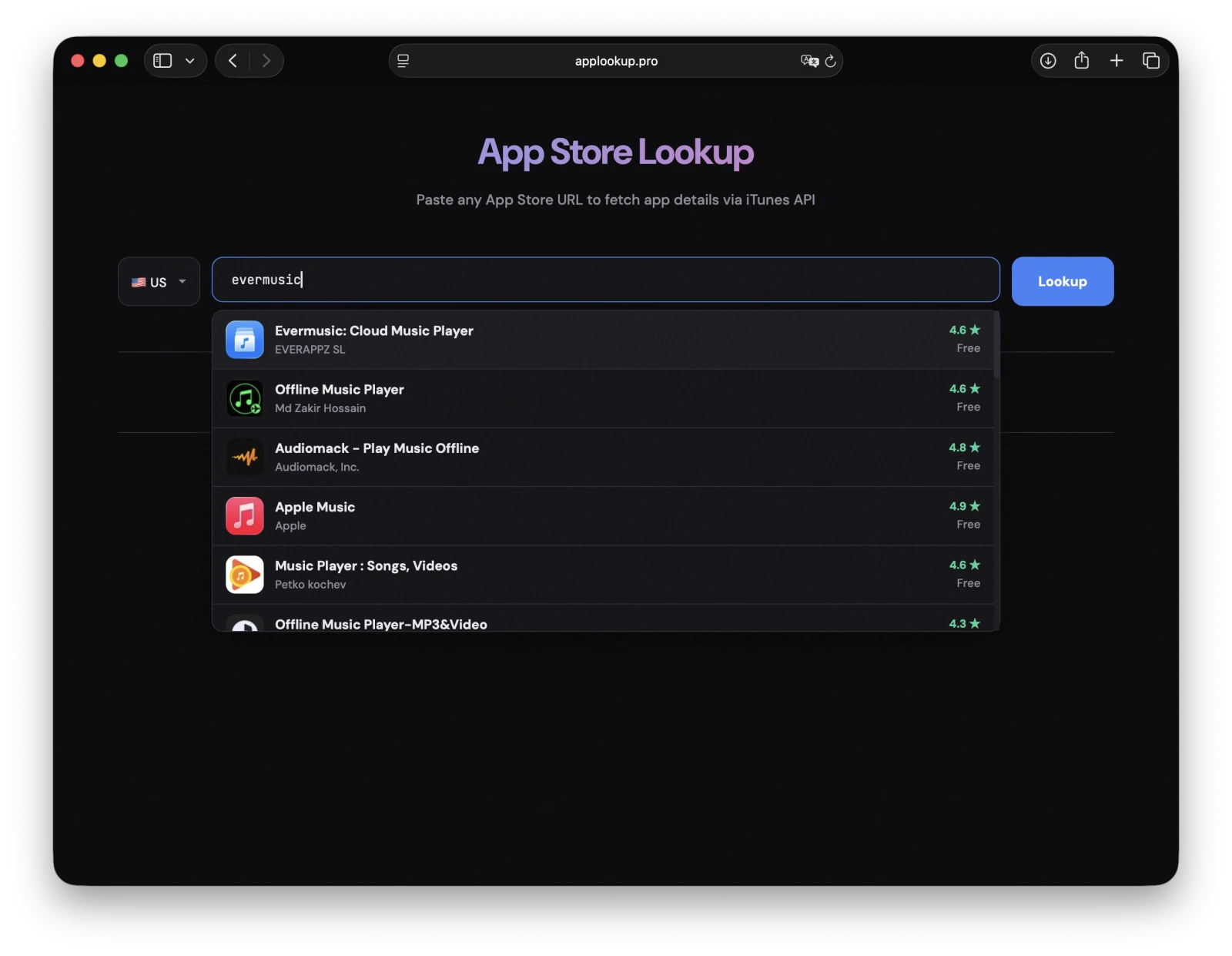
Step 1. Enter the App Name or Paste an App Store URL
Open applookup.pro and start typing the app name. Autocomplete shows live App Store results as you type.
You can also paste a direct App Store link like https://apps.apple.com/us/app/instagram/id389801252 or just the app ID. The tool extracts the ID for you. It also handles Google redirect URLs.
Step 2. Fetch the App Info and Download the Icon
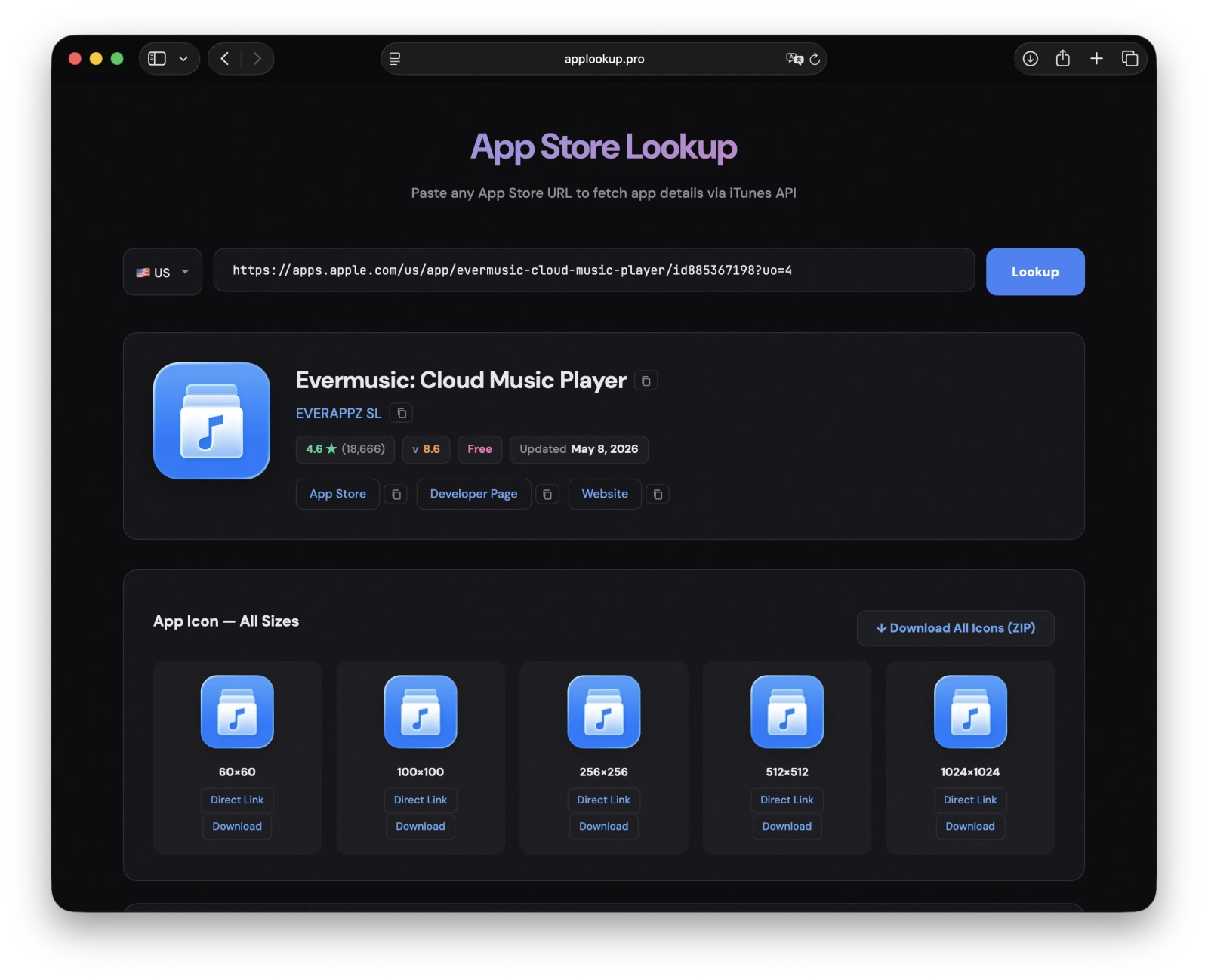
Click Lookup or press Enter. The tool calls the official iTunes Search API and shows the app icon, developer name, rating, version and price in under a second.
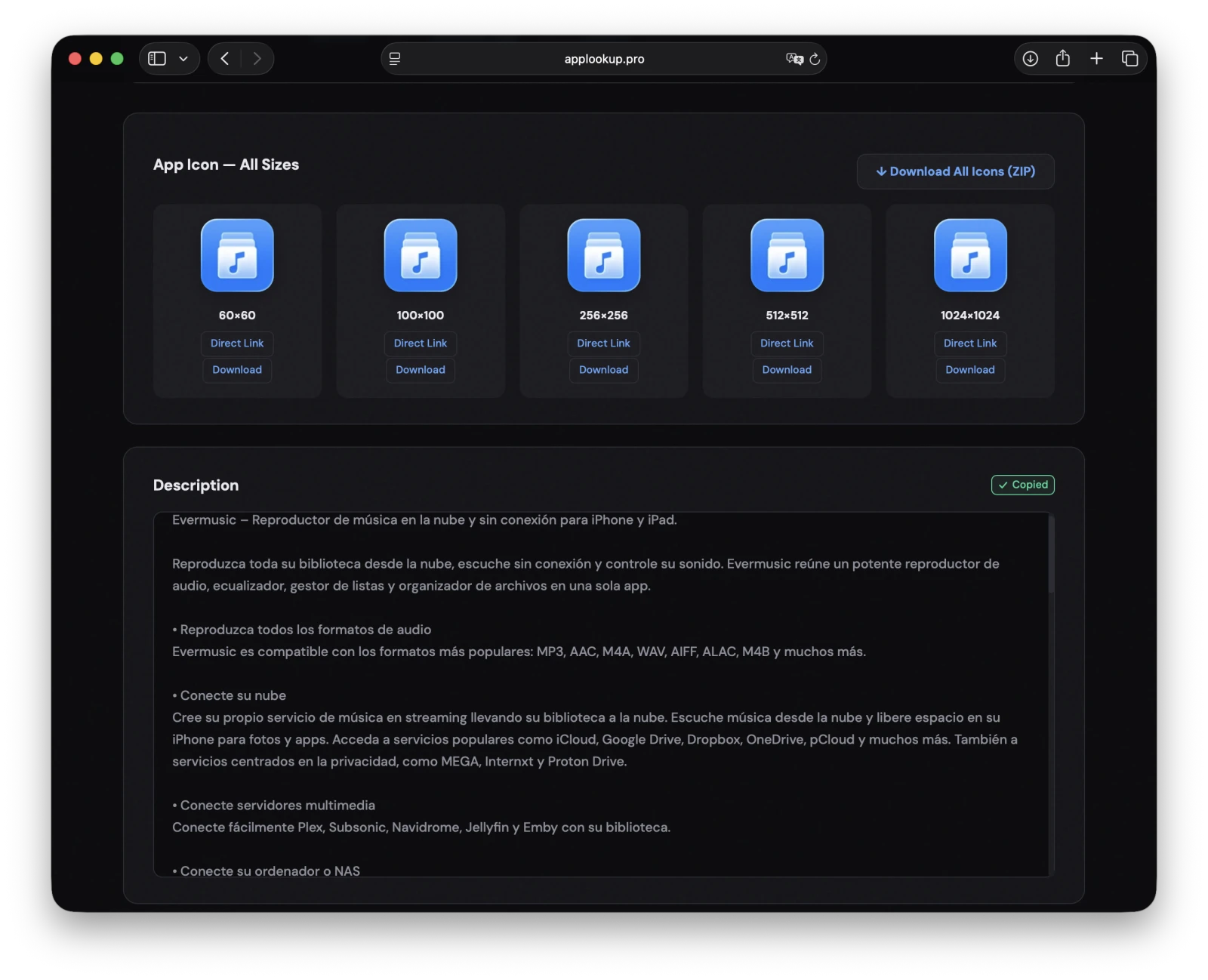
Scroll to the App Icon section. Each icon size Apple returns appears as a card. Every card has:
- Direct Link. Opens the full size image in a new tab.
- Download. Saves the file to your computer.
Use Download All Icons (ZIP) to grab every icon size in one archive. The same goes for screenshots: each platform section has its own Download All (ZIP) button.
Step 3. Read the App Details and Copy Any Field
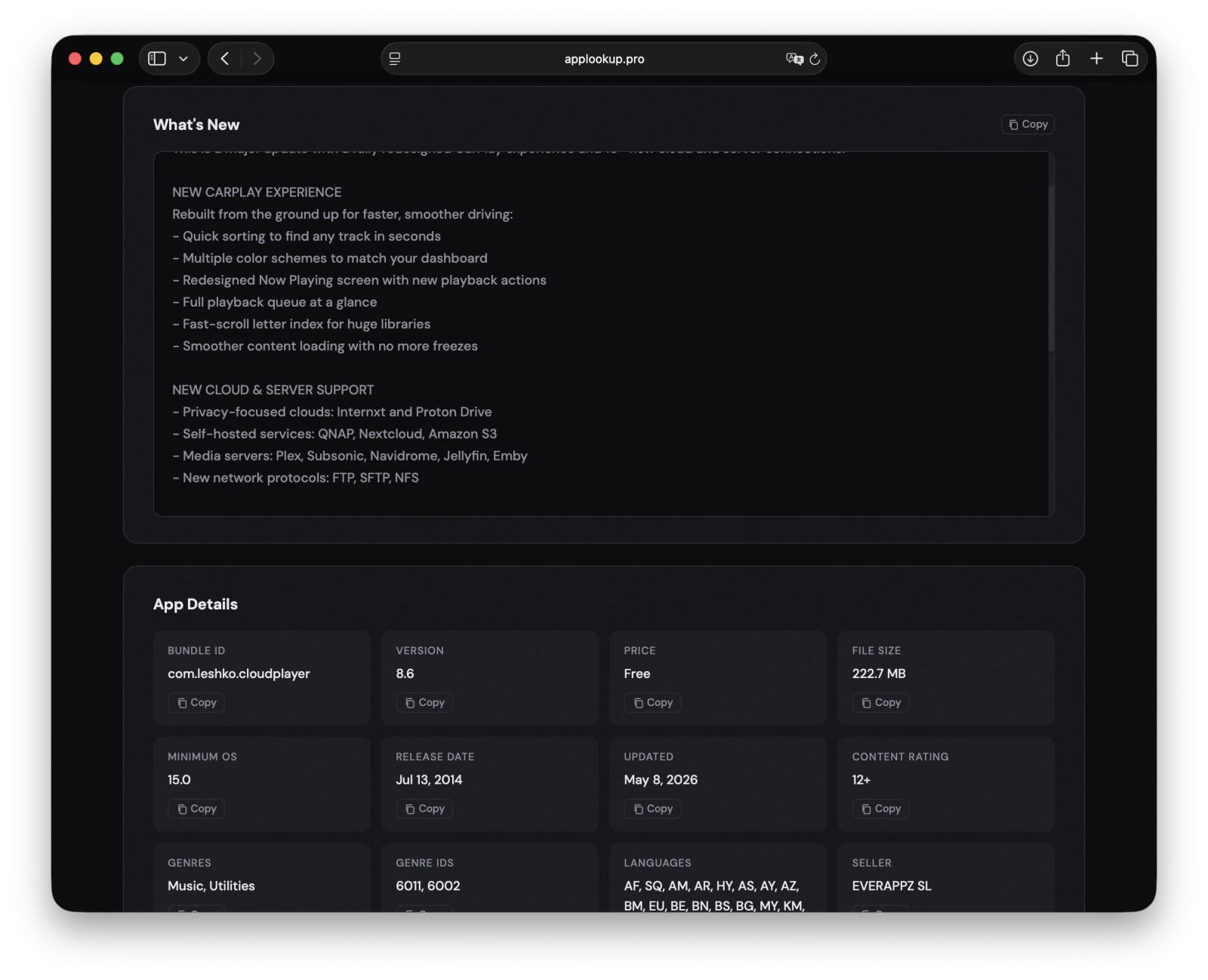
Scroll to App Details. You will see bundle ID, version, price, file size, minimum OS, release date, last update date, content rating, genres, genre IDs, languages, seller, artist ID and track ID.
Tap the Copy button on any card. The value goes into your clipboard and the button shows a green “Copied” check.
The same works for Description, What’s New and Supported Devices. These sections are scrollable so you can read the full text without losing your place, and the Copy button puts the whole field on your clipboard.
Step 4. View the Raw App Store API Response
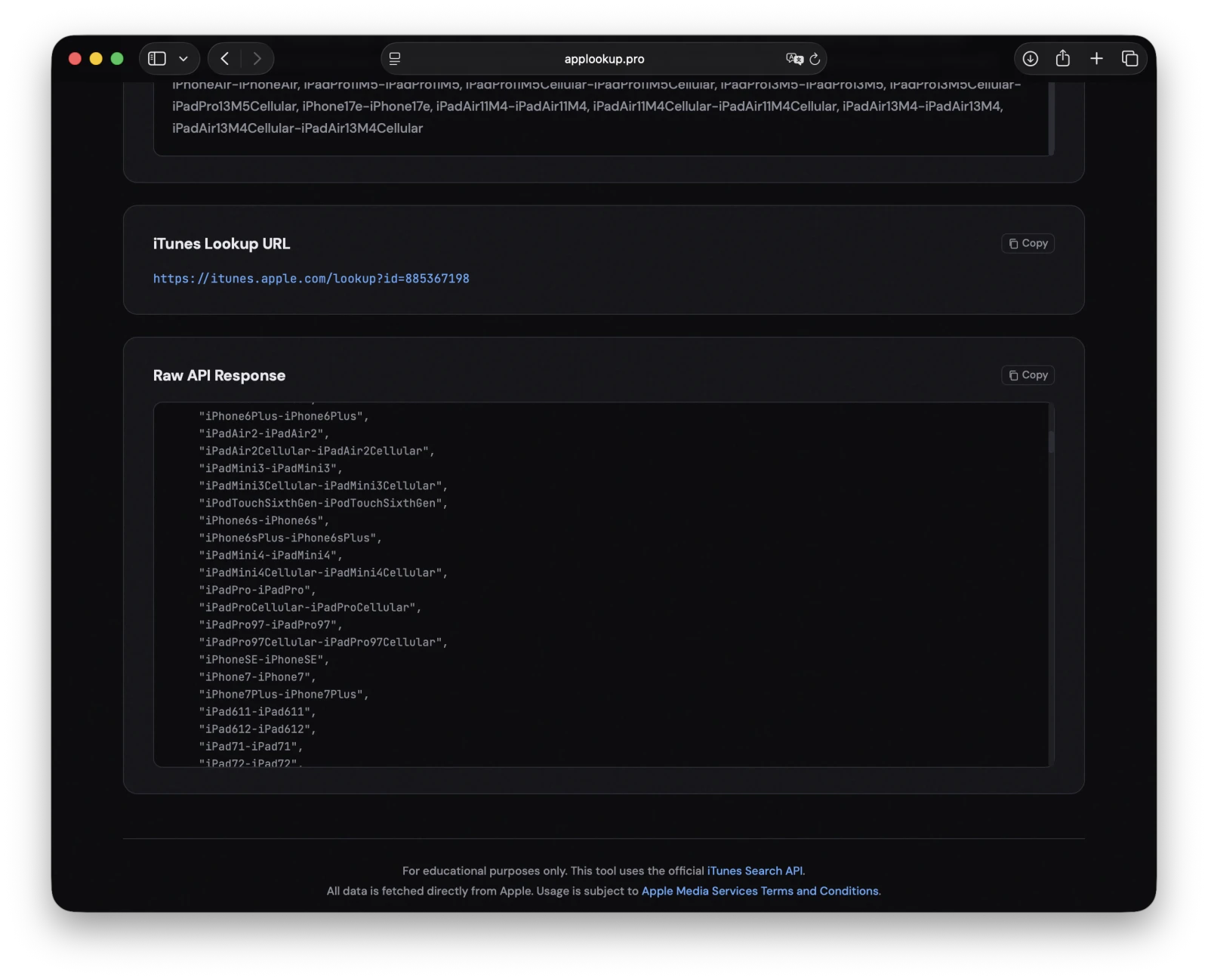
Need the exact JSON Apple returns? Scroll to Raw API Response. The full iTunes Search API payload is shown in a scrollable viewer with a Copy button at the top. One tap copies the whole JSON object.
The iTunes Lookup URL is shown right above it. Paste it into Postman, curl or your browser to replay the same request.
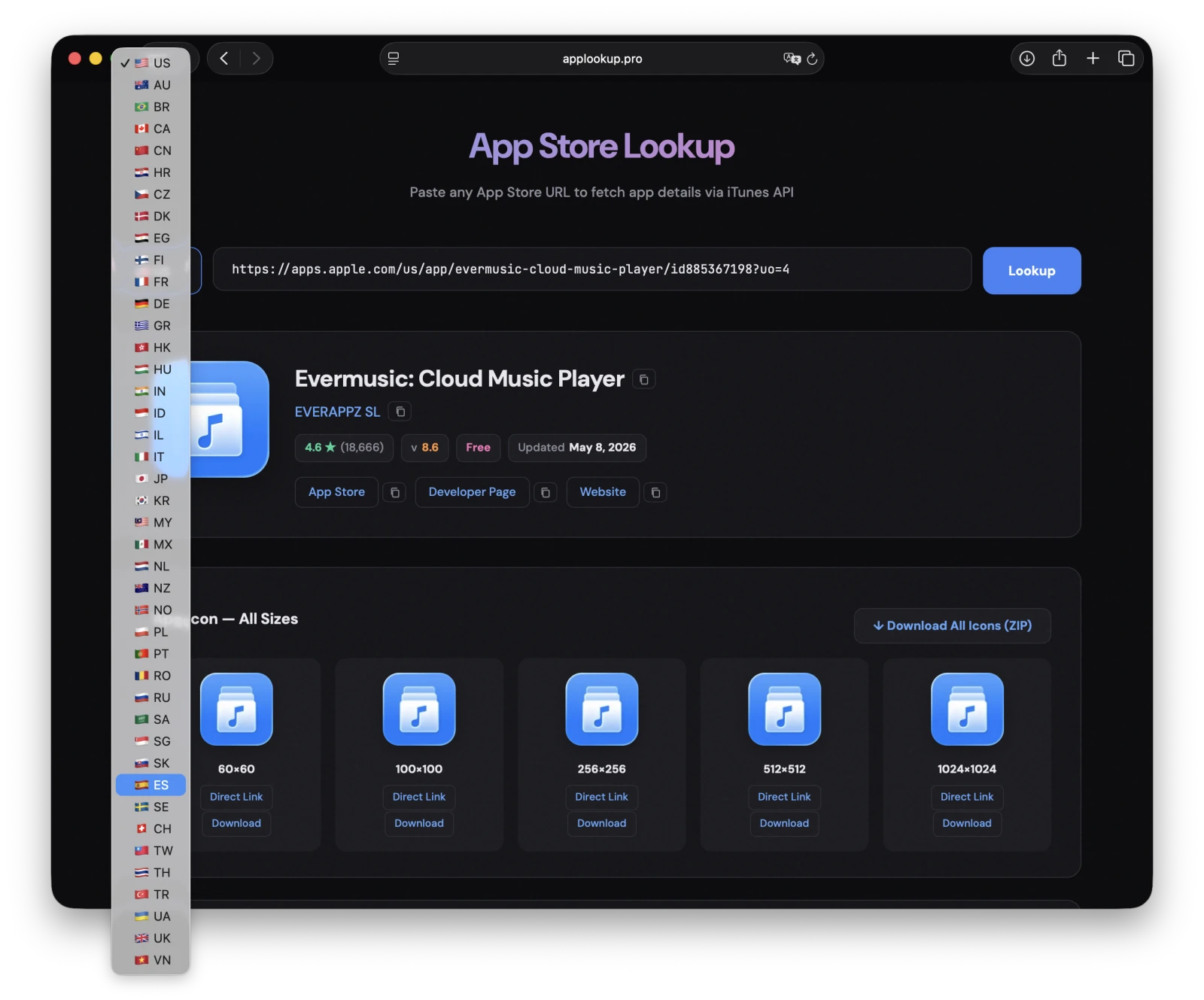
Step 5. Change the Country to See the Localized Version
App Store metadata changes by country. The same app often has a different title, subtitle, description, screenshots and price in each market.
Pick a country from the dropdown at the top. The URL in the input box updates automatically. Click Lookup again to refetch the app in that market.
This is the fastest way to check how a competitor presents their app in Japan, Germany, Brazil or any of the 40 plus supported countries.
Step 6. Copy the Localized Metadata
Once the country result loads, every field works the same way. Tap Copy on the description, what’s new, app name, developer, bundle ID or any detail card to capture the localized text.
This makes it easy to build side by side comparison spreadsheets or to feed localized copy into translation review.
Who Uses AppLookup.pro
- Indie developers doing ASO research before a launch.
- ASO and marketing teams tracking competitor updates and pricing.
- Designers grabbing the official high resolution app icon and screenshots for press kits and case studies.
- Localization teams auditing which markets are covered and where the default English copy still ships.
- Backend and QA engineers testing iTunes Search API integrations without writing a scraper.
- Writers and bloggers who need the official app icon and a few screenshots for a post.
Privacy and Disclaimer
AppLookup.pro runs in your browser. There is no login. There is no tracking. There is no server logging of the apps you look up. Requests go directly from your browser to Apple’s iTunes Search API.
This tool is for educational and research purposes only. All data is fetched from Apple’s official public API and remains the property of Apple Inc. and the listed app publishers. Use of the tool is subject to the Apple Media Services Terms and Conditions. Please respect Apple’s rate limits and do not redistribute copyrighted assets.
Try It Now
You do not need an API key, a developer account or a paid plan to inspect App Store data. Open applookup.pro, paste any App Store URL, and you will have the metadata, icons and raw JSON in seconds.
Open Source
AppLookup.pro is open source. Bug reports, country additions and pull requests are welcome.